
How to Host a Hytale Server With Friends (2026 Guide)
Hytale launched into Early Access on January 13, 2026, and one of the first things players wanted to do was explore, build and adventure together. The good news is that playing with friends is possible in several ways. The harder question is which way suits your group.
This guide walks you through every option, from a quick Share Code to a dedicated server that stays online around the clock, and shows how to set up your own world with AleForge.
Early Access note: Hytale is still in Early Access and updates arrive often. Server details such as ports, settings and the mod system can change between versions, so check the official Hytale news if something behaves differently from this guide.
Three Ways to Play Hytale With Friends
| Option | Best for | Stays online when you log off? | Difficulty |
|---|---|---|---|
| 1. Friend Join (Share Code) | A quick session with 2 to 5 friends | No | Easiest |
| 2. Dedicated server on your PC | Tech-savvy players who like tinkering | Only while your PC is on | Hard |
| 3. Hosted server (AleForge) | A shared world that’s always ready | Yes | Easy |
The simple rule: if you only play when the host is online, a Share Code is enough. If you want a world your friends can join at any time, a dedicated server is the better choice.
Option 1: Friend Join With a Share Code
The quickest way to play together is to open your single-player world to friends. Hytale tries to make your world reachable from the internet and then gives you a Share Code that friends paste into the game.
- Load your world in Hytale.
- Press Esc and open Online Play.
- Turn on online access and copy your Share Code.
- Send the code to your friends so they can join.
The catch: Your world only exists while you’re playing. When you close the game, your friends are kicked out. It also depends on your home network allowing the connection, which can fail on some routers.
Option 2: Host a Dedicated Server on Your Own PC
Prefer to run the server yourself? You can host a Hytale dedicated server on your own computer. It means installing Java 25, getting the server files, signing in with your Hytale account and forwarding a UDP port on your router. Your PC also has to stay on for the world to stay online.
We’ve put the full step-by-step walkthrough in its own guide: How to Host a Hytale Dedicated Server (Easy Guide) →
Option 3: Host Your Hytale Server on AleForge
If you want a world that’s always online, with no port forwarding and no PC left running, a hosted server is the easiest route. AleForge takes care of the server side so you can focus on playing.
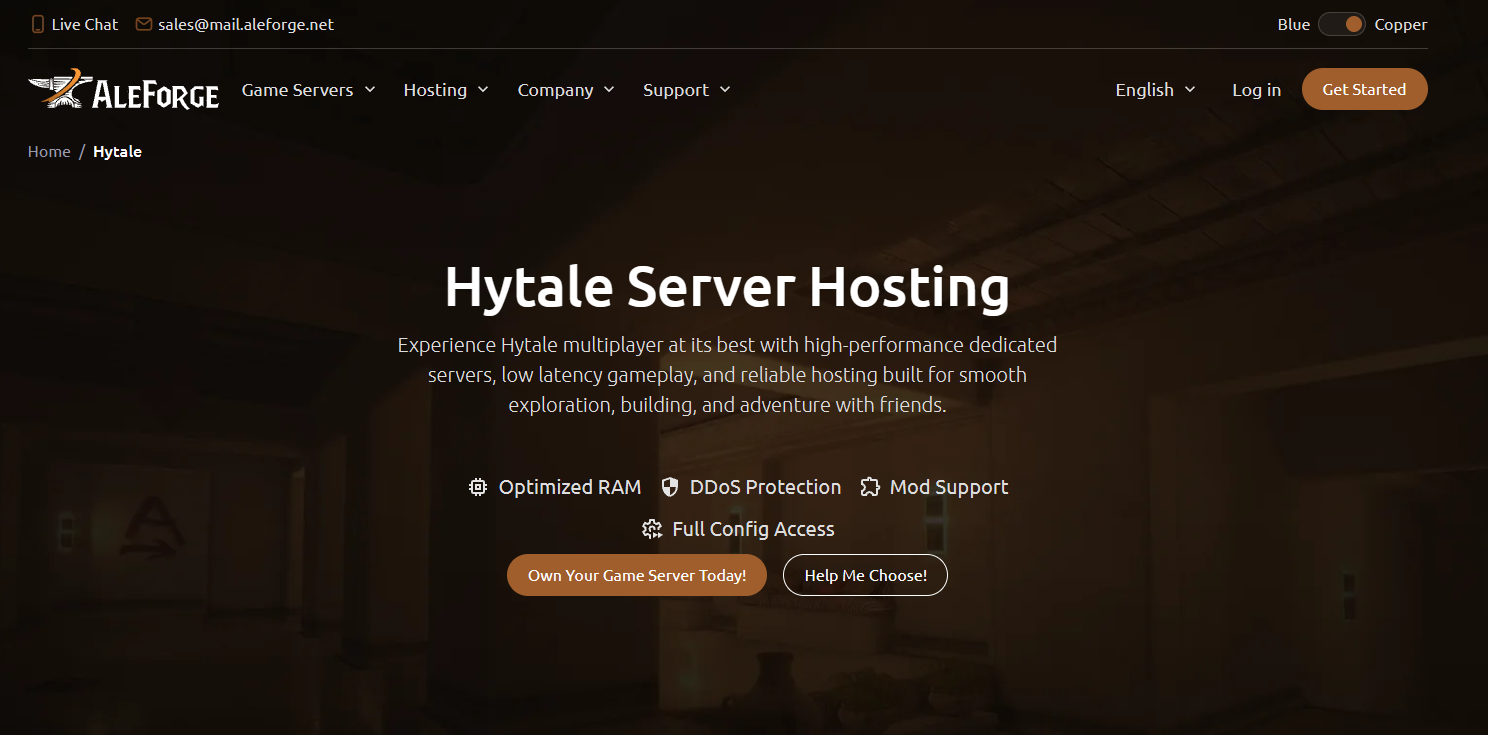
Why use AleForge for Hytale:
- Always online. Your world stays up when you log off, so friends can join whenever they like.
- No port forwarding. You get a server address to share, and your home IP stays private.
- A simple control panel. Blacksmith’s Portal gives you a live console, file manager, config editor, task scheduler and activity logs in one place.
- Backups. Run one-click backups, schedule them, and rely on nightly disaster-recovery backups. This matters in Early Access, where updates arrive often.
- DDoS protection included. Servers are protected by Cloudflare Spectrum at no extra cost.
- Real resources. AleForge says it doesn’t oversell its machines, so the memory and CPU you pay for are yours.
- Easy sharing. Give friends sub-user access so they can help manage the server without your password.
- Flexibility. Game Swap lets you switch your server to another supported game while keeping your saved data.
- 24/7 support through tickets, live chat and Discord.
- Global locations. Choose a data center close to your group to keep ping low.
How to Set Up Your AleForge Hytale Server
- Order your server. Open the AleForge Hytale page, choose a plan and pick a location close to your friends.
- Log in to the panel. Once your order is processed, sign in to the AleForge Panel and select your Hytale server.
- Start the server. Open the Console page and click Start.
- Sign in if prompted. Hytale servers authenticate with a Hytale account. If the Console shows a login link or code, follow it and approve the sign-in.
- Make yourself an operator. In the Console, run
/op add YourName(use your own in-game name) to give yourself admin permissions. - Share the server address. Copy the address shown in the panel and send it to your friends.
- Join in Hytale. Your friends go to Multiplayer, click Add server, paste the address and connect.
Tip: Don’t enable the “Allow operators” startup option just to make yourself an admin. It can let anyone give themselves operator permissions.
Tips for a Smooth Hytale Server
- Plan your memory. Hypixel Studios hasn’t published official server requirements, so figures vary. Many guides suggest around 4 GB as a minimum for a few friends and 8 to 16 GB for bigger groups. Active player count and view distance matter most.
- Back up before every update. Early Access patches land frequently. Take a backup before updating the server or adding mods.
- Keep everyone on the same version. If friends can’t connect after an update, make sure the game and the server are on matching versions.
- Share admin duties. Give trusted friends sub-user access and operator permissions so you’re not the only one who can fix things.
- Choose a close location. The nearer the data center, the smoother the game feels.
Troubleshooting
- Friends can’t connect: Double-check that they’re using the correct address and port, and that the server is running. If you’re self-hosting, confirm you forwarded UDP, not TCP (see our PC hosting guide).
- Login or authentication errors: Restart the server and approve the sign-in again with your Hytale account.
- Version mismatch: After a Hytale update, update your server and ask friends to update their game.
- Mods causing crashes: Remove the most recently added mods, restart, and restore a backup if needed.
- Lag or rubber-banding: Reduce view distance, check your server’s memory, and pick a closer location.
Frequently Asked Questions
Can I host a Hytale server for free?
You can run a dedicated server on your own PC if you have a valid Hytale account, Java 25 or newer and a forwarded UDP port. Your computer has to stay on, so many groups prefer a hosted server. Our step-by-step PC hosting guide shows how.
What port does Hytale use?
Hytale uses UDP port 5520 by default. Opening TCP instead of UDP is the most common cause of connection problems.
Do I need to own Hytale to host a server?
Yes. The server signs in with a valid Hytale account.
How many players can join?
It depends on your server’s resources and view distance, rather than a fixed limit. Pick a plan with enough memory for your group.
Can I use mods?
Yes. Upload mod files to the mods folder using the File Manager or SFTP and restart the server. Check compatibility with each Early Access update.
Can I move my world to AleForge?
The Server Importer helps you move existing servers to AleForge. You can also upload world files with the File Manager or SFTP.
What if I need help?
AleForge support is available 24/7 through tickets, live chat and the community Discord.
Start Your Hytale Adventure
Hytale is better with friends, and a server that’s always online makes it easy to build, explore and adventure together. Skip the port forwarding and the tinkering, and get your own world running with AleForge.
 AleForge

.png)

