This guide covers how AleForge game server backups work in Blacksmith’s Portal: what gets saved, where it is stored, how slots work, and how downloads and restores behave after the Summer 2026 updates.
See also the Summer 2026 panel overview and how to set up an automated backup.
Where backups live: remote and geo-replicated
Every AleForge game server backup is fully remote. It is not left sitting only on the same machine that runs your live world. The game node stores archives separately from the main system so any problems with nodes or disk failures or incorrect local deletions will not cause your restore points to disappear.
The remote backup system operates under a geo-replication system which duplicates its data across multiple locations. The system copies data to different storage facilities which exist at different locations to prevent single-site downtime from affecting recovery data availability. When you restore in the panel, you pull from that remote, replicated storage back onto the server.
Live files stay on the node. Restore points exist in remote locations which also perform geographic duplication of their data.
Deduplication: only new and changed data
The backup systems which operated in the past would duplicate entire server content during each backup process. The process consumes network resources while it creates backup problems for extensive game environments which exceed 25 GB in size.
AleForge uses deduplication:
- Server data is split into chunks
- Each chunk is backed up to remote storage
- The system will automatically retry the upload process when a chunk upload fails
- After the first full backup, later backups upload only new or changed chunks
The system enables quick backup operations for both daily and system data because it checks that most of the world remains unchanged. The next execution of a 5 GB world will generate only a few hundred MB because the system already stored all remaining chunks in the remote storage.
| Approach | Day 1 | Day 2 (small changes) | Total transferred |
|---|---|---|---|
| Full re-upload every time | ~5 GB | ~5 GB | ~10 GB |
| Deduplicated chunks | ~5 GB | ~300 MB (example) | ~5.3 GB |
The system generates a complete restore point every time you create one. The data storage and transfer operations evolve because of deduplication but you maintain your ability to retrieve complete server copies.
How AleForge backups are organized
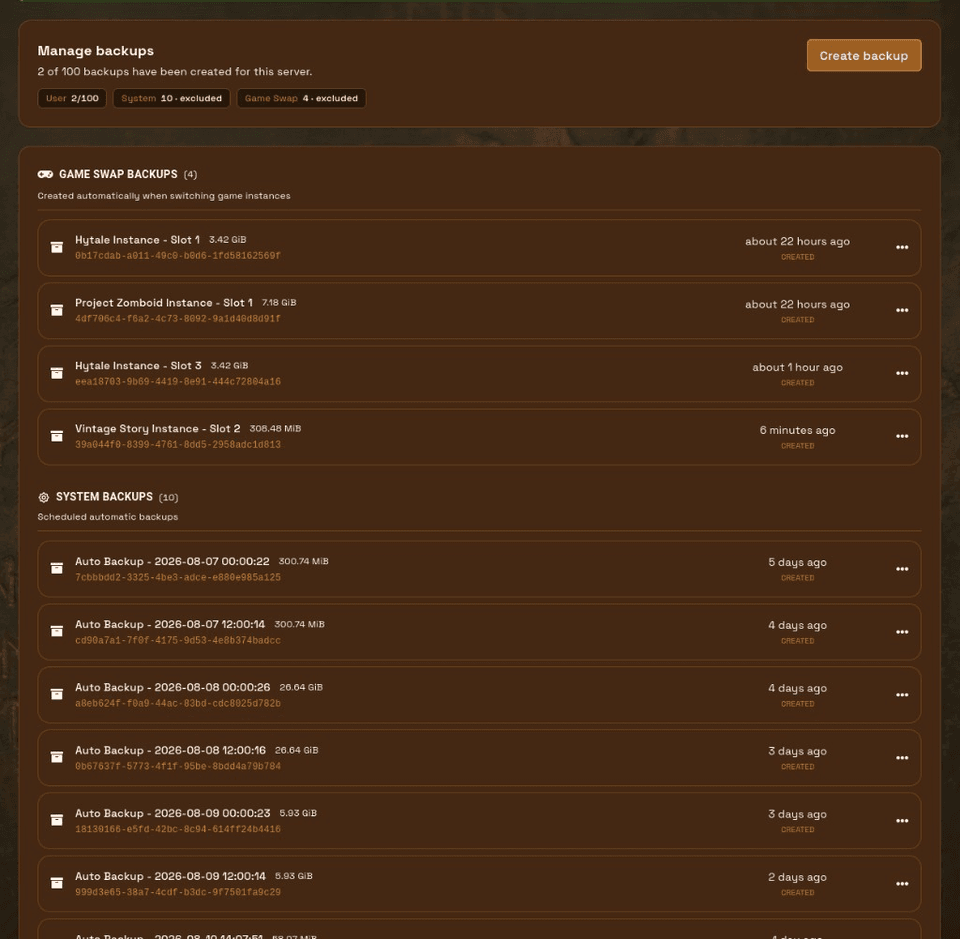
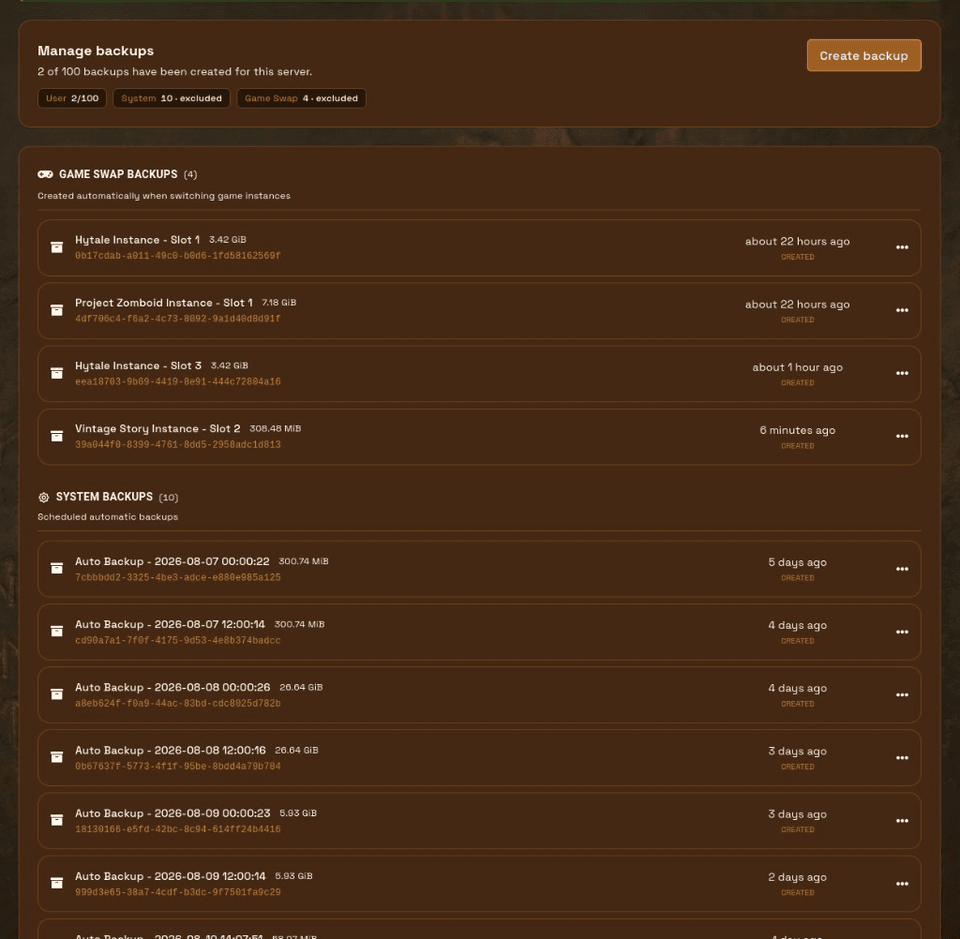
The Backups page splits archives into clearer sections:
- User: backups you create (manual or from your schedules). These count against your backup slot / quota.
- System: AleForge disaster-recovery / automatic backups. These do not count toward your user quota.
- Game Swap: snapshots created when switching game instances. Also excluded from the user quota.
Contrast and progress indicators were cleaned up so status is easier to read at a glance.
What a backup actually captures
A panel backup archives your server files as they exist on the node: worlds, configs, mods/plugins, and the rest of the instance filesystem that makes that server bootable. The restore process enables you to recover Minecraft packs and Palworld wipes and Project Zomboid multiplayer worlds as whole units instead of manually combining individual folders.
System backups (automatic DR)
AleForge runs system backups about every 12 hours and retains roughly the last 5 days of those snapshots (shown on the Backups page as System). They exist so a bad edit, bad login, or bad day does not mean the world is gone.
Important details:
- Stored fully remote and geo-replicated like all other AleForge backups
- Not counted against your user backup slots
- Protected from casual deletion in the Summer 2026 update, so automatic backups are harder to wipe by accident or by a compromised session
- The system functions as a backup recovery solution which users should not select as their main experimental data restoration method
- Deduplicated after the first snapshot so recurring 12-hour runs stay efficient
You can create a schedule to handle specific backup needs between hourly intervals before major events and during wipe weeks when you need to run backups every few hours.
User backups (manual and scheduled)
Create a manual backup
- Open the server in the control panel
- Go to Backups
- Create a backup and wait until it shows completed before you wipe, swap packs, or restore something else
Manual user backups function as named restore points which users can create before they install Depot or perform PZ mod batch updates or Palworld rate changes.
Schedule automatic user backups
For backups on your own cadence:
- Open Schedules
- Use the Automatic Backups template, or create a schedule and add a Create backup task
- Set the cron (UTC) for how often you want archives
Full steps: How do I set up an automated backup of my server?.
User-scheduled backups consume backup slots. Plans include a default number of slots; addons like Legendary Loadout can add more. The system deletes old user backups which become unnecessary when all available storage slots reach capacity. Leave system backups alone.
Game Swap backups
Game Swap creates a separate backup system which lets you return to previous game instances without using up any user slots. Game Swap archives function as server snapshots which show the exact state of your server when you exited the game but you must choose the correct row before restoring because you might have switched between different games multiple times.
Downloads: non-blocking with live progress
Websites now start download processes which eliminate the need for users to watch at frozen screens. The system runs downloads in the background while showing active progress and users can track their progress even after they move to different pages. Users should maintain their work after starting Backups because the complete backup process will progress in the background.
Download tokens last up to 6 hours, which matters for big Minecraft worlds and modded packs that take a while to transfer.
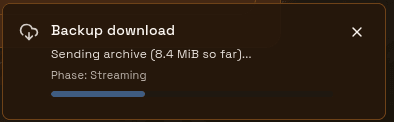
The system now reports backup preparation failures through specific failure codes which stop the process from entering an infinite wait state. The system provides users with two options to resolve conflicts through retry attempts or support team contact for assistance.
Restores: live progress and conflict handling
The system displays ongoing progress information during restore operations which users can see through the conflict screen when they need to solve overlapping data issues. The websocket connection stays up during restores so updates keep flowing instead of going silent mid-job. The page remains accessible after you leave it because the node continues to perform restoration operations.
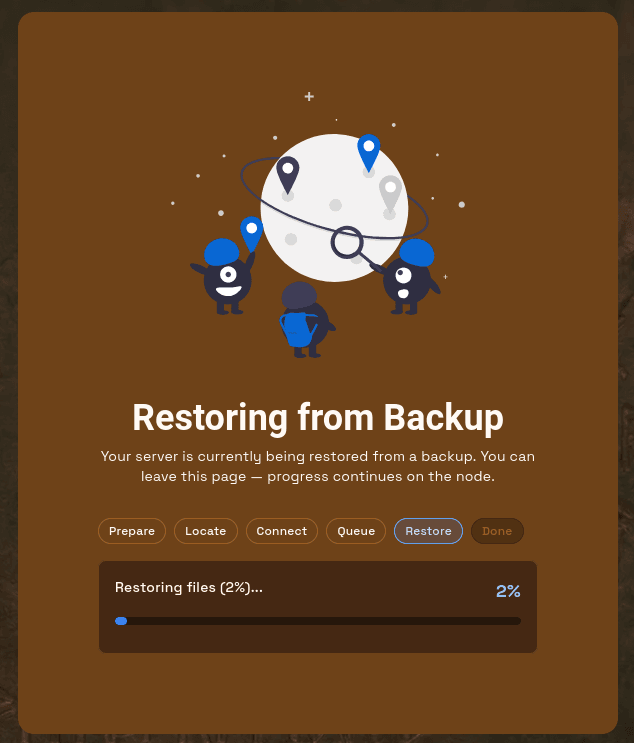
Typical restore flow:
- Stop the server if you are about to replace files in place
- Open Backups and choose User, System, or Game Swap
- Restore the archive you want
- When prompted, decide whether to delete existing files before restore. A clean restore provides better security when you need to replace a broken pack.
- Wait for completion, then start and verify the world loads
The system now allows users to perform 20 restoration operations every 15 minutes to prevent security restrictions from blocking their authorized recovery operations.
Housekeeping and protection
- Soft-deleted backup IDs are pruned from the database after 6 months
- AutoBackup reliability improved in Summer 2026
- Game Swap validation issues that could confuse backup flows were fixed
- Prefer deleting old user experiments over touching system DR snapshots
Practical backup strategy
| Situation | What to use |
|---|---|
| Daily safety net | Rely on System (about every 12 hours, ~5 days retained) |
| Before modpack / PZ mods / config experiments | Manual User backup, wait for completed |
| Recurring nightly backups | Schedule → Create backup (user slots) |
| Switching games | Game Swap archive |
| Moving a world off-platform | Download the archive (6-hour token, background progress) |
Checklist before risky changes
- Create a user backup and confirm it completed
- Note which system backup is newest (timestamp)
- Make the change (Depot install, PZ mod batch, Palworld settings, wipe)
- Test a join or load
- If it fails, restore the user backup (or nearest system snapshot) rather than stacking more fixes on top
See also the Summer 2026 panel overview, CurseForge / Depot, and our help documentation.

 AleForge