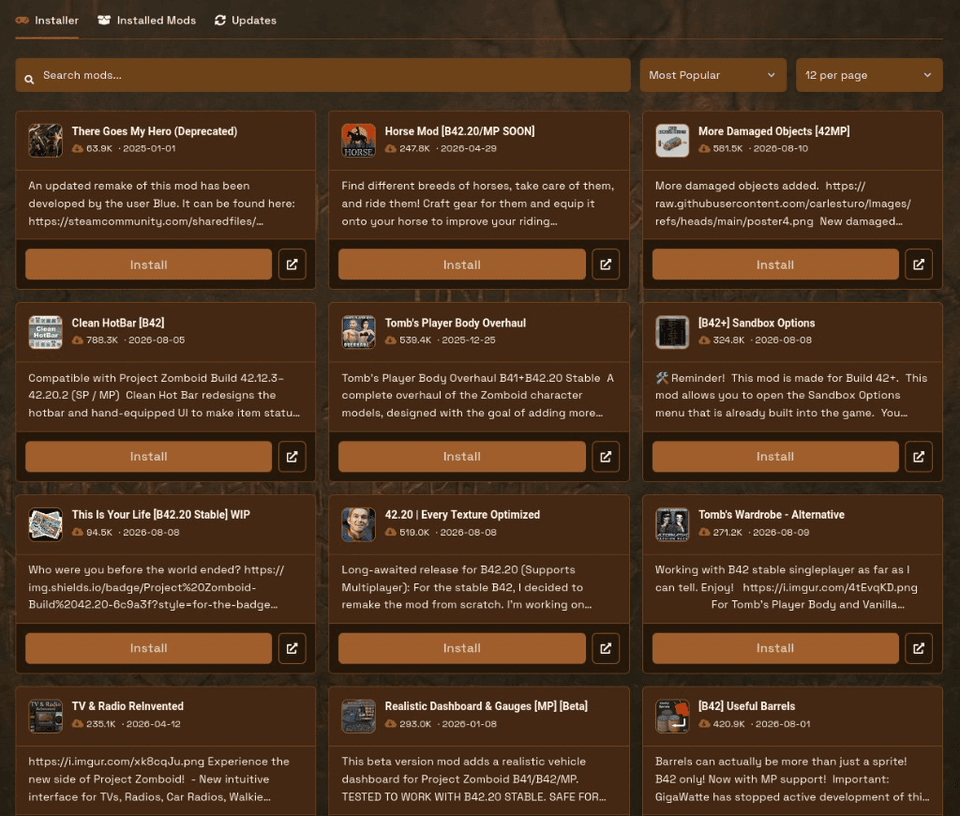
The process of installing Project Zomboid mods on a dedicated server required players to find Steam Workshop IDs and place folders into specific locations before they could hope their game would detect the new content after a reboot. The Summer 2026 Blacksmith’s Portal update introduces a specific PZ Mods section which enables players to find and manage their multiplayer mods without needing to use FTP.
This walkthrough is part of the Summer 2026 panel overview. You can find hosting information at Project Zomboid server hosting.
Why Project Zomboid server mods are painful without a panel tool
Players need to install mods manually on dedicated servers because these servers do not support automatic subscription-based gameplay. The server and all connected clients need to display identical Workshop content for proper synchronization. The traditional process involved:
- Find each mod on the Steam Workshop
- Copy Workshop IDs and Mod IDs into server configs
- Download or sync Workshop content onto the host
- Restart and hope joins succeed
- Repeat when one mod updates and everyone else is still on the old build
Single or dual mod collections function well with this system. The system breaks down when players create an endless list of mods which they want to use in their multiplayer world. The PZ Mods page manages Project Zomboid mods through the same system which handles regular server content instead of operating as a separate file management system.
How to install Project Zomboid mods
The PZ Mods section becomes available to all Project Zomboid servers which operate in multiplayer mode. The interface presents three distinct tabs which include:
- The Installer tab enables users to find and download Project Zomboid mods.
- The Installed Mods tab shows all server content and provides an option to remove these mods.
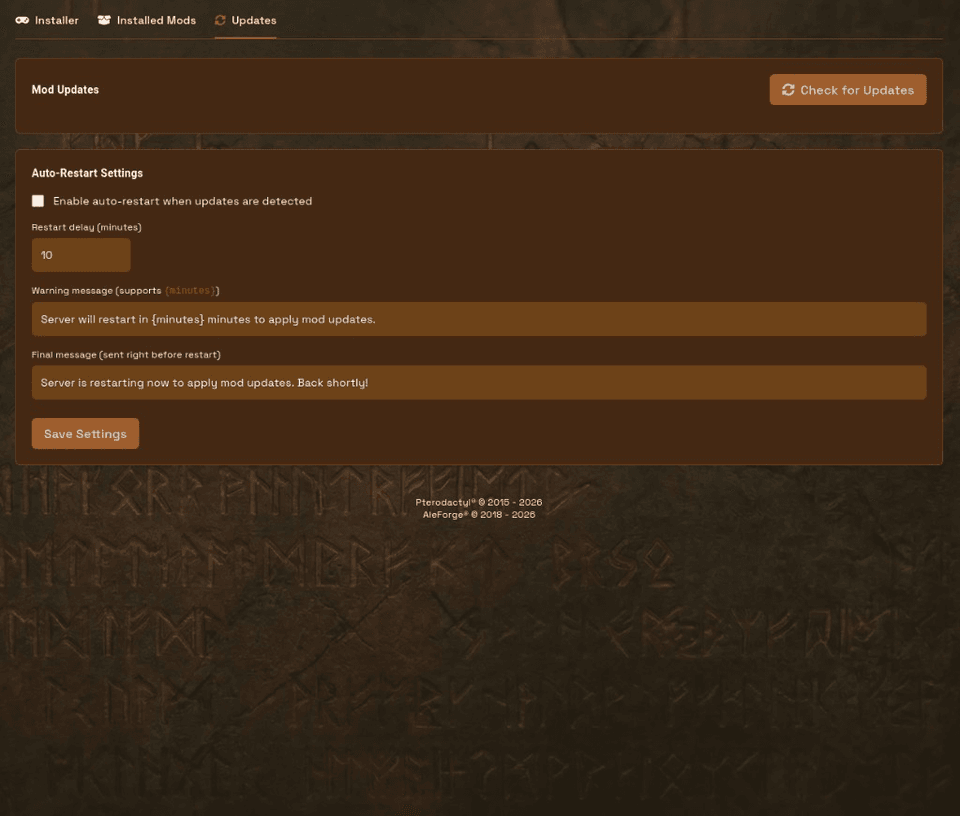
- The Updates tab enables users to find software updates while they can select auto-restart after updates become available.
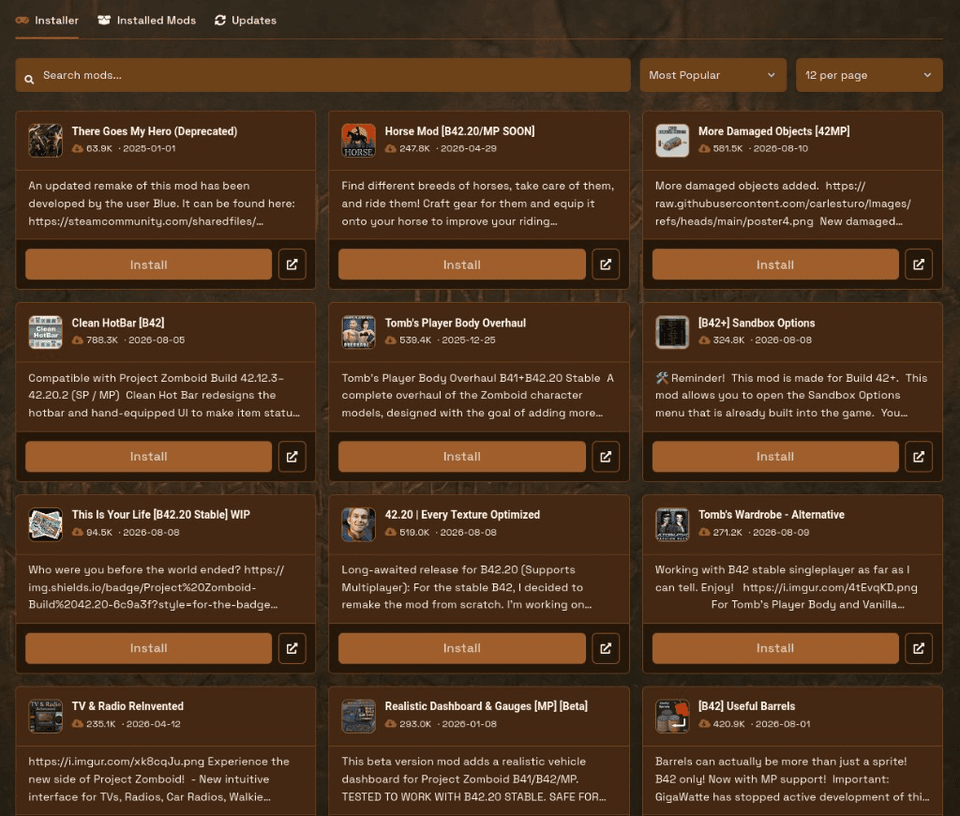
Install from the Installer tab
- Open your server in the control panel and go to PZ Mods.
- Use Installer to search for the mods you want.
- Click Install on each mod.
- Restart when prompted (or use auto-restart on the Updates tab) so the dedicated server loads the new Workshop content.
- Players must subscribe to identical mods which include the same version numbers before they can start playing.
You can install Project Zomboid mods on an AleForge server through this method which avoids manual copying of Workshop folders during regular operations.
Client sync checklist (multiplayer)
Before you tell the group mods are live:
- The server displays all installed mods through its Installed Mods section.
- Players subscribe to the same Workshop items
- The game requires players to restart their game after they subscribe to mods because outdated Workshop caches trigger most cases of missing mods.
- Test with one admin join before inviting the full group
- If someone fails to join, compare their subscribed list to the Installed Mods cards (Workshop ID and ModID)
Manage installed Project Zomboid mods
The server maintains its content list through Installed Mods after users install the software. The platform displays each card with Workshop ID and ModID information together with installation dates and provides a single-click Uninstall option for removal needs. The feature becomes essential for multiplayer worlds which last a long time because it stops players from entering the game when a defective mod causes joining problems.
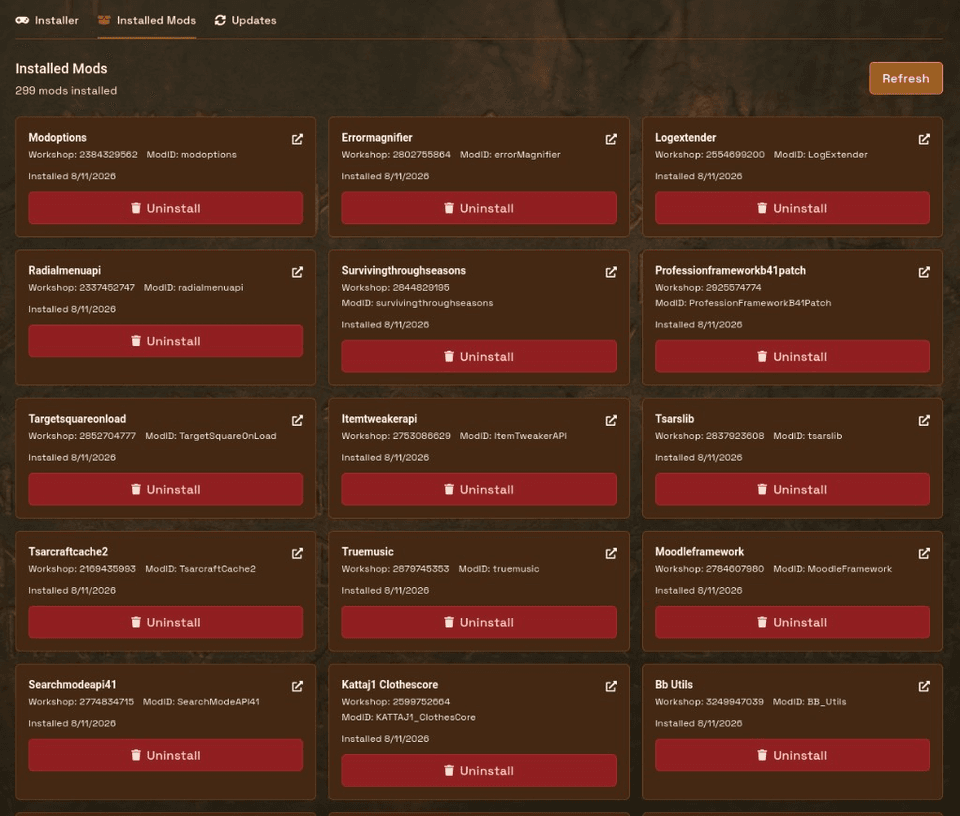
Users should start by removing the latest software addition when systems start showing problems. The process of changing mods in batches becomes more efficient than deleting an entire 40-mod list after a failed wipe.
Keep Project Zomboid server mods updated
The Updates tab lets you Check for Updates and optionally enable auto-restart when updates are detected. Set a restart delay and the warning and final messages players see (including {minutes} in the warning text) so Workshop changes apply without you watching the console the whole time.
When to use auto-restart
- You should activate this function during silent periods which small teams of friends expect to receive Workshop updates during overnight hours.
- You should turn this function off (or use a longer delay) for public servers which need to stay running during loot runs because an unexpected reboot will probably result in player complaints.
- Always take a panel backup before updating several mods at once. Workshop updates can change map tiles, items, or save compatibility.
Troubleshooting common Project Zomboid mod issues
Mods not showing for players
The issue most likely stems from client-side Workshop synchronization problems instead of missing server installations. Users should confirm the mod exists in Installed Mods before they should unsubscribe and resubscribe to the mod while confirming their game files remain intact. The system needs to verify that users access the pack list through its latest version instead of accessing it through their outdated local storage.
Mods not working in multiplayer
Most often, server and clients are on different versions of the same Workshop item. Users should update the server through the Updates tab before they need to refresh their subscriptions and then reconnect to the system.
One bad mod breaks joins
You need to remove the most recent mod from Installed Mods before restarting your system to perform join tests. Users who installed a batch need to restore their system to the backup state before changes and then add mods back into the system through individual group additions.
After a Game Swap or wipe
Users need to verify their Installed Mods after they perform game instance swaps or world restoration processes. The game will not allow players to enter the world when it requires mods which are absent from the system or when it requires mods that do not exist in the system anymore.
Tips for Project Zomboid mods on a dedicated server
- Backup first. You need to safeguard your panel before you start working with big mod collections or perform multiple mod updates at once.
- Match clients. For Project Zomboid mods in multiplayer, use the same mods and usually the same versions on every client.
- Prefer small batches. It is easier to isolate a broken Workshop item.
- Document your list. Screenshot Installed Mods or keep Workshop IDs somewhere players can copy.
- Plan restarts. Workshop applies on restart, so schedule them when your group can spare the downtime.
Related panel tools
Minecraft players can use Depot / CurseForge server hosting for modpacks, mods, plugins, and more. The configuration process receives assistance through theme tools which consist of the command palette and the pop-out console. See theme updates and Palworld server settings.
For Project Zomboid server hosting with a built-in mod manager, see our Project Zomboid plans or the help docs.

 AleForge