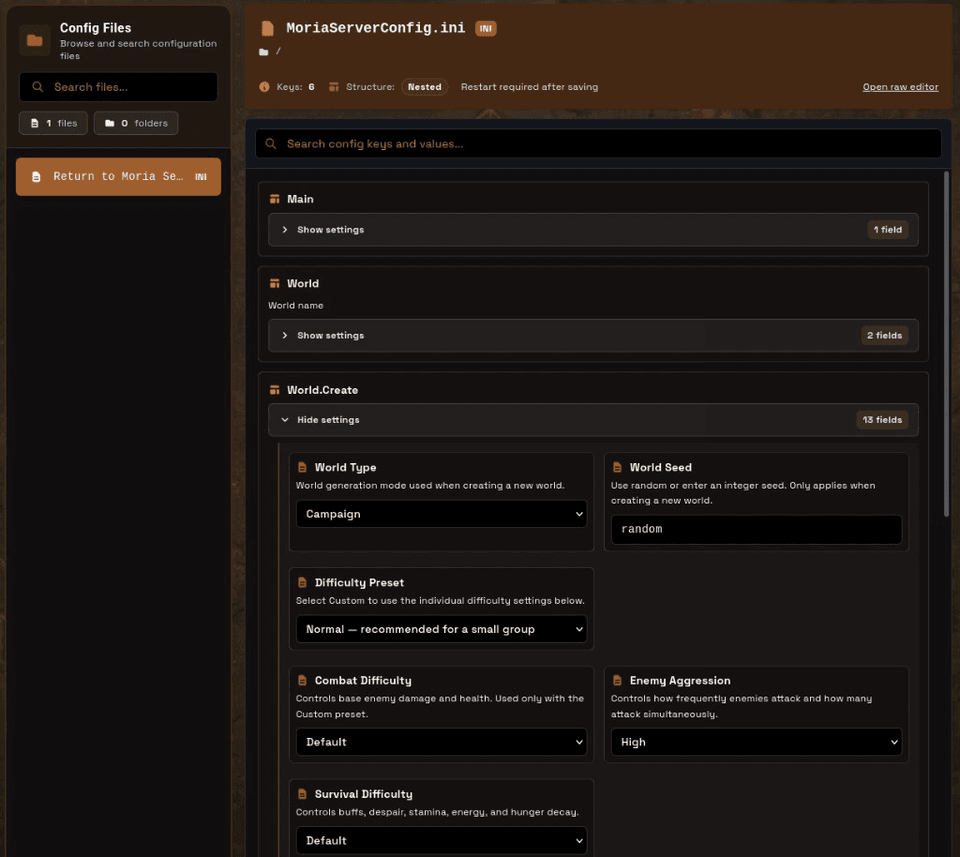
The process of examining raw Palworld configuration files becomes problematic when a single typing error causes the system to wipe all data and prevents friends from accessing the game. The upcoming Summer 2026 panel update brings an egg-scoped configuration editor which enables users to modify Palworld server settings through an improved interface that displays named fields together with appropriate control elements before finalizing any changes.
The Palworld server panel allows you to access Config Files when your Palworld egg shows the enabled status. The Summer 2026 panel overview includes this information as part of its content. Hosting plans: Palworld server hosting.
How to change Palworld server settings
- Open your Palworld server in the control panel.
- Go to Config Files.
- Pick the Palworld settings source exposed by the egg.
- Users can modify rates and toggles and limits through labeled dropdown menus instead of searching for unprocessed keys.
- Use search to jump to a setting quickly; collapse sections you do not need.
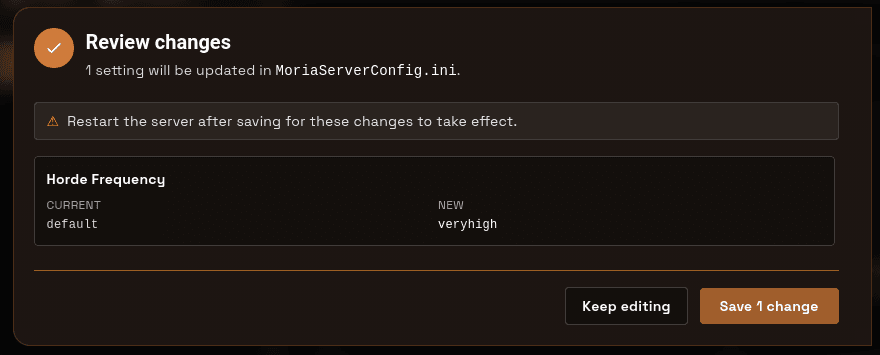
- Save, then Review changes (current vs new), then confirm.
- Restart if the panel shows Restart required after saving.
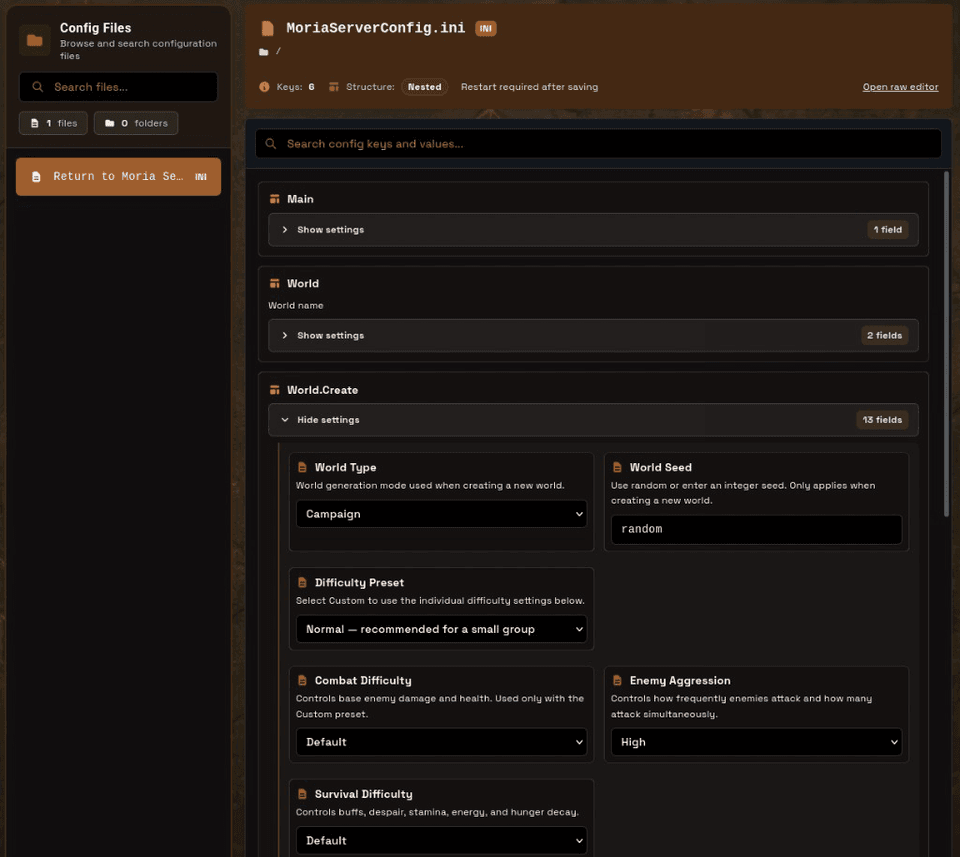
The raw editor remains accessible for users who require full access to the entire document. The servers present vital startup choices which users need to access through their systems. Users can edit their configuration files through Config Files but need to monitor WorldOption.sav when they upload custom world options (see further explanation below). For the full setting catalog, see How do I change Palworld server settings?.
Palworld server settings that matter most
Users can wait to adjust all their sliders during their first session. The way servers will experience wipes depends on how players from friend groups and different communities will react to the changes:
Difficulty and combat
- Difficulty: overall tone of the world
- Player / Pal damage rates (attack and defense): softens or hardens fights without rewriting the whole progression curve
- Experience rate: how fast players and Pals level
Economy of time
- Day / night speed rates: shorter nights for casual groups; longer days for builders
- Work speed rate: how fast base Pals produce
- Pal egg hatching time: casual servers often lower this; hardcore keeps it long
- Collection drop / respawn rates: gathering pace for wood, ore, and nodes
Base and guild limits
- Base camp max num and worker max num: the classic “30 bases × 300 pals” performance trap
- Guild player max num: size of a single guild
- Auto disband guild options: keeps abandoned guilds from forever locking map space
Death and hardcore
- Death penalty: what drops on death
- bHardcore / bPalLost: permadeath-style rules (often tied to WorldOption.sav behavior)
- Respawn / penalty timers: how punishing rapid deaths feel
Multiplayer quality of life
- Fast travel toggles
- Show join/left messages
- Allow client mod: whether modded clients can join
- Server password / admin flows (usually Startup): keep these consistent after world uploads
What counts as good Palworld server settings depends on your group. A 4-friend co-op build server needs players to speed up their egg development and work production. A public PvP wipe needs players to build more secure bases while they should understand death mechanics better and experience controlled advancement. Change a few related settings together, restart, play a session, then iterate.
Review changes before they land
The saving process leads to a Review changes phase which displays all the Palworld server settings that will change together with their present and updated values and requires system reboot when needed. The system continues its editing process until users verify all unintentional difficulty and rate adjustments have been properly identified.
The validation system only verifies fields which users actively modified while it ignores all other values. The system keeps empty groups hidden to minimize visual clutter.
WorldOption.sav and settings not applying
Users can replace their panel and Startup values by uploading a WorldOption.sav file which they created. The WorldOption file which exists under the save path becomes the dominant file that controls save data until users replace it with a new file.
The world upload process stops all current settings and the administrative password from working properly.
- Read Palworld settings not applying (WorldOption.sav)
- Decide whether you want panel-driven settings or a hand-authored WorldOption file. Mixing both without a plan causes “I changed it but nothing happened.”
- Restart after every intentional settings change
- Keep a backup before swapping world options
Beyond Palworld: formats the editor supports
The same egg-scoped editor rolls out per game as it is enabled. The supported styles include:
- Palworld settings
- INI (for example Return to Moria)
- JSON
- Line-based configs (
key=value/ properties-style) - Sandbox Lua
- Project Zomboid configs
- Additional formats as more eggs enable the editor
Practical tips for Palworld server config
- Backup first. Take a panel backup before big difficulty, spawn, or base-limit changes.
- Change a few settings at a time so it is easier to tell what broke a wipe or guild limit.
- Restart after save when the notice says so. Many Palworld server settings only apply on boot.
- Cap bases and workers early. Unlimited camps are a common cause of lag on populated servers.
- Use the file manager when you need full-file control, and Config Files for guided settings. See theme tools for pop-out console and Code Editor Mode.
Related Summer 2026 tools
- CurseForge server hosting / Depot for Minecraft modpacks
- Project Zomboid mods for Workshop installs
- Summer 2026 overview for the full release
For Palworld hosting, see Palworld plans or the help docs.

 AleForge