

Getting started with your Minecraft server
Minecraft has numerous plugins and mods that let you configure your server to run and play in all sorts of exciting and interesting ways. Run on the AleForge Panel, you get an easy and powerful way to manage all of it. Here’s how we recommend getting started.
Configuring Your Server
Section titled “Configuring Your Server”-
Set your Minecraft version and server software (Spigot, Paper, Forge, Vanilla, etc.) in Versions. If you just want to play regular Minecraft, you can skip this step and stick with the default.
-
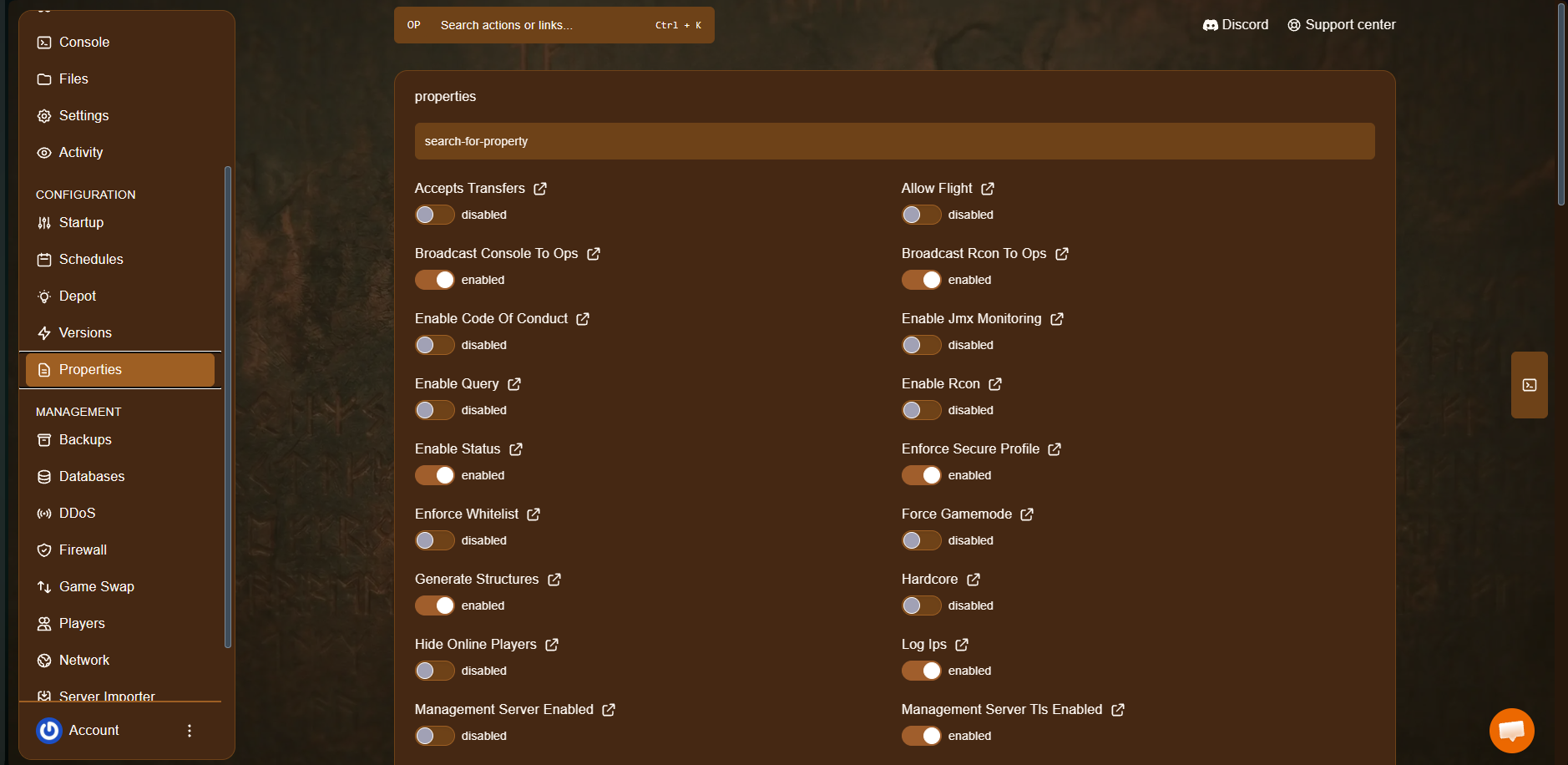
Configure your server settings in Properties. This is where you can set things like the MOTD, world name, seed, and other core server settings.
-
Set up regular backups, so your world is protected even if something goes wrong.
-
(Optional) Enable a whitelist for your server, if you only want approved players to be able to join.
-
Install any plugins or mods you want to run. If you’re looking to play a modpack instead, you can install any public modpack hosted on CurseForge or Modrinth directly from the Depot section of the panel, no manual downloading required.
-
If you’re expecting a lot of players online at the same time, consider pre-generating your world ahead of time to improve performance, since generating new terrain on the fly is one of the more demanding things a server does.
-
Once everything’s configured, go to the Console page and click Start.
-
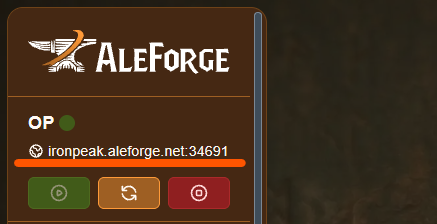
Copy the IP address shown on the Console page, and connect to it from in-game.
That’s it, your server is up and running. From here, you can always come back and adjust your properties, install more plugins, or fine-tune anything else as your server grows.