

How to Change Windrose Dedicated Server Settings
Looking to customize your server a bit more? Change the server name, invite code, password, player cap, and connection options on Startup in the AleForge Panel.
World difficulty (easy / medium / hard, mob health, and similar) is not on Startup. That lives in WorldDescription.json inside the world folder.
Change Settings on Startup
Section titled “Change Settings on Startup”- Open the AleForge Panel
- Select your Windrose server and stop it
- Open
Startup - Edit the field you need
- Start the server from
Console
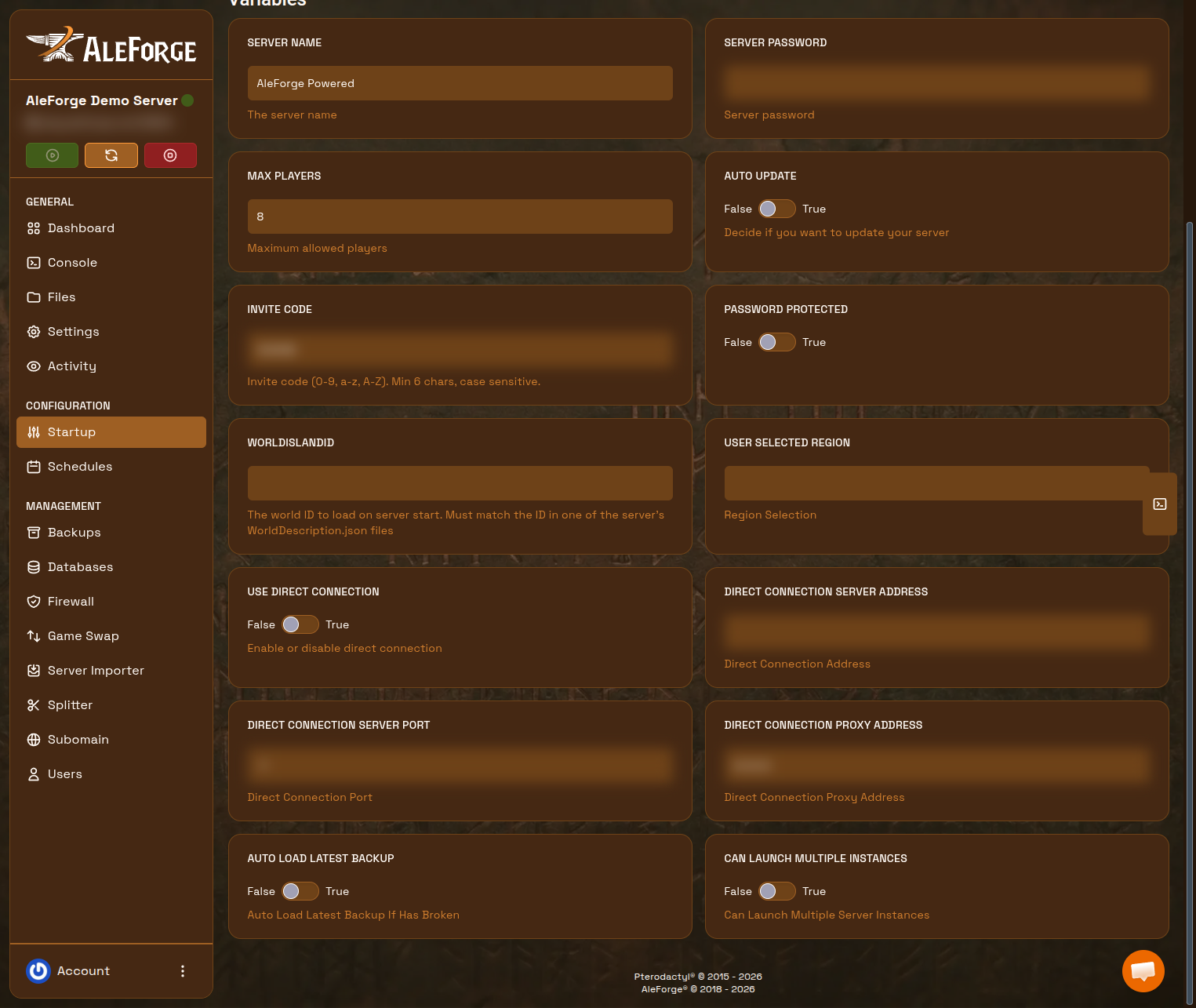
| Startup field | What it does |
|---|---|
| Server Name | Label so groups can tell similar codes apart |
| Server Password | Extra join password on top of the invite code |
| Max Players | Simultaneous players. Early Access plays best around four |
| Auto Update | Pull the latest dedicated server files on boot |
| Invite Code | Code players type to join. Min 6 characters, 0-9 a-z A-Z, case-sensitive |
| Password Protected | Turn on when you set a server password |
| WorldIslandId | Hex folder name of the world to load. Must match the folder under Worlds |
| User Selected Region | Connection-service region: EU (EU and NA), SEA, or CIS. Empty = automatic |
| Use Direct Connection | True = join by IP and port. False = invite code (default) |
| Direct Connection Server Address | Address used when direct connection is on |
| Direct Connection Server Port | Game port when direct connection is on (default 7777, TCP and UDP) |
| Direct Connection Proxy Address | Proxy address for direct connection, if you use one |
| Auto Load Latest Backup | Restore a broken save from Windrose’s own backups on boot |
| Can Launch Multiple Instances | Leave False unless you know you need more than one process |
Invite codes and direct IP: How to Connect to Your Windrose Server.
World Settings (WorldDescription.json)
Section titled “World Settings (WorldDescription.json)”Each world lives under a versioned RocksDB folder, for example:
R5/Saved/SaveProfiles/Default/RocksDB_v2/<game_version>/Worlds/<WorldIslandId>/WorldDescription.json
Older installs may use RocksDB instead of RocksDB_v2. Open the folder that actually contains your world.
WorldPresetType is Easy, Medium, or Hard. Values outside those presets become Custom on the next launch.
Useful WorldSettings tags (official dedicated server guide):
| Setting | Role |
|---|---|
Coop.SharedQuests |
Completing a co-op quest completes it for everyone who has it active |
EasyExplore |
In-game this is immersive exploration (harder POI finding) |
MobHealthMultiplier / MobDamageMultiplier |
Enemy health and damage |
ShipsHealthMultiplier / ShipsDamageMultiplier |
Enemy ship health and damage |
BoardingDifficultyMultiplier |
Sailors to defeat in boarding |
Coop.StatsCorrectionModifier |
Scales enemy stats with player count |
CombatDifficulty |
Boss and general aggression: Easy / Normal / Hard |
Stop the server, edit the file, save, then start. Official Windows self-host also documents R5WorldDescriptionUpdater.exe after world-file edits. On AleForge, saving the JSON while the server is stopped is the usual path. If a preset change does not stick, contact support with the world folder name.
Gameplay rate mods (XP, loot, crafting) are not in these files. They come from Windrose+ multipliers when that framework is installed.
Confirm the Change
Section titled “Confirm the Change”- Wait until
Consoleshows the server online - Rejoin with the invite code
- Check name, password, player cap, or world difficulty in-game
Troubleshooting
Section titled “Troubleshooting”- No change: The server was probably still running, or you skipped a restart
- Wrong world: WorldIslandId on
Startupmust match the world folder name exactly. Do not rename world folders
Frequently Asked Questions
Section titled “Frequently Asked Questions”Why didn’t my Windrose setting apply?
Section titled “Why didn’t my Windrose setting apply?”Stop the server, change the field on Startup, then start again. Settings load when the process starts.
Where is the full list of Windrose dedicated server settings?
Section titled “Where is the full list of Windrose dedicated server settings?”Name, invite code, password, player cap, and connection options: Startup. Per-world difficulty: WorldDescription.json in the world folder.