

How do I configure my Project Zomboid server?
Open the Startup page of the AleForge Panel. This page contains several important server variables. If you change any of these values, your server must be restarted to pick up the changed values.
SERVER NAME
Section titled “SERVER NAME”The server name is essential as this is the local path and name of the save file and configs that will load on your server. If you are migrating a world to AleForge hosting, you must make sure this matches your saved data name. If you have any questions about this, reach out to our support.
Admin Username and Password
Section titled “Admin Username and Password”Set your username and password to set yourself as Admin on your Project Zomboid server. You can follow this guide for the complete steps to set up your Admin account.
Steam Beta Branch
Section titled “Steam Beta Branch”Leave this blank to use the latest stable release (currently Build 42). Use a branch name when you need a specific Steam build — for example legacy41 to stay on Build 41, or older legacy branches such as classic Build 40. After changing this value, open the Settings page and run Reinstall Server so Steam installs the selected branch. Players must use the matching Steam game version. See How to stay on Project Zomboid Build 41 (legacy41).
Steam Auto Update
Section titled “Steam Auto Update”This enables or disables auto-update when the server starts up. Set this to 0 to disable auto updates.
Advanced Configuration for Project Zomboid
Section titled “Advanced Configuration for Project Zomboid”There are four main configuration files for Project Zomboid, and they are all located at:
/home/container/.cache/Server
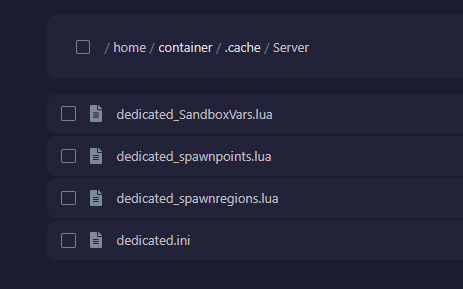
Your files may have different names depending on what you set the Server Name to in the basic configuration section. If these files are missing, start the server one time to create the files and then stop the server before editing.
dedicated.ini: Config for controlling things such as Public Server Name and moreSandboxVars.lua: This file is used to control game state items such as the number of zombies, perk points, etc…spawnpoints.lua: You can use this file to set up the locations players are allowed to spawn into the world. Check out our guide for custom spawn points.spawnregions.lua: This file dictates what regions exist in your world. If you have added custom maps, this file should be updated automatically