

How do I use the Server Importer?
The AleForge Panel features a Server Importer tool, which makes migrating from another host a breeze. Instead of manually downloading and re-uploading every file, you can connect directly to your old host and transfer everything over in one step. Here’s how to use it.
Different hosts set up games differently. When importing from another host, understand that some hosts support games in different ways, meaning there may be differences in how a mod or plugin gets automatically installed. If you run into any issues after importing your server, feel free to contact support and we will help you as soon as we are able to.
Wipe before you import. For best compatibility, it’s recommended that you wipe all existing files on your server before importing. The importer includes a Wipe server option that does this for you automatically, see Step 5 below.
Before You Start
Section titled “Before You Start”You’ll need your old host’s FTP or SFTP connection details. These are usually found in your old host’s panel, under a section like “File Access,” “FTP,” or “SFTP Details.” You’ll need:
- The protocol (FTP or SFTP)
- The hostname
- The port
- Your username and password (or an SSH key, if your old host uses key-based authentication)
-
Go to the AleForge Panel.
-
Open your server and go to Server Importer.
-
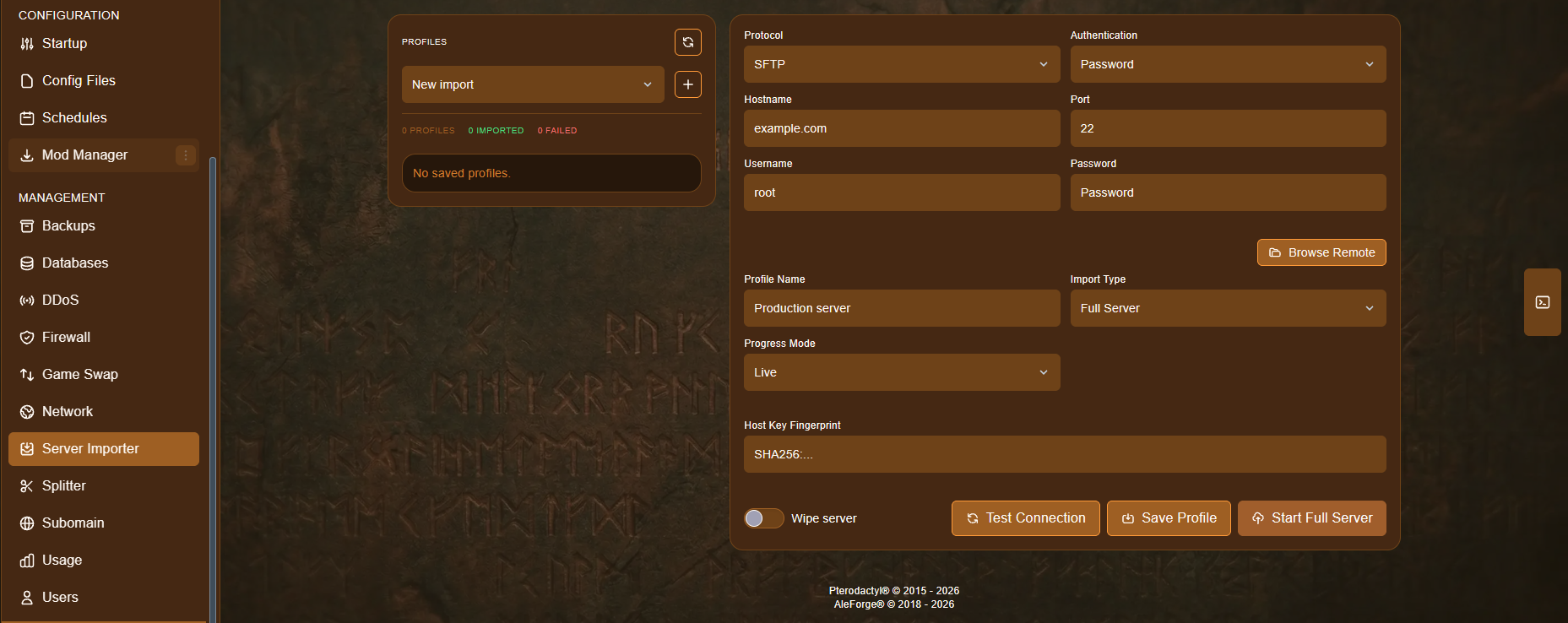
Fill in your old host’s connection details:
- Protocol — choose SFTP or FTP, matching what your old host provides. SFTP is more common and more secure.
- Hostname — your old server’s address, for example
example.comor an IP address. - Port — the connection port your old host gave you. This is usually
22for SFTP or21for FTP. - Authentication — choose Password or another method your old host supports, such as an SSH key.
- Username and Password — your login credentials for the old host.
-
(Optional) Click Browse Remote to confirm the connection works and look through your old server’s files before importing.
-
Set the remaining options:
- Profile Name — a name to remember this connection by, for example “Production server.” This lets you save the profile and reuse it later without re-entering everything.
- Import Type — choose Full Server to import everything, or a more specific option if you only want certain files.
- Progress Mode — choose Live to watch the import happen in real time.
- Host Key Fingerprint — for SFTP connections, this appears automatically once a connection is verified. You can usually leave this as-is.
- Wipe server — toggle this on to automatically clear your existing files before the import starts. This is recommended for the best compatibility, since leftover files from a previous setup can sometimes conflict with the imported ones.
-
Click Test Connection to make sure everything is entered correctly before you commit to the import.
-
Once the test succeeds, click Save Profile if you’d like to reuse these details later, then click Start Full Server to begin the import.
The import will run in the background, and with Progress Mode set to Live, you can watch its progress from the panel.
After Importing
Section titled “After Importing”Once the import finishes, start your server and check the console for any errors. If a mod, plugin, or config didn’t carry over correctly, usually because of differences in how your old host had things set up, contact support and we’ll help you sort it out.