

How do I install mods onto my Hytale server?
How to Install Mods on Your Hytale Server
Section titled “How to Install Mods on Your Hytale Server”On AleForge, the quickest way is the built-in Hytale Mods page, which lets you browse and install mods without leaving the panel. If you prefer to upload files yourself, or you’re self-hosting, the manual method is below.
Early Access note: Hytale is still in Early Access and updates arrive often. A mod that works today may need an update later, so check each mod’s page for version notes.
Installing Mods With the Hytale Mods Page (Recommended)
Section titled “Installing Mods With the Hytale Mods Page (Recommended)”-
Log in to the AleForge Panel and select your Hytale server.
-
In the left-hand menu, under Configuration, click Hytale Mods.
-
Open the Browse mods tab.
-
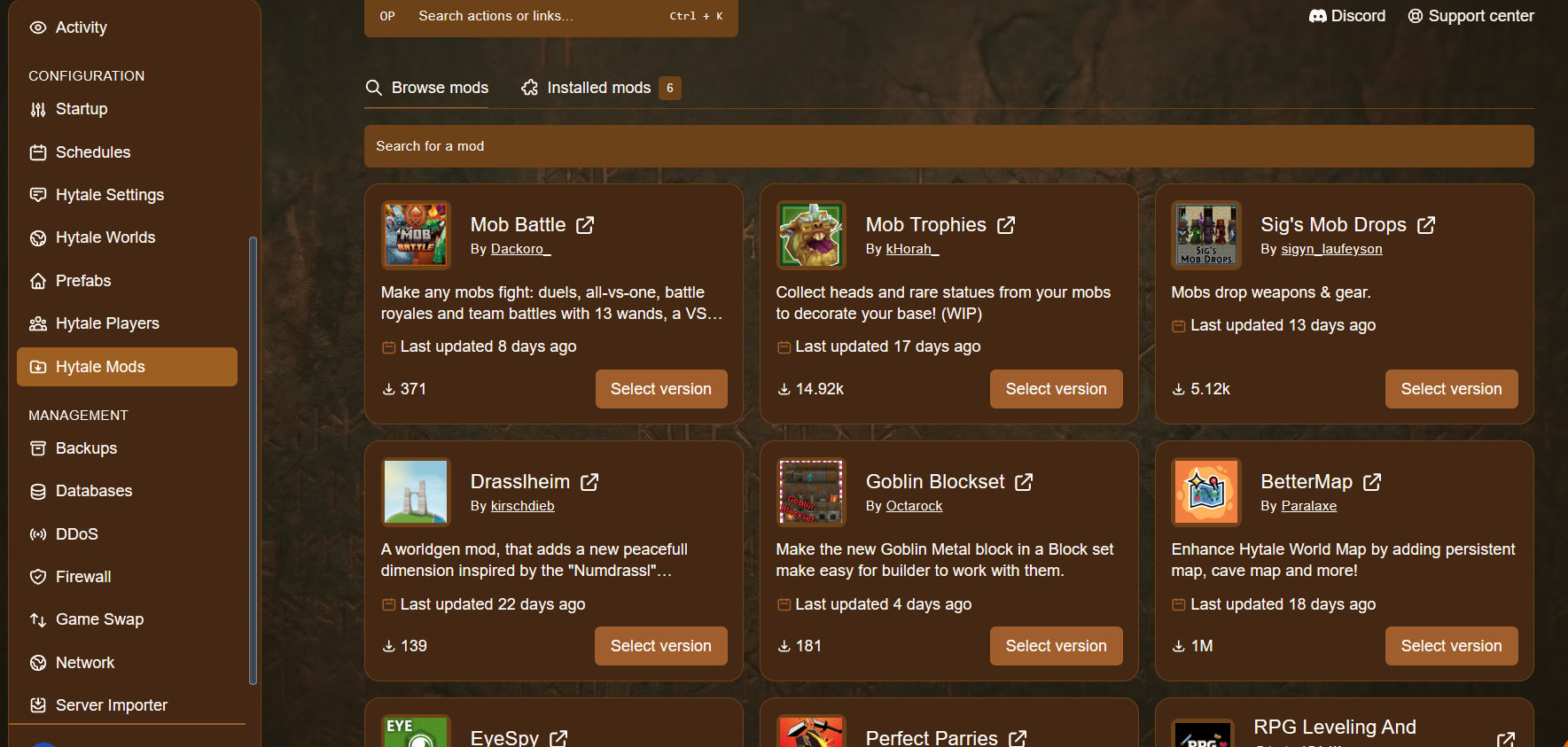
Use the Search for a mod bar to find a mod by name, or scroll through the list.
-
Each mod card shows the mod’s name, author, a short description, when it was last updated and its download count. Click the link icon next to the name if you’d like to read more on the mod’s own page first.
-
When you’ve found a mod you want, click Select version, choose the version you’d like, and confirm the install.
-
Open the Installed mods tab to check that your mod is on the server. The number next to the tab shows how many mods you have installed.
-
Restart your server from the Console page so the new mod loads.
Tip: Add a few mods at a time. If something goes wrong, it’s much easier to find the cause.
Installing Mods Manually
Section titled “Installing Mods Manually”Prefer to upload your own files? You can download mods from sources such as CurseForge and add them to your server yourself. Mods can be in either .zip or .jar format.
On AleForge
Section titled “On AleForge”- Download the mods you’d like to install.
- Log in to the AleForge Panel.
- Stop your server from the Console page.
- Go to Files and open the
Modsfolder. - Upload the mods you downloaded. You can drag and drop them, or use SFTP for larger uploads.
- Start your server again.
Self-Hosting or Using Another Provider
Section titled “Self-Hosting or Using Another Provider”- Download the mods you’d like to install.
- Stop your server.
- Open your server files and go to the
Modsfolder. - Upload the mods you downloaded in
.zipor.jarformat. - Start your server again.
Troubleshooting
Section titled “Troubleshooting”- A mod doesn’t appear in game: Make sure you restarted the server after installing it, and check the Installed mods tab.
- The server won’t start after adding a mod: Remove the newest mod, restart, and check the Console for error messages.
- A mod stopped working after an update: Look for a newer version of the mod, or roll back using your backup.
- Friends can’t connect: Check that their game and your server are on matching versions.
Need a Hytale Server?
Section titled “Need a Hytale Server?”AleForge’s Hytale server hosting gives you an always-online world, a built-in mod browser, backups, DDoS protection and 24/7 support.