

How to Set Up a Windrose Dedicated Server
A Windrose dedicated server keeps your archipelago online so the crew can log in without a listen-server host. At AleForge we install the server software for you. This guide covers first boot, invite codes, RAM, ports, and version matching.
The official walkthrough lives in the Windrose Dedicated Server Guide. Use that if you are self-hosting from Steam.
Using the AleForge Panel
Section titled “Using the AleForge Panel”- Order a Windrose server and wait for the install to finish
- Open the AleForge Panel
- Select the Windrose server
- Open
Consoleand click Start - Open
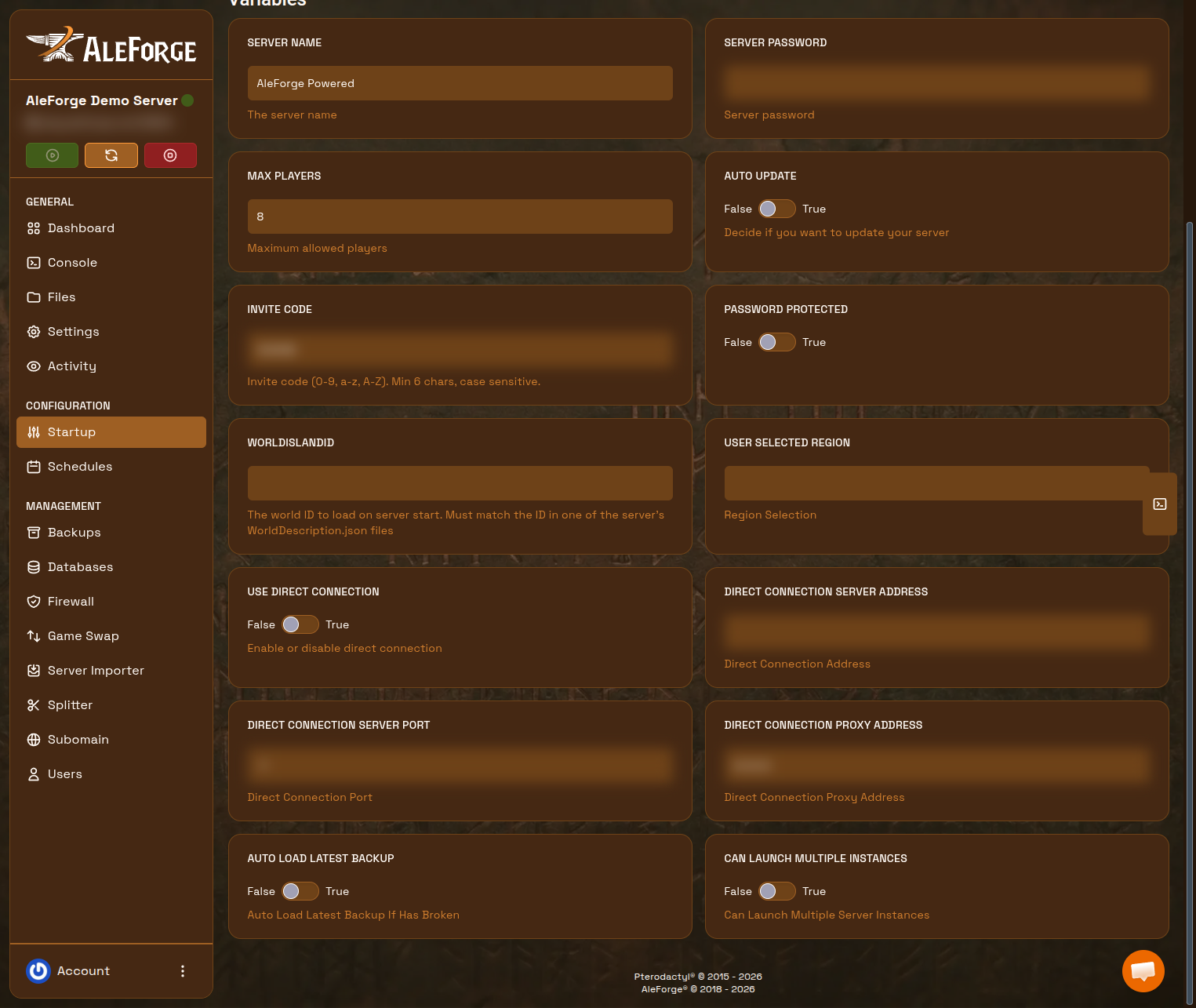
Startupand copy Invite Code. Share that code with your crew.
For connecting, see: How to Connect to Your Windrose Server.
Change the server name, password, player cap, and related options on Startup. Stop the server before you change those fields, then start it again.
Windrose Dedicated Server Requirements
Section titled “Windrose Dedicated Server Requirements”Official sizing from the dedicated server guide:
| Crew size | RAM | Storage |
|---|---|---|
| 2 players | 8 GB | 35 GB SSD |
| 4 players | 12 GB | 35 GB SSD |
| Up to 10 players | 16 GB | 35 GB SSD |
The developers recommend staying near four players for the smoothest Early Access play. Need more RAM? Upgrade your service.
Invite-code joins (the default) use Windrose’s connection service. You do not port-forward for that path.
Direct IP joins use TCP and UDP on the port in DirectConnectionServerPort (default 7777). Enable that only if you switched on direct connection. Details: How to Connect to Your Windrose Server.
Keep the Server on the Same Patch
Section titled “Keep the Server on the Same Patch”The dedicated server version must match the game client. After a Windrose patch:
- Stop the server
- On
Startup, set Auto Update to True if you want the panel to pull the latest dedicated server files on boot - Start the server
- Confirm players can join with the current invite code
If the binary looks stuck, use Settings → Reinstall Server. Reinstall replaces game files and leaves worlds in R5/Saved/ plus R5/ServerDescription.json in place. We always recommend taking a backup first.
Self-Hosting (Steam / SteamCMD)
Section titled “Self-Hosting (Steam / SteamCMD)”- In Steam, show Tools and install Windrose Dedicated Server, or use SteamCMD with app ID
4129620 - Do not launch the copy that sits inside the game client’s
R5/Buildsfolder. CopyWindroseServersomewhere else, or use the dedicated server tool - Run
StartServerForeground.bat - Copy the invite code from the console or from
R5/ServerDescription.json - In-game: Play → Connect to Server and paste the code
SteamCMD example:
force_install_dir "C:\Game_Servers\Windrose_Server"login anonymousapp_update 4129620 validatequitNext Steps
Section titled “Next Steps”Frequently Asked Questions
Section titled “Frequently Asked Questions”Can I run a Windrose dedicated server on Linux?
Section titled “Can I run a Windrose dedicated server on Linux?”The official server is Windows-only, though can be run using WINE or Proton. AleForge takes care of all the hosting for you.
What ports does a Windrose dedicated server use?
Section titled “What ports does a Windrose dedicated server use?”Invite-code mode does not use a single public game port you forward. Direct IP mode needs TCP and UDP on the configured port, usually 7777.
How much RAM do I need for a Windrose server?
Section titled “How much RAM do I need for a Windrose server?”Plan 8 GB for two players, 12 GB for four, and 16 GB if you push toward a larger crew. Memory spikes during busy sessions are a common Early Access crash cause.