

How to Join a Satisfactory Server?
How to Join a Satisfactory Server
Section titled “How to Join a Satisfactory Server”Overview
Section titled “Overview”Satisfactory is a first-person factory building game that drops you onto an alien planet to gather resources and manufacture a huge range of parts. From exploring spider-infested caves to deserts filled with fireball-spitting creatures, the world and everything in it is yours to exploit. Build massive factories that span across water and reach high into the sky, using conveyor belts, trucks, trains, and even drones to move your goods around. With a dedicated Satisfactory server, you can team up with other players to build the largest factories imaginable and harvest the world that is rightfully yours.
Joining a Satisfactory server can be a little confusing if you haven’t done it before, so we’ve put together this AleForge guide to walk you through the whole process.
Obtaining the Connection Address
Section titled “Obtaining the Connection Address”-
Go to the AleForge Panel and log in.
-
Open your server and check the Console or Network page for your IP Address:Port.
-
Copy the full IP:Port number and paste it somewhere safe.
-
Separate the IP and port based on the position of the colon. For example:
111.222.333:12345splits into:
- IP:
111.222.333 - Port:
12345
Once you’ve separated the IP and the 5-digit port, you’re ready to connect.
Joining a Satisfactory Server
Section titled “Joining a Satisfactory Server”-
Launch Satisfactory and head to the main menu.
-
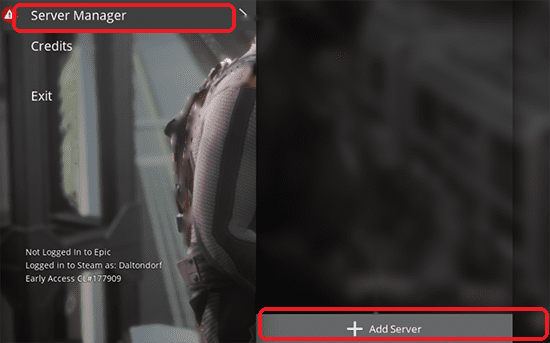
Open the Server Manager menu, then click Add Server.
-
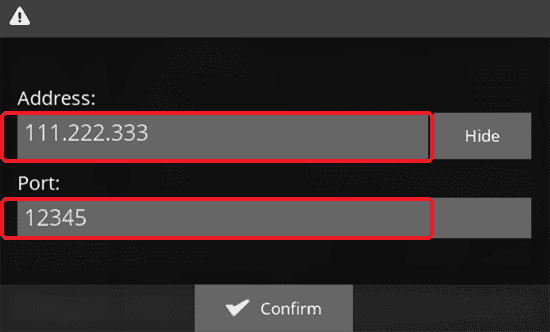
Enter the server’s IP address, the part before the colon, into the Address field, and the 5-digit port, the part after the colon, into the Port field. Click Confirm once both are filled in.
-
Click Join Game to connect to the server.

First-Time Setup
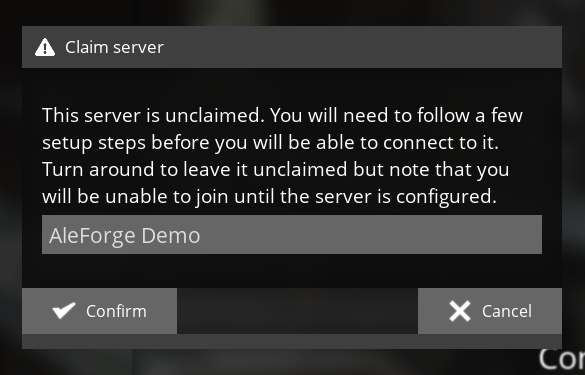
Section titled “First-Time Setup”If nobody has joined this server before, you’ll be prompted to claim it and run through a short first-time setup.
- When prompted, enter the desired name for your server.
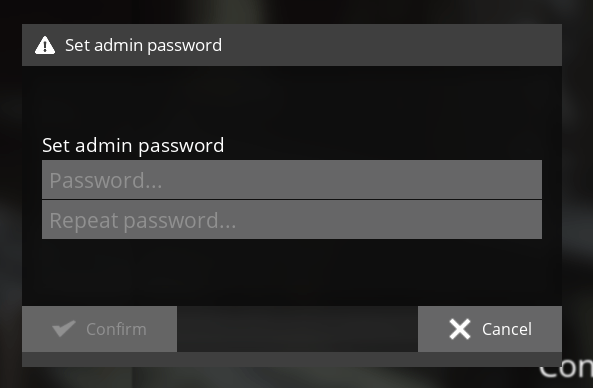
- Next, enter and confirm a password for admin users.
-
Choose your desired starting area from the four available locations.
-
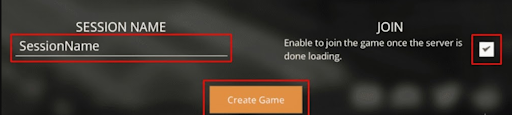
Enter a session name, and optionally check the Join box to automatically join the game once it finishes loading.
-
Click Create Game to generate your server’s world.
-
Once the world has finished generating, click Join Game to connect.
Common Issues
Section titled “Common Issues”“That address does not seem to be valid” error
This usually means the address you entered doesn’t work and the server can’t be reached. Make sure the server is online when you enter the IP to avoid this. Also double check that the IP address and port are entered into their correct, separate fields, entering them together in one field will not work.
“Your connection to the host has been lost” error
This typically points to a connection issue while connecting to the server. There are a number of possible causes, but start by confirming the server is fully online and finished loading before you try to join. If you’re running any mods in singleplayer, try disabling them before joining a server, since they can sometimes prevent a successful connection.
“This server appears to be offline” error
This usually means the server was previously online and working, but is currently offline. Often, this just means the server has recently restarted or is still in the process of starting up. To check, go to the AleForge Panel and start the server from the power options if needed. Depending on your world size, it may take a few minutes before you’re able to join again.