

How to Install Mods on a tModloader Server
How to Add Mods to Your tModLoader Server
Section titled “How to Add Mods to Your tModLoader Server”Below are AleForge’s instructions for installing mods on your Terraria tModLoader server. The quickest way is the Mod Manager in the AleForge Panel. It lets you search the Steam Workshop and installs your mods, along with the mods they depend on, straight to your server. There are no files to upload and no enabled.json to edit.
If you want a fast, reliable host, check out AleForge’s Terraria plans. AleForge will migrate you from any host to our services at no cost to you.
Install Mods with the Mod Manager (Recommended)
Section titled “Install Mods with the Mod Manager (Recommended)”The Mod Manager works with tModLoader servers and is built into the panel. You don’t need to launch the game or copy files.
-
Log in to the AleForge Panel and select your Terraria server.
-
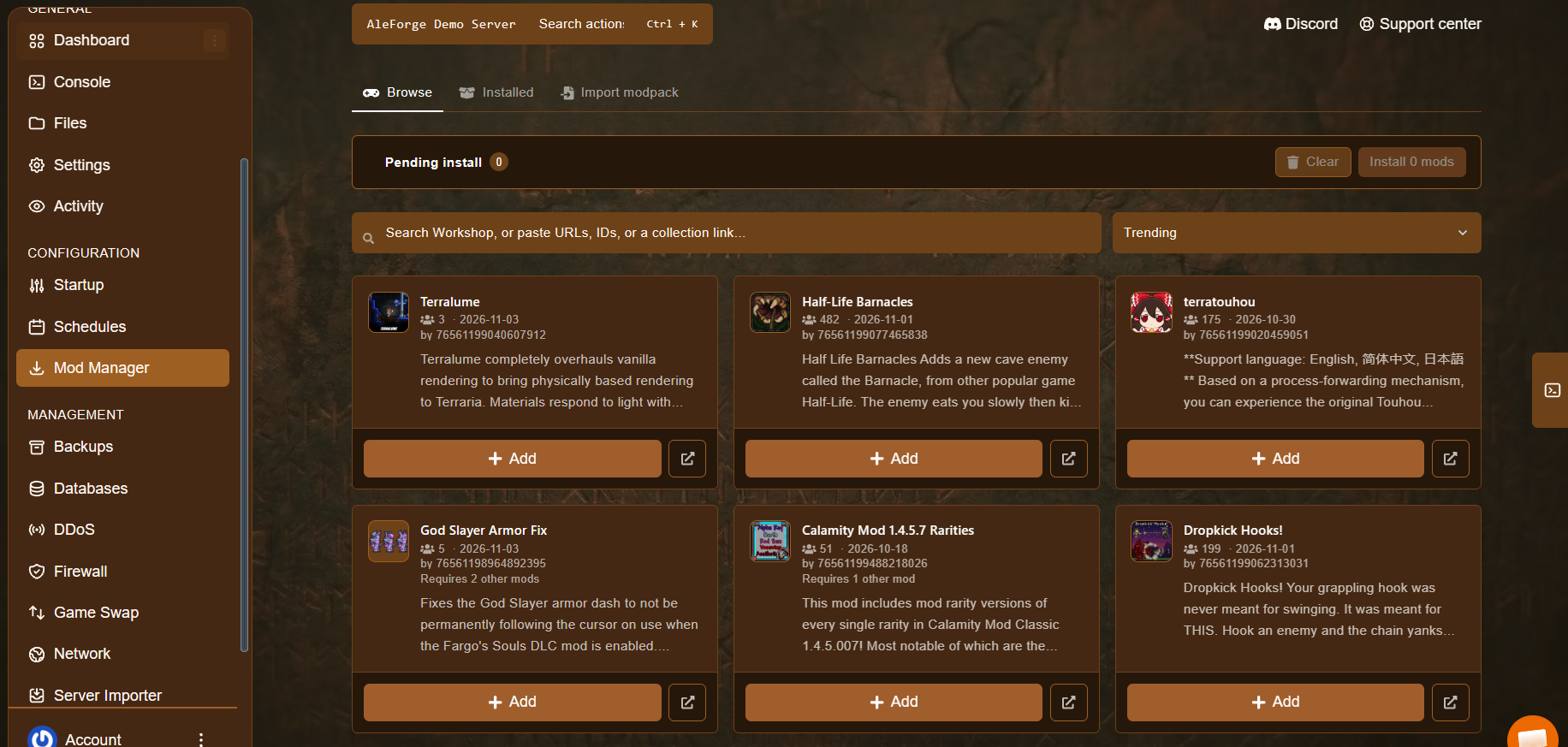
In the left-hand menu, under Configuration, click Mod Manager.
-
Search the Steam Workshop by name, or paste a Workshop URL, a mod ID or a collection link into the search bar. Use the sort menu (set to Trending by default) to change how results are ordered.
-
Click Add on each mod you want.
-
Click Install X mods (the button shows how many you’ve selected).
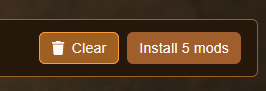
That’s it. Your mods and the mods they depend on are installed on your server. If they don’t appear in game, restart the server.
Tip: Already have a modpack? Use the Import modpack tab to bring it in instead of adding mods one by one. You can see everything on your server at any time in the Installed tab.
Tips for a Stable Modded Server
Section titled “Tips for a Stable Modded Server”- Back up first. If you’re changing mods on an existing world, create a backup from the Backups page before you install anything.
- Add a few mods at a time. Installing in small batches makes it easy to find the culprit if something breaks.
- Read the mod page. Click the arrow button next to Add to open a mod’s Steam Workshop page and check its description and version notes.
- Restart if needed. Mods load when the server starts, so restart if your new mods don’t show up.
- Keep versions in step. After a Terraria or tModLoader update, confirm your mods support the new version before updating a live world.
- Need to roll back? Restore your backup, or remove the most recently added mods and restart.
Manual Method: tModLoader 1.4
Section titled “Manual Method: tModLoader 1.4”Prefer to build your mod list on your own PC? You can still upload your enabled.json file yourself.
To download and activate your mods, do the following:
- Launch tModLoader and select Workshop.
- Click Download Mods.
- Download all the mods you want to have installed on your server.
- Click Back.
- Select Manage Mods.
- Enable every mod you want to be installed on your server.
- Back out and go to Mod Packs.
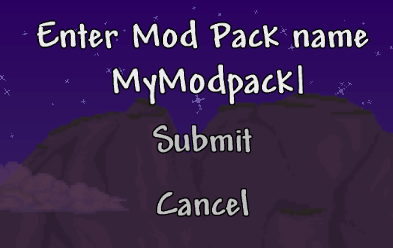
- Select Save Enabled as New Mod Pack.
Activating the Mods on Your Server
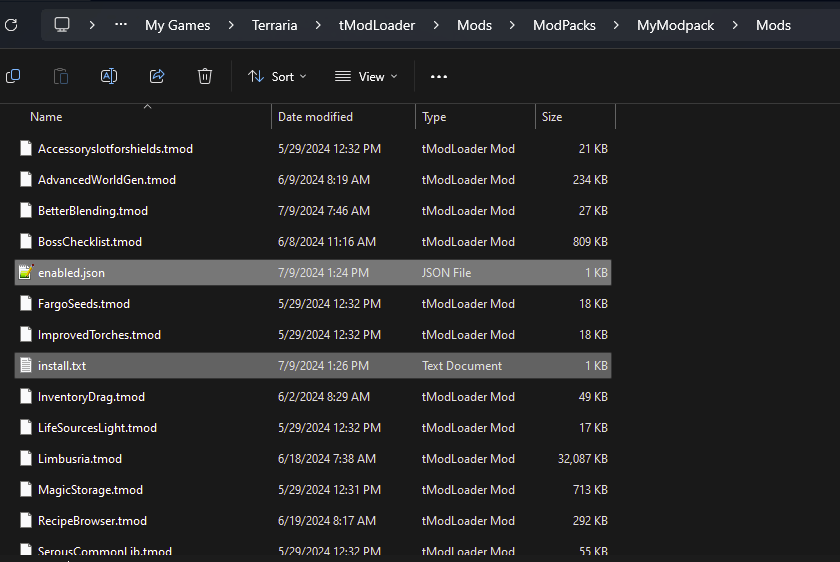
Section titled “Activating the Mods on Your Server”- On your computer, open your tModLoader mods config folder. On Windows, the path will be similar to
C:\Users\UserName\Documents\My Games\Terraria\tModLoader\Mods\ModpackName\Mods. - Go to the AleForge Panel.
- Stop your server.
- Head to the Files page.
- Open the
Modsfolder. - Click and drag the
enabled.jsonandinstall.txtfiles into theModsfolder on your server.
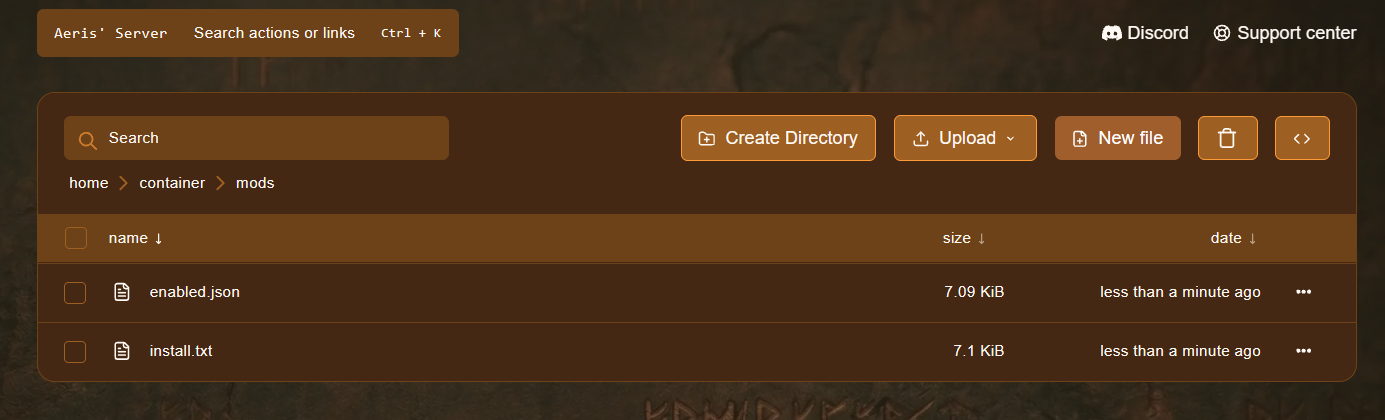
- Go to Settings and click Reinstall Server.
This is a soft reinstall and should not touch your world. However, if you are changing mods on an existing world, we recommend creating a backup before changing your mods.
tModLoader 1.3 Instructions
Section titled “tModLoader 1.3 Instructions”Adding Mods to Your Server
Section titled “Adding Mods to Your Server”You can find mods on the Terraria forums or through the in-game mod browser for tModLoader. Once you’ve chosen your mods, create the /mods folder on your server using the File Manager. Then upload the mods in .tmod format. You can click and drag them one by one, or upload and unarchive a zip file. For bulk uploads, you can also use SFTP with a client such as WinSCP or FileZilla. You can find the mods on your computer at this path:
C:\Users\UserName\Documents\My Games\Terraria\tModLoader\Mods
Enabling Mods
Section titled “Enabling Mods”After uploading the mods, you need to enable them with an enabled.json file in the /mods folder.
If the folder that contains the mods does not have an enabled.json file when the server first starts, tModLoader creates the file and adds every mod it can load.
To create the file manually, or to edit it later when you want to add more mods:
- Navigate to the
/modsdirectory on your server. - Click the Create file button above the file manager window. To edit an existing file, select
enabled.jsonand click Edit. - Write the file as a JSON array of the mod names you want to use. The file must begin and end in square brackets. Put each mod name in quotes, and end every line with a comma except the last. The dashboard will alert you if the syntax is wrong, so correct the file until the red alerts disappear.
Example enabled.json:
[ "CalamityMod", "chadsfurn", "Thorium"]- Make sure each name matches the name of the
.tmodfile you uploaded. Linux is case sensitive, so “tremor” is not the same as “Tremor”. - When you are finished, give a new file the title
enabled.jsonin the box above the file manager window.
Frequently Asked Questions
Section titled “Frequently Asked Questions”Which tModLoader versions does the Mod Manager support?
Section titled “Which tModLoader versions does the Mod Manager support?”The Mod Manager is for tModLoader 1.4 servers. If you run 1.3, follow the 1.3 instructions above.
Do I need to install a mod’s dependencies myself?
Section titled “Do I need to install a mod’s dependencies myself?”No. The Mod Manager installs the mods you choose along with the mods they depend on.
Do I still need to edit enabled.json?
Section titled “Do I still need to edit enabled.json?”No. When you use the Mod Manager you don’t need to edit enabled.json yourself. Only use the manual method if you want to upload your own mod list.
Where do the mods come from?
Section titled “Where do the mods come from?”The Mod Manager searches the Steam Workshop, so you can find the same mods you’d see in the tModLoader Workshop browser.
Will installing mods delete my world?
Section titled “Will installing mods delete my world?”Installing mods shouldn’t touch your world, but changes to mods can affect existing worlds. Always take a backup before you change your mod list.
My server won’t start after adding mods. What should I do?
Section titled “My server won’t start after adding mods. What should I do?”Restore your backup, or remove the mods you added most recently and restart. Check each mod’s Workshop page for version notes.
Need help?
Section titled “Need help?”Contact AleForge support 24/7 through a ticket, live chat or the community Discord.
Ready to run a modded Terraria world? See AleForge’s Terraria plans →