

How do I allocate more RAM to Minecraft?
Minecraft Java has a huge library of mods that let you play in ways you never thought possible. These mods increase the RAM Minecraft needs, especially when you have many of them installed. This guide shows you how to give Minecraft more RAM on the most popular launchers.
Note: This guide is about the RAM your own game uses on your computer. It is not about the RAM of a Minecraft server. For server RAM, see our guide on how much RAM a Minecraft server needs.
Why Do I Need to Allocate More RAM?
Section titled “Why Do I Need to Allocate More RAM?”Running out of RAM can cause lag and other performance problems, because Minecraft has to keep clearing memory and make do with the little it has been given.
Whether you use the vanilla launcher or a modded launcher such as CurseForge, adding extra memory can help fix these issues.
The Importance of RAM
Section titled “The Importance of RAM”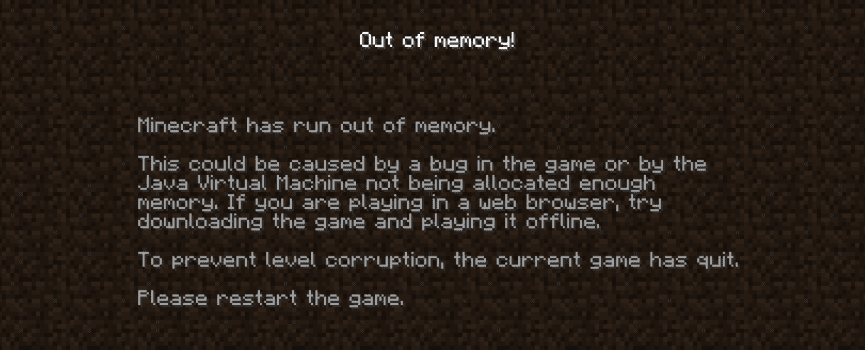
Not having enough memory available to your launcher can cause different performance problems, from lower FPS to your game crashing in the middle of a session. Avoiding these problems is essential to enjoying the game and playing modpacks.
For example, a large modpack running with too little RAM will have a terrible framerate and will likely be unplayable because of crashes.
Pick Your Launcher
Section titled “Pick Your Launcher”Adding memory to your favorite Minecraft launcher is simple, but each launcher does it a little differently. Jump to yours:
Before You Start
Section titled “Before You Start”Check How Much RAM Your Computer Has
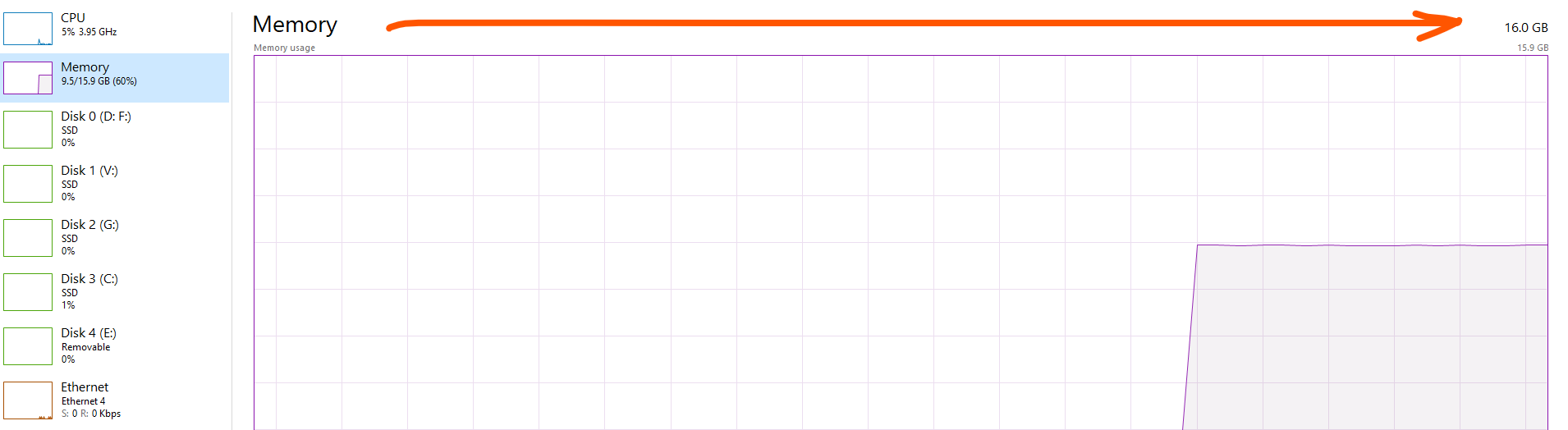
Section titled “Check How Much RAM Your Computer Has”You can only give Minecraft memory your computer actually has. To check on Windows:
- Press Ctrl + Shift + Esc to open Task Manager.
- Click the Performance tab.
- Click Memory. Your total RAM is shown at the top right, for example
16.0 GB.
Understand GB and MB
Section titled “Understand GB and MB”Launchers use different units. Some ask for gigabytes (GB, for example 4 GB) and some for megabytes (MB, for example 4096 MB). As a rule, 1 GB equals 1024 MB, so 4 GB is 4096 MB. In the vanilla launcher, G means gigabytes and M means megabytes.
How Much RAM Should I Allocate?
Section titled “How Much RAM Should I Allocate?”The right amount depends on what you play. These are general starting points:
| What you are playing | Suggested RAM to allocate |
|---|---|
| Vanilla Minecraft | 2 to 4 GB |
| Vanilla with a few light mods or performance mods | 4 GB |
| Small to medium modpacks (around 50 to 100 mods) | 4 to 6 GB |
| Large modpacks (150 or more mods) | 6 to 8 GB |
| Very large or heavy modpacks | 8 GB or more, as the modpack recommends |
Keep these tips in mind:
- Don’t give Minecraft all of your RAM. Your computer and other programs need memory too. A good rule is to leave at least a few GB free for your system.
- More is not always better. Giving the game far more RAM than it needs can cause longer lag spikes, because Java takes longer to clean up a very large amount of memory.
- Check the modpack’s page. Many modpacks list a recommended amount of RAM. Use that as your guide.
- Change it in small steps. Raise the amount a little at a time, such as from 2 GB to 4 GB, and test how the game runs.
Default/Vanilla Launcher :
Section titled “Default/Vanilla Launcher :”-
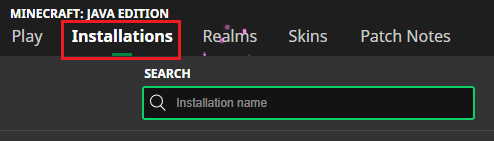
Open the Minecraft Launcher and then open the Installations page.
-
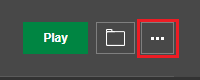
Locate the profile you are playing with and click the three dots to the right of it.
-
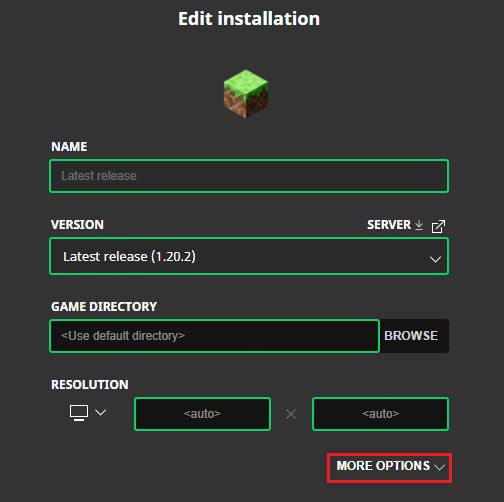
On the options page, click More Options, located under Resolution.
-
Scroll down until you see JVM Arguments and find the
-Xmx2Gparameter.
-
Change
2Gto4G, or another value your computer can support. This value is the maximum amount of memory allocated to the game, which is 2 GB by default.
-Xmx4G- Click Save at the bottom right to apply the change.
Tip: The JVM Arguments box may contain other settings too. Only change the number after
-Xmxand leave everything else as it is. If you also see an-Xmsvalue, it is the amount of memory the game starts with, and it should not be higher than your-Xmxvalue.
CurseForge App :
Section titled “CurseForge App :”-
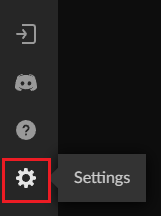
Launch the CurseForge App and click the Settings button in the bottom left.
-
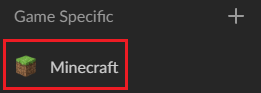
On the next screen, choose Minecraft in the Game Specific section.
-
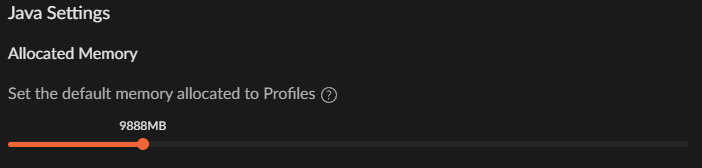
Scroll down until you see the Java Settings category.
-
Adjust the slider in the Allocated Memory area to increase the RAM.
-
When you are done, click the X button to save your changes.
FTB App :
Section titled “FTB App :”-
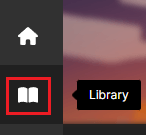
Open the FTB App and click Library in the top corner.
-
Find the modpack instance you’d like to add more RAM to in the list.
-
After you select your modpack, click Settings to the right of the play button.

-
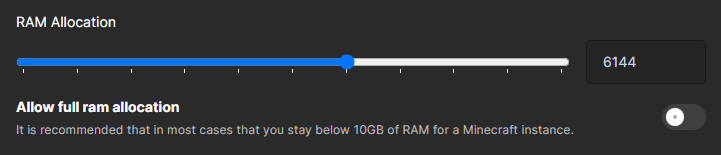
On this page, adjust the Ram Allocation slider to allocate more RAM to your modpack.
-
When you are done, click the back arrow to save your changes.
Technic Launcher :
Section titled “Technic Launcher :”-
Launch the Technic Launcher.
-
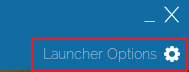
Click Launcher Options in the top right.
-
Select the Java Settings tab.

-
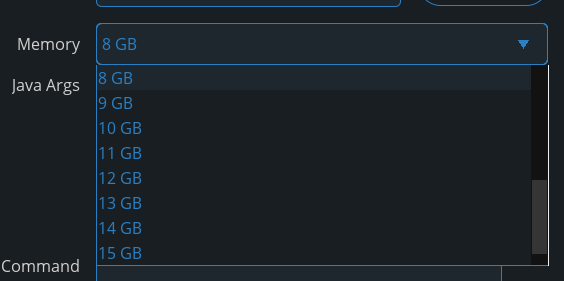
Choose your allocated RAM from the Memory dropdown menu.
-
Click the X to close the menu and save your changes.
ATLauncher :
Section titled “ATLauncher :”-
Start ATLauncher.
-
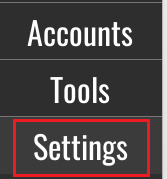
Once it launches, click Settings in the bottom right.
-
Select the Java/Minecraft tab.

-
Change Maximum Memory/Ram to your desired amount.

-
Click Save at the bottom to apply your change.
Voidswrath :
Section titled “Voidswrath :”-
Open the Void Launcher.
-
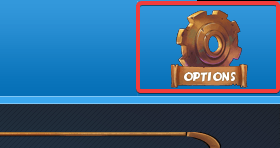
Click Options in the top right.
-
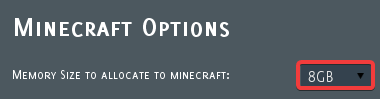
Select your desired RAM amount from the Minecraft Options dropdown.
Check That the Change Worked
Section titled “Check That the Change Worked”- Launch Minecraft and join a world.
- Press F3 to open the debug screen.
- Look at the Mem line on the right side of the screen. It shows how much memory the game is using, and the Allocated line shows the total available to it.
If the allocated amount matches what you set, the change worked.
Other Ways to Improve Performance
Section titled “Other Ways to Improve Performance”Adding RAM is not the only way to make Minecraft run better. You can also:
- Close other programs, such as browsers with many tabs, before you play
- Lower your render distance and other video settings
- Install a performance mod, such as those that improve FPS
- Keep your graphics drivers and Java up to date
Troubleshooting
Section titled “Troubleshooting”| Problem | What to try |
|---|---|
| The game still lags after adding RAM | Close other programs, lower your render distance and video settings, and check that the new amount was saved. |
| The game won’t start after changing the setting | You may have given it more RAM than your computer has free. Lower the amount and try again. |
| The setting didn’t save | Make sure you used the correct save step for your launcher, such as Save, the X button, or the back arrow. |
| F3 shows the old amount | Fully close the game and launcher, then start it again. Check that you changed the right profile or modpack. |
| Lag spikes got worse after adding more RAM | You may have allocated too much. Try lowering the amount a little. |
| You still can’t play a large modpack | Check the modpack’s recommended RAM and make sure your computer has enough memory for it. |
| A launcher option is missing | Launcher menus change between versions. Look for a Settings, Options, or Java section. |
Frequently Asked Questions
Section titled “Frequently Asked Questions”Does adding more RAM increase my FPS?
Section titled “Does adding more RAM increase my FPS?”Not always. Extra RAM helps when the game was running out of memory, which causes stutters and crashes. If your game already has enough RAM, a faster graphics card or processor will do more for your FPS.
Is this the same as server RAM?
Section titled “Is this the same as server RAM?”No. This guide only changes the memory your own game uses on your computer. It does not change the RAM of a Minecraft server.
Will this work for Bedrock Edition?
Section titled “Will this work for Bedrock Edition?”No. These steps are for Minecraft Java Edition. Bedrock Edition manages its memory automatically.
Can I use different amounts for different modpacks?
Section titled “Can I use different amounts for different modpacks?”Yes. In most launchers, the setting is per profile or per modpack, so you can give each one the amount it needs.