

Fix Project Zomboid Port Closed Warning
The Project Zomboid Port Closed warning means the game is using Steam Relay instead of a direct UDP connection. An AleForge server can still be online and reachable when this appears. On AleForge, the usual causes are a player joining with Steam Relay enabled, or an uploaded server.ini whose UDPPort does not match the UDP port on the Startup page.
What the Project Zomboid Port Closed warning means
Section titled “What the Project Zomboid Port Closed warning means”The message in game is:
“Port Closed” warning. Your performance may be severely affected because the game will rely on the Steam network, rather than a direct connection.

Your port number will be different from the one displayed in this image.
Steam Relay forwards traffic through Steam, so players can still reach a server while the warning is showing. A direct connection uses the server’s allocated UDP ports. Joining with Use Steam Relay turned on, or opening the game from a Steam join link, takes the relay path and shows the warning. The Project Zomboid community note on this warning describes that Steam Relay path. A Project Zomboid developer reply on the Steam support thread about port 16262 says the same message appears when Use Steam Relay is enabled on a dedicated server.
Join without using Steam Relay
Section titled “Join without using Steam Relay”This is player connection behavior. It does not change the server’s ports.
- Launch Project Zomboid from your library. Do not use a Steam join link
- Open
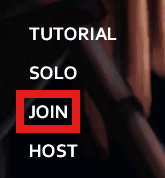
Joinand add the server with the hostname and port from the AleForge Panel - Turn Steam Relay off, then join that favorite
Directly connecting from the Join menu is the path that avoids the relay.
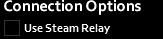
Make sure the Steam Relay option is disabled.
Check the server ports
Section titled “Check the server ports”AleForge already publishes the ports for your server. Do not forward 16261 or 16262 on a home router for an AleForge server. On a server created in the panel, leave DefaultPort and UDPPort as they are. The config reference marks both as Do Not Touch.
| Setting | Protocol | AleForge value | Game default |
|---|---|---|---|
DefaultPort |
UDP | Primary port on the Dashboard |
16261 |
UDPPort |
UDP | UDP Port on the Startup page |
16262 |
Those defaults are UDP, as described in the Steam support thread. The ports on your AleForge server are the ones in the panel, and they are often not 16261 and 16262.
If you uploaded your own server.ini, set DefaultPort to the primary port and UDPPort to the UDP Port on Startup, then restart. Follow Upload My Server.ini. A file that still says 16262 while Startup shows a different UDP port is a common cause of this warning.
Other server options, including the server name that selects which .ini loads, are on the Startup page when you configure my Project Zomboid server. Whether the server is listed publicly is a separate setting: Server Visibility.
If the warning remains
Section titled “If the warning remains”Check the player connection and the server configuration separately.
- Confirm Steam Relay is off and the player joined from Favorites, not from a Steam invite
- In
.cache/Server/, confirmUDPPortmatches theUDP PortonStartupandDefaultPortmatches the primary port on theDashboard - Restart the server after any change to the
.ini
The UDP Port on Startup is the Steam game port for that server. It is already a separate allocation from the primary port. Point UDPPort at that Startup value. An extra port created under Network → Create Allocation does not replace it. Use an extra allocation for a different service, such as when you setup RCON.
Home-hosted servers are a different case. The same Steam thread says to forward UDP 16261 and UDP 16262 to the computer’s local IP, and to allow those UDP ports in the firewall. If the forwards are correct and the warning remains, that reply says to ask the ISP whether it allows hosting and whether it blocks UDP 16262. That router and firewall work does not apply to an AleForge server, because the allocated ports are already open on the host.
Next steps
Section titled “Next steps”- Directly connecting from the Join menu
- configure my Project Zomboid server on the Startup page
- Server Visibility if the server should be public or private
- setup RCON if you need a remote command port