

How do I connect to my Garry's Mod server?
How to Connect to Your Garry’s Mod Server
Section titled “How to Connect to Your Garry’s Mod Server”Once you’ve purchased a Garry’s Mod server from AleForge, the next step is joining it. This guide walks you through finding your server address in the panel and connecting from inside Garry’s Mod.
Before You Start
Section titled “Before You Start”Make sure you have:
- Access to the AleForge Panel
- Garry’s Mod installed and up to date on your computer
- Your server started and fully online. You can’t join a server that is offline or still booting.
Step 1: Start Your Server and Copy Its Address
Section titled “Step 1: Start Your Server and Copy Its Address”- Log in to the AleForge Panel.
- Open your Garry’s Mod server and click the button to start it.
- Next to the start and stop buttons, find your server address. It is made up of a hostname and a port, and looks like this:
nodename.aleforge.net:12345- Copy the whole address, including the port number after the colon.
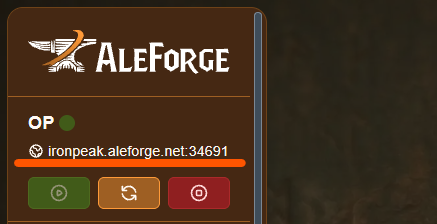
Your port number is assigned to your server, so it will be different from the example above. Always copy the address from your own panel.
Step 2: Add Your Server in Garry’s Mod
Section titled “Step 2: Add Your Server in Garry’s Mod”- Open Garry’s Mod.
- Click Find Multiplayer Game, then select the Favorites tab.
- Find the box labeled Add a server to favorites and paste in your hostname and port.

- Click Find servers at given address.
- Double-click your server in the list to join.
You will now start connecting to your Garry’s Mod server. Your server will stay in your Favorites list, so next time you can join with a single double-click.
Alternative: Connect With the Console
Section titled “Alternative: Connect With the Console”You can also connect directly using the in-game developer console:
- Open the console (enable it first in Options → Keyboard → Advanced if needed).
- Type the following, replacing the address with your own, and press Enter:
connect nodename.aleforge.net:12345Troubleshooting
Section titled “Troubleshooting”My server doesn’t show up in the list
Section titled “My server doesn’t show up in the list”- Check that the server is running in the panel.
- Make sure you copied both the hostname and the port, with a colon between them and no extra spaces.
- Wait a minute or two after starting, then click Find servers at given address again. A server that is still starting won’t appear yet.
I can’t connect or the connection times out
Section titled “I can’t connect or the connection times out”- Confirm the server is fully started and not crashed or restarting.
- Double-check the port. A wrong digit is the most common cause.
- Restart Garry’s Mod and try again.
I’m asked for a password
Section titled “I’m asked for a password”If you set a server password, enter it when prompted. If you don’t remember setting one, check your server settings or configuration in the panel.
I get a version or content mismatch error
Section titled “I get a version or content mismatch error”Update Garry’s Mod through Steam so your game matches the server. If the server uses addons or workshop content, let the downloads finish before joining.
Need More Help?
Section titled “Need More Help?”If you still can’t connect after trying the steps above, contact AleForge support and include your server address and a description of the error you see.