

How to Upload a World to Your Windrose Server
You can move a local Windrose world onto your AleForge dedicated server, or copy a world from another host. The save is a RocksDB folder, not a single .sav file. Copy the entire world folder (the long hex name) and paste that same name into WorldIslandId on Startup.
Find the Local World
Section titled “Find the Local World”On Windows, press Win + R, paste this, and press Enter:
%LOCALAPPDATA%\R5\Saved\SaveProfiles
Steam and Epic use a profile folder (often your Steam ID). Stove uses StoveDefault.
Worlds sit under a versioned RocksDB tree:
SaveProfiles\<Profile>\RocksDB\<GameVersion>\Worlds\<WorldID>
After the 0.10.0.5.120 save migration you may instead need:
SaveProfiles\<Profile>\RocksDB_v2_Backups\<GameVersion>\Worlds\<WorldID>
Do not copy files out of the live RocksDB_v2 runtime folder while the client is running. Prefer RocksDB or a _Latest backup under RocksDB_v2_Backups.
The WorldID is a long hex string such as EC10598E83A14ED04D9C44CBFBF3F4B1. Sort by Date Modified if you have several worlds. Zip the entire folder (including WorldDescription.json and the RocksDB files).
Official transfer notes: Windrose Dedicated Server Guide.
Upload to the Dedicated Server
Section titled “Upload to the Dedicated Server”- Open the AleForge Panel and stop the Windrose server
- Open
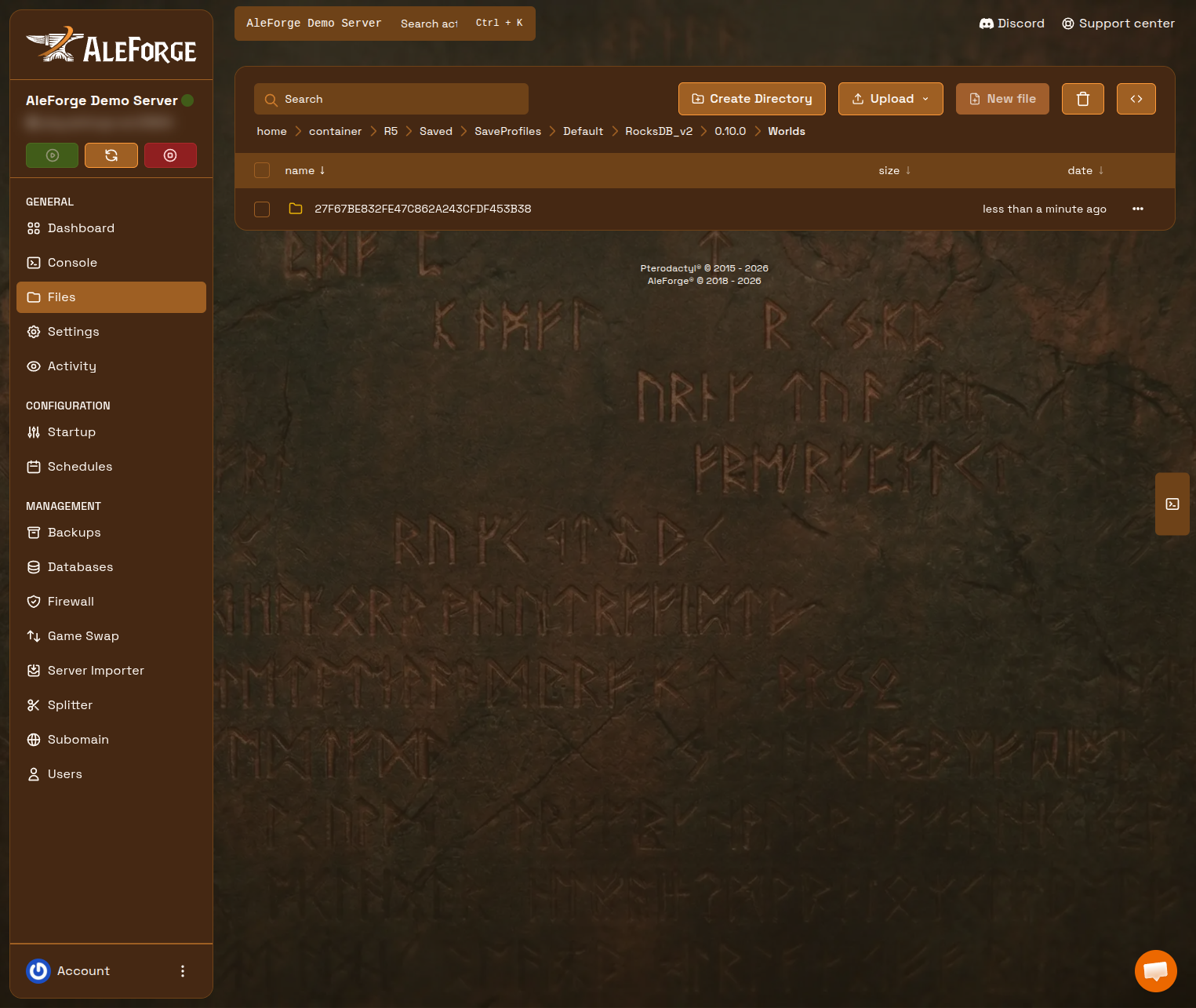
Filesand go toR5/Saved/SaveProfiles/Default/ - Open
RocksDB_v2orRocksDB(whichever already has aWorldsdirectory), then the game-version folder, thenWorlds
- Upload your zip (use SFTP if it is large)
- Unarchive so the path is
Worlds/<WorldID>/withWorldDescription.jsoninside that folder - Open
Startupand set WorldIslandId to the exact folder name - Start the server
The folder name looks like EC10598E83A14ED04D9C44CBFBF3F4B1. Copy it exactly. Do not rename the folder to something readable.
If You Land in an Empty World
Section titled “If You Land in an Empty World”- WorldIslandId on
Startupdoes not match the uploaded folder - The world was uploaded under the wrong
RocksDBvsRocksDB_v2tree or the wrong game-version folder - Only some RocksDB files were copied (always take the whole folder)
- The server was still running during the upload
Copy a World Back to the Client
Section titled “Copy a World Back to the Client”Reverse the path: download Worlds/<WorldID> from the server into the matching client Worlds folder. When Windrose asks about cloud vs local saves, pick local so Steam Cloud does not overwrite the transfer.
Frequently Asked Questions
Section titled “Frequently Asked Questions”Where are Windrose saves stored?
Section titled “Where are Windrose saves stored?”Client: %LOCALAPPDATA%\R5\Saved\SaveProfiles\. Dedicated server: R5/Saved/SaveProfiles/Default/ inside the server files.
Why does the server create a new world after I upload?
Section titled “Why does the server create a new world after I upload?”WorldIslandId on Startup is not the uploaded folder name, or the files landed in the wrong Worlds directory.
Can I rename the world folder to something readable?
Section titled “Can I rename the world folder to something readable?”No. Keep the original hex ID. Change the display name with WorldName inside WorldDescription.json if you need a label.