

How do I Upload My World to my Minecraft Java Edition Server?
How to Upload a World to Your Minecraft Server
Section titled “How to Upload a World to Your Minecraft Server”Uploading your Minecraft world from a single-player game or from another host is easy. This guide shows you how, step by step.
Before You Begin
Section titled “Before You Begin”- Access to the AleForge Panel
- Your world files on your computer
- A simple name for your world folder if possible, using letters and numbers
Tip: Keep a copy of your original world somewhere safe before you start, in case something goes wrong.
Locating Your Singleplayer Save
Section titled “Locating Your Singleplayer Save”First, you need to find your save. If your world is from a single-player game, locate your saves folder. On a Windows installation, your saves are stored here by default:
C:\Users\<username>\AppData\Roaming\.minecraft\savesReplace <username> with your computer username.
Once you find your world, zip it up:
- Right-click the world folder.
- Select Send to -> Compressed (zipped) folder.

Tip: Zip the world folder itself, not just the files inside it. This keeps everything together when you unzip it on the server.
World From Another Host?
Section titled “World From Another Host?”If your world is on another host, download it to your computer first, then zip it up in the same way if it isn’t already a zip file.
Uploading Your World
Section titled “Uploading Your World”-
Go to the AleForge Panel and select your server.
-
Go to the Console page and make sure your server is stopped.
-
Go to File Manager.
-
Upload your zipped world to the main directory of the server.
-
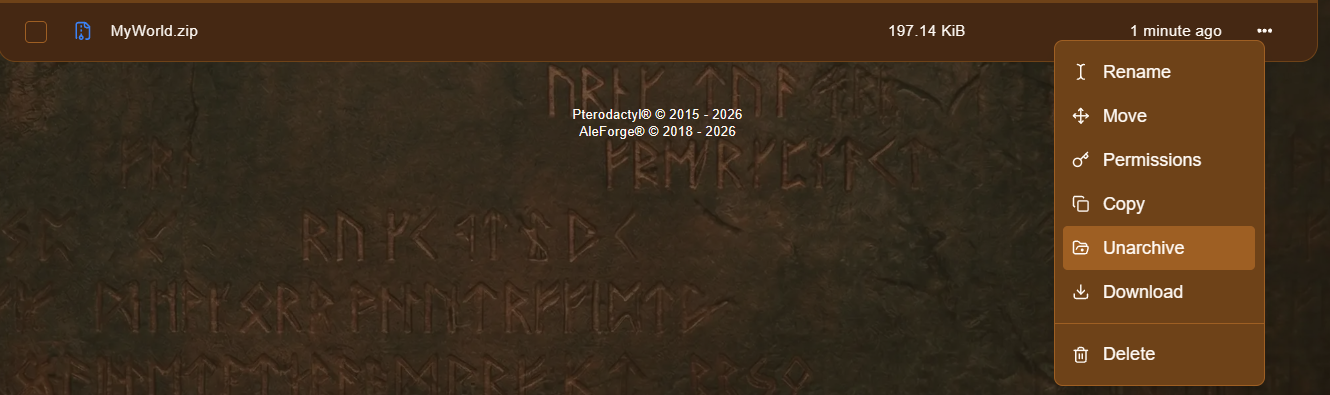
Right-click your uploaded file and select Unarchive.
-
Go to the Properties tab and change Level Name to match the name of your world folder.

Make sure you save the change.
-
Go to the Console page and start your server.
Check That It Worked
Section titled “Check That It Worked”- Watch the Console while the server starts and check for errors.
- Join the server and make sure your buildings and progress are there.
- If you see a brand new world, check that Level Name matches your world folder name exactly.
Troubleshooting
Section titled “Troubleshooting”| Problem | What to try |
|---|---|
| The server creates a new world | Check that Level Name matches the world folder name exactly, including capital letters and spaces. |
| You can’t find the unzipped world | Check the main directory in File Manager, and look inside any extra folder created when unzipping. |
| Unarchive doesn’t work | Make sure the file is a .zip, and try uploading it again. |
| The world has special characters or spaces in its name | Rename the folder to use only letters and numbers, then update Level Name to match. |
| The Nether or End looks different | Some server types store the Nether and End differently from single-player. Check the Console for messages, and restore your backup if needed. |
| The server won’t start | Check the Console for errors, and make sure the world is for a version your server supports. |