

How to Play & Download Older Versions of Minecraft
Going back to older versions of Minecraft is a great way to play classic modpacks, join a server running a previous update, or revisit Beta and Alpha worlds. You can download and launch almost any older release directly inside the official Minecraft Launcher, and you can also change your Minecraft server to an older version so friends can join.
How to Play Older Versions of Minecraft (Java Edition)
Section titled “How to Play Older Versions of Minecraft (Java Edition)”Follow these steps in the official launcher to download and play old Minecraft versions:
-
Open the
Minecraft Launcher. -
Click
Settingsin the bottom-left corner, then checkShow historical versions of Minecraft: Java Edition in the Launcherif you want to play classic Alpha or Beta versions.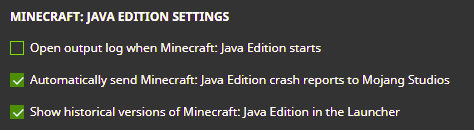
-
Select Minecraft: Java Edition in the left sidebar and click the
Installationstab at the top.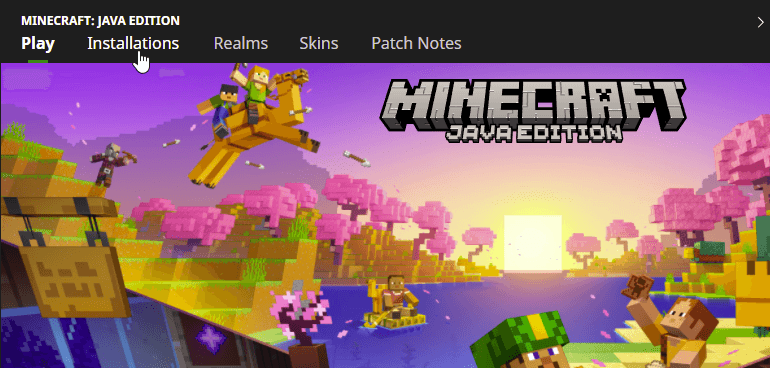
-
Click
New Installation, choose a name for the profile, and open theVersiondropdown to select the older version of Minecraft you want to download (such asrelease 1.20.1,release 1.16.5,release 1.12.2,release 1.8.9, or an olderold_beta/old_alphabuild).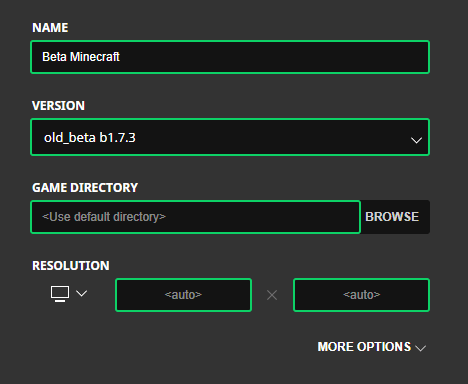
-
(Recommended) Under Game Directory, click
Browseand pick a separate folder for this older version so it does not overwriteoptions.txtor accidentally open your modern worlds in an older release. -
Click
Create, then hover over your new installation and clickPlayto download and launch the older version of Minecraft.