

How Do I Create A Custom Modpack?
A modpack is a group of mods bundled together to change how Minecraft looks, plays, or feels. If you want to build your own instead of using an existing one, this guide walks you through choosing a mod loader, finding mods, telling client-only mods apart from server mods, and getting everything running on your AleForge server.
Step 1: Choose a Mod Loader
Section titled “Step 1: Choose a Mod Loader”Every mod is built for a specific mod loader, a program that lets mods hook into the game. Mods built for one loader will not work on another, so this is the first choice you need to make.
| Loader | Good for |
|---|---|
| Fabric | Lightweight, fast-updating, and usually the first loader to support a new Minecraft version. Popular for performance mods and smaller, focused modpacks. |
| Forge | The oldest and most established loader, with the biggest library of mods, especially large tech and magic mods. Slower to update to new Minecraft versions. |
| NeoForge | A newer fork of Forge, used by many current large modpacks. If a modpack says it needs NeoForge, it will not run on regular Forge. |
| Quilt | A fork of Fabric with extra features. Most Fabric mods also work on Quilt, but not the other way around. |
Check the modpack or mod page you’re following to see which loader it needs, and stick with that loader for every mod you add. Mixing loaders (for example, installing a Forge mod on a Fabric server) will not work and can crash your server.
Step 2: Find and Download Your Mods
Section titled “Step 2: Find and Download Your Mods”Once you know your loader, download mods that are compatible with it. The most popular sources are:
- CurseForge — the largest library, especially for Forge and NeoForge mods.
- Modrinth — a newer, popular for Fabric mods, with a cleaner interface and version filters.
On both sites, you can filter mods by:
- Mod loader (Fabric, Forge, NeoForge, Quilt)
- Minecraft version (make sure every mod matches your server’s exact version)
- Environment (client, server, or both)
Always double-check the Minecraft version and loader on each mod’s page before downloading. A mod built for a different version, even a very close one, often will not load and can prevent your whole server from starting.
Step 3: Build a Server-Only Version of Your Modpack
Section titled “Step 3: Build a Server-Only Version of Your Modpack”A server does not need every mod your modpack uses. It only needs the mods that affect gameplay on the server side. Mods that only change what you see on your own screen are called client-only mods, and they should be left out of your server’s mods folder.
How to Tell If a Mod Is Client-Only
Section titled “How to Tell If a Mod Is Client-Only”- Check the mod’s page. Most mod pages on CurseForge and Modrinth list an “Environment” or “Side” section that says Client, Server, or Client and Server. This is the most reliable way to check.
- Think about what the mod does. If a mod only changes visuals, sound, UI, controls, or camera behavior, it is very likely client-only. Examples include:
- OptiFine and Sodium (rendering and FPS improvements)
- MouseTweaks (inventory controls)
- Shader packs and resource pack loaders
- Minimap mods like Xaero’s Minimap (some have an optional server-side component, so check the page)
- Mods that add new blocks, items, mobs, recipes, or structures are almost always needed on the server, because the server is what actually generates the world and manages game data. If a mod adds anything a player can pick up, craft, or interact with in the world, include it on the server.
- When in doubt, include the mod. Most mods are safe to have on both the client and the server, even if they are technically optional there. Leaving out a mod that was actually needed causes far more problems (missing blocks, crashes, “mod missing” errors) than including one extra mod that didn’t strictly need to be there.
Packaging Your Mods
Section titled “Packaging Your Mods”Once you’ve picked out your server-side mods:
- Put all of the
.jarfiles into a single folder. - Compress that folder into a
.zipfile namedmods.zip. - Keep this zip file somewhere safe. You’ll upload it to your server in Step 5, and you can reuse it if you ever need to reinstall or move your server.
Alternatively, if the modpack you’re using is already listed in the Depot, you can skip building the zip yourself and install it directly from there.
Step 4: Install the Mod Loader
Section titled “Step 4: Install the Mod Loader”This installs the actual server software for your mod loader, which is separate from the mods themselves. Your mods will not load without this step.
- Go to the AleForge Panel.
- Head to the Console page and stop your server. The panel cannot change your server’s version while it is running.
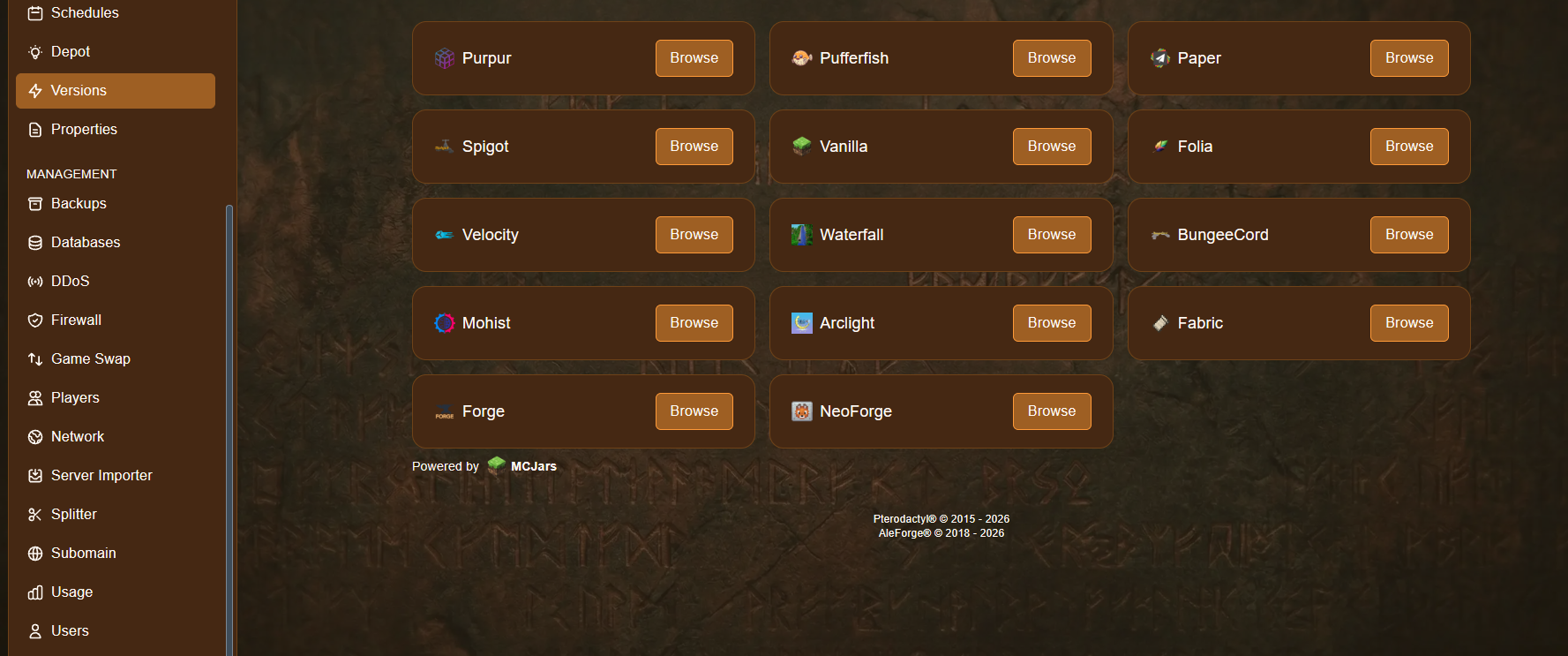
- Go to Versions in the sidebar. If you do not see Versions, go to Game Swap and make sure your server is set to run Minecraft Java, not another game.
- Find your mod loader in the list (for example, Forge, Fabric or NeoForge) and click Browse.
- A window opens.
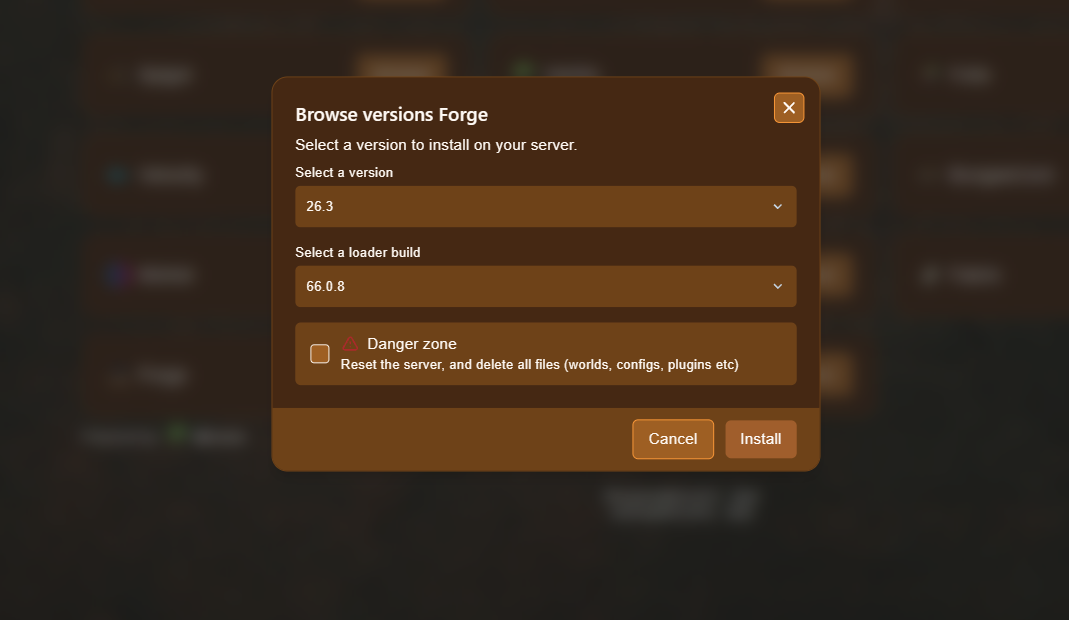
- Under Select a version, choose the exact Minecraft version your modpack uses. This needs to match every mod you downloaded.
- Under Select a loader build, choose the loader build your modpack was built with. If you’re not sure which build, check the modpack’s page, it’s usually listed there, or the manifest file if the modpack came with one. If none is specified, the newest available build is usually a safe choice.
- Leave Danger zone unchecked. Checking this box wipes your server, including your world, configs and plugins, so only use it if you genuinely want to start completely fresh.
- Click Install, and wait for the panel to finish setting up the loader. This can take a minute or two.
You’ve now installed the mod loader on the server. Next, we’ll upload your mods.
Step 5: Upload Your Mods
Section titled “Step 5: Upload Your Mods”- Go to File Manager.
- If you do not see a folder called mods, create one with the Create Directory button. The folder must be named exactly
mods, in lowercase, at the root of your server’s files. - Upload the
mods.zipfile you made into this folder. - Right-click the file and select Unarchive from the menu. This extracts every
.jarfile directly into themodsfolder. - Once it finishes, you can delete
mods.zipitself. Only the extracted.jarfiles need to stay in the folder.
Step 6: Start Your Server and Check for Errors
Section titled “Step 6: Start Your Server and Check for Errors”- Go back to the Console page and click Start.
- Watch the console as the server boots. This can take longer than usual the first time, since the loader is compiling each mod.
- Look for any lines containing
ERROR,Exception, or a mod name followed by a failure message. These usually point to a missing dependency, a mismatched Minecraft version, or a mod that needed to be left out because it was client-only. - Once the server finishes loading, check the startup log for a list of loaded mods, to confirm everything you uploaded actually made it in.
Troubleshooting
Section titled “Troubleshooting”| Problem | Likely Cause |
|---|---|
| The server crashes immediately on startup | A mod is built for the wrong Minecraft version or loader. Check each mod’s page and compare it against the version you installed in Step 4. |
| A mod is “missing a dependency” | Some mods need another mod (like Fabric API, Forge Config API Port, or a library mod) to run. Check the mod’s page for a “Dependencies” or “Required” section, and download those too. |
| The world is missing blocks, items, or crashes when loading a chunk | A mod that adds content to the world was left out of the server, likely mistaken for a client-only mod. Add it back to the mods folder. |
| The server starts, but some features don’t work in-game | The mod you’re missing is actually needed on the client too. Make sure everyone playing has the same mods installed as the server. |
| Everything loaded, but performance is poor | This is normal for large modpacks. See our guide on performance mods for Fabric or Forge for ways to improve it. |
If you’re still stuck, open a support ticket and include the last 50 to 100 lines of your console log from a failed startup, along with a list of the mods you installed.