

How do I upload folders to the Panel?
Due to the way folders are handled in a typical file structure, you cannot drag and drop folders directly onto the panel’s File Manager, only individual files. To get around this, there are two ways to upload a folder:
- Connect to your server using SFTP and drag and drop folders that way. Most SFTP clients support folders directly, so this is the quickest option if you already have one set up.
- Compress your folder into a
.zipfile, and upload that instead. This works entirely through the panel, with no extra software needed.
This guide covers the second method.
How Do I Compress a Folder So I Can Upload It?
Section titled “How Do I Compress a Folder So I Can Upload It?”-
On your computer, right-click the folder you want to upload and select Compress to ZIP file from the context menu.
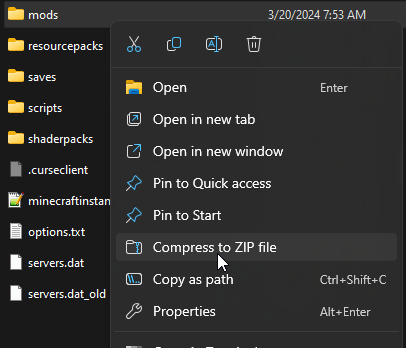
This creates a
.zipfile out of that folder. In this example, the folder is namedmods, so the resulting file is calledmods.zip. -
Go to the AleForge Panel.
-
Open your server and go to File Manager.
-
Navigate to the directory you want the folder’s contents to end up in, then upload your
.zipfile there. -
Once it finishes uploading, right-click the
.zipfile and select Unarchive.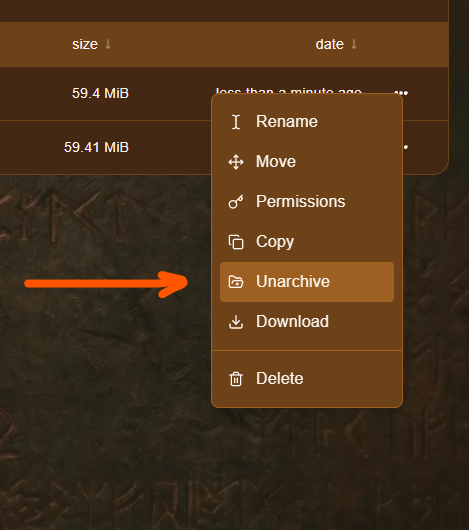
Your folder’s contents will now be extracted and uploaded to your server, inside the directory you chose in step 4. Once everything has been extracted, you can delete the .zip file itself, only the extracted files need to stay.