

How to Set Up Open Discord Bridge
Open Discord Bridge (ODB) relays chat and server events between your Factorio server and a Discord text channel. In-game messages show up in Discord; Discord messages show up in-game as [Discord] username: message.
You need a Factorio server on AleForge and a Discord server where you can add a bot.
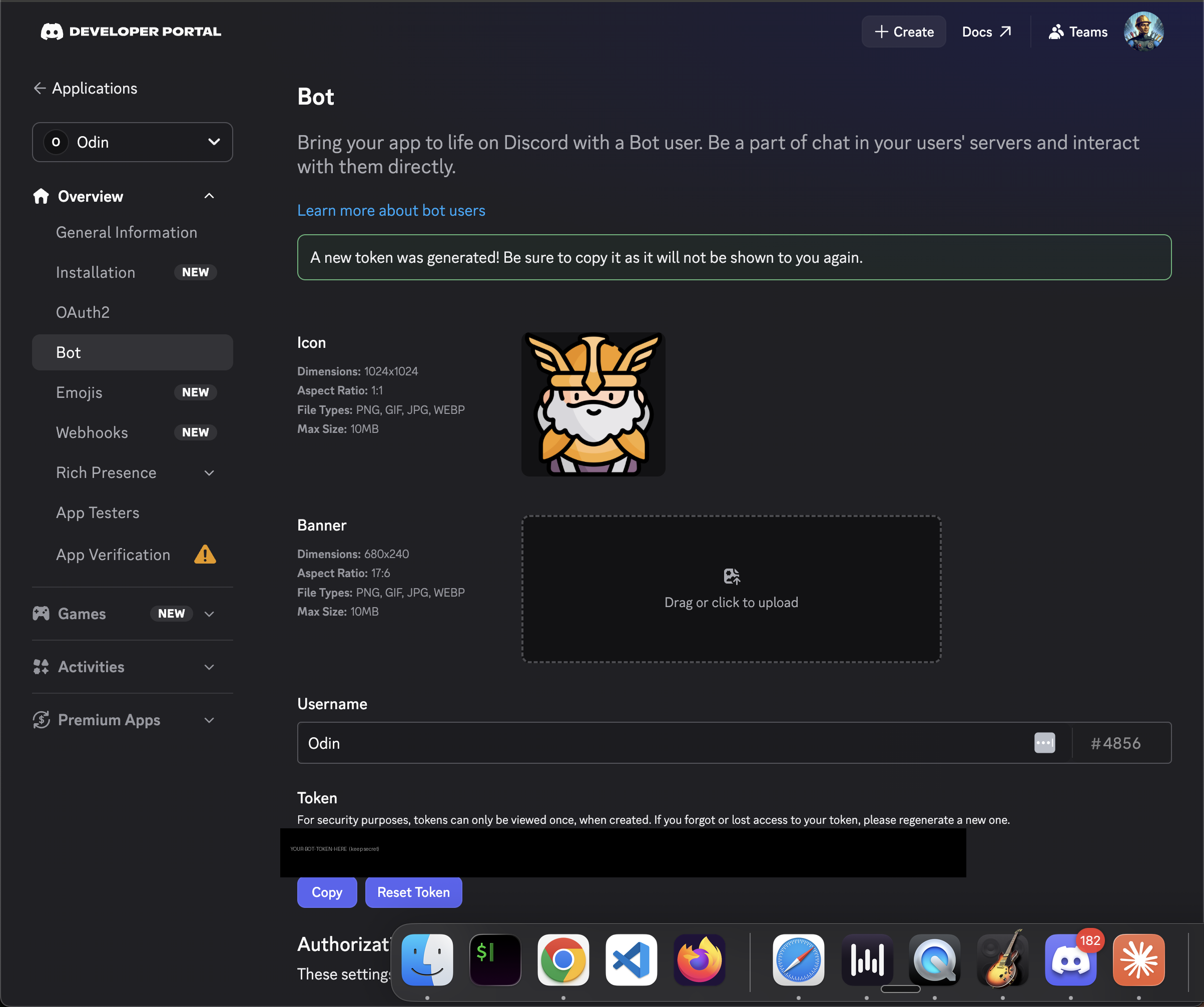
Keep your Discord bot token private. Do not post it in chat, commit it to git, or share it in screenshots. If it leaks, open the bot page in the Discord Developer Portal and click Reset Token.
Add the open-discord-bridge mod
Section titled “Add the open-discord-bridge mod”The mod must be installed on the server, not just in your local game.
- Go to the AleForge Panel
- Add the
open-discord-bridgemod through the mod manager, or upload the mod.zipfrom the Factorio mod portal into the server’smods/folder inFile Manager
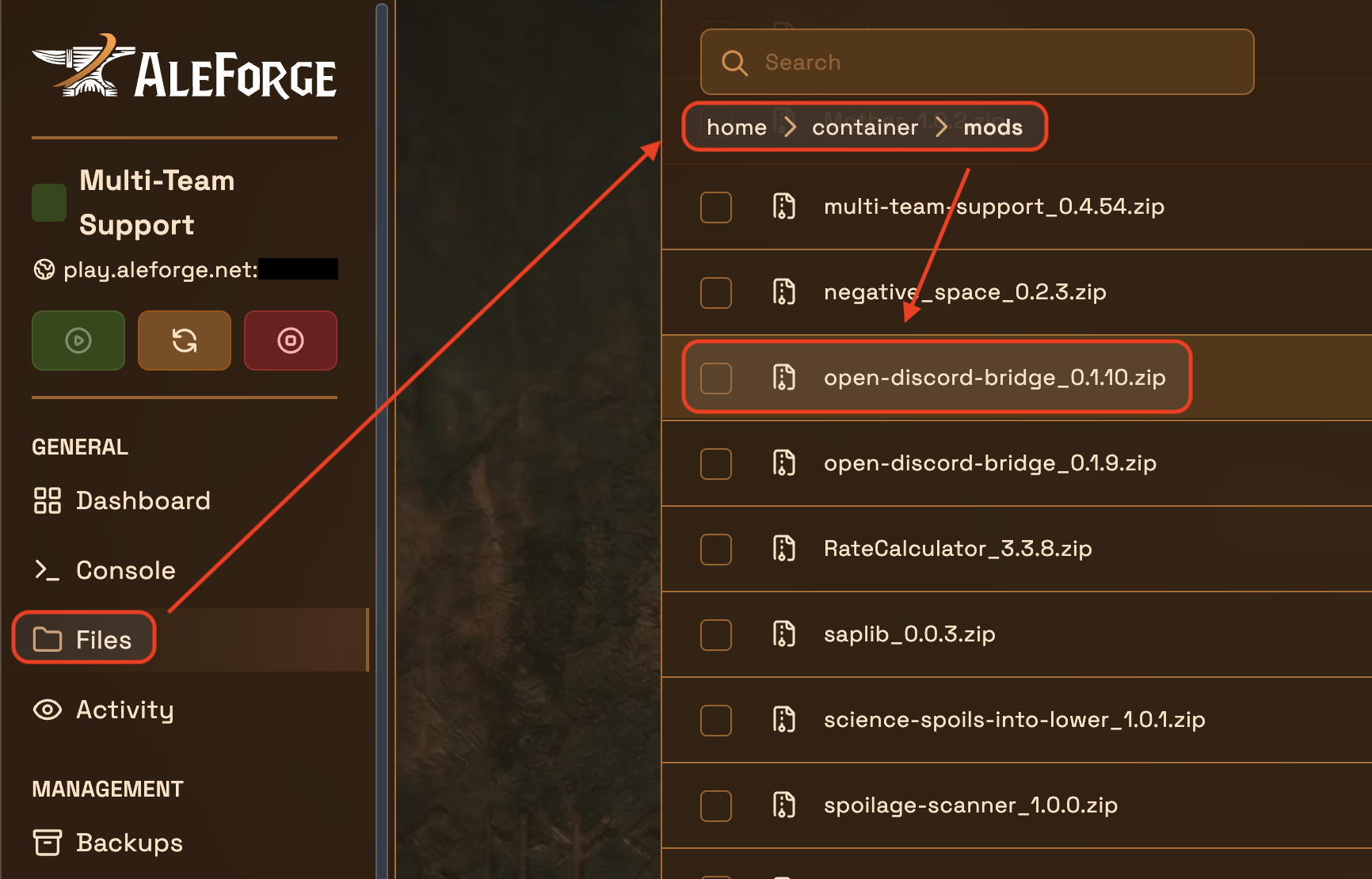
No other mods are required. Events from mods like Multi-Team Support are relayed automatically.
Create a Discord bot
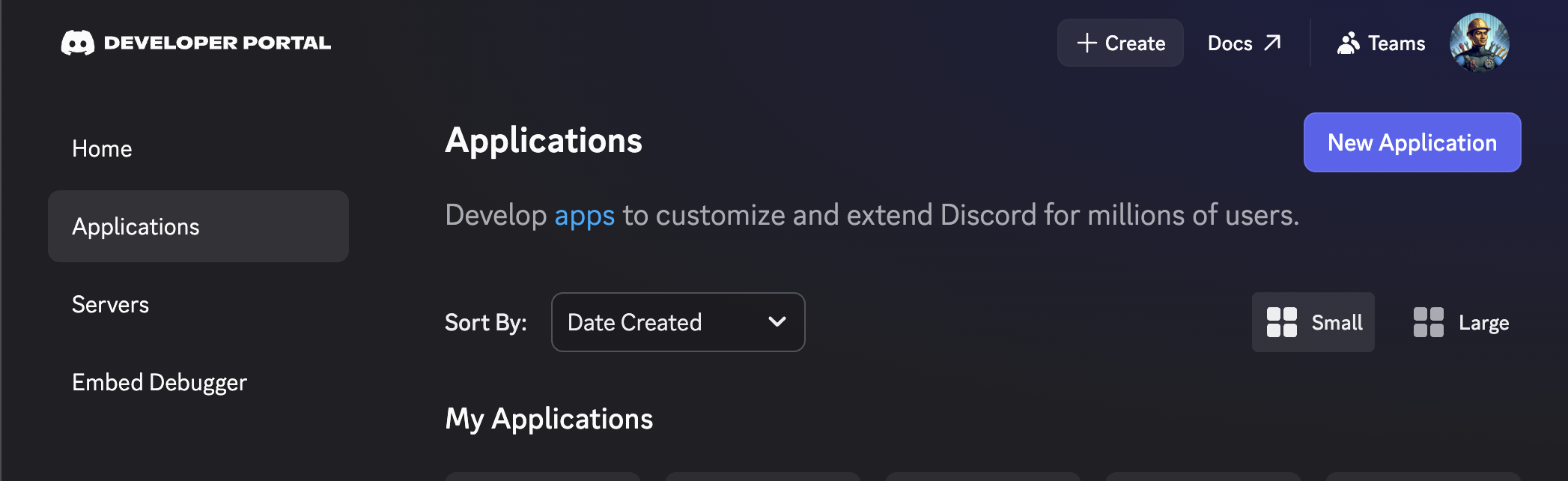
Section titled “Create a Discord bot”- Go to the Discord Developer Portal and log in
- Click
New Application
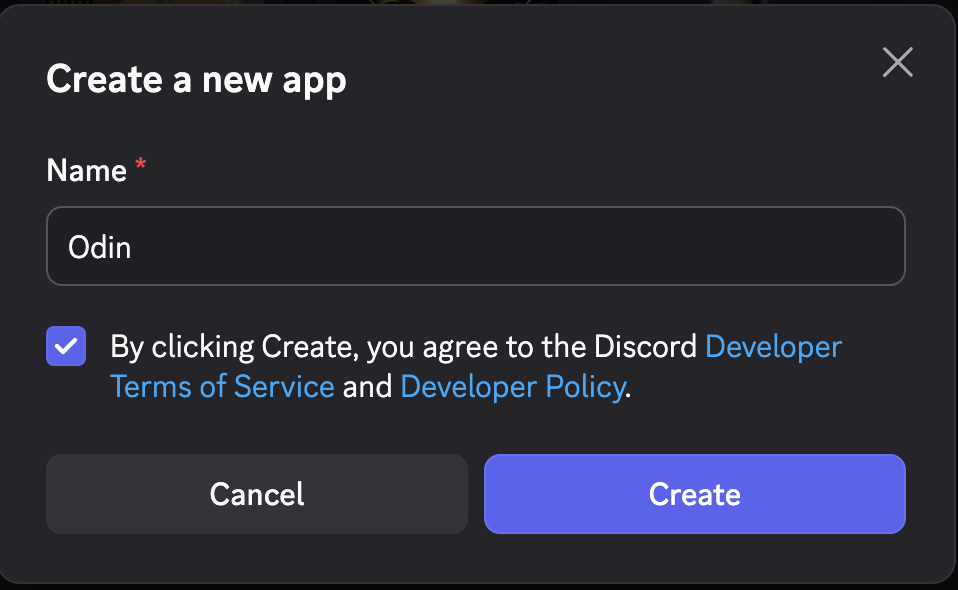
- Enter a name and click
Create
- Open the
Bottab. You can set the bot’s username and avatar here if you want.
Copy the bot token
Section titled “Copy the bot token”- On the
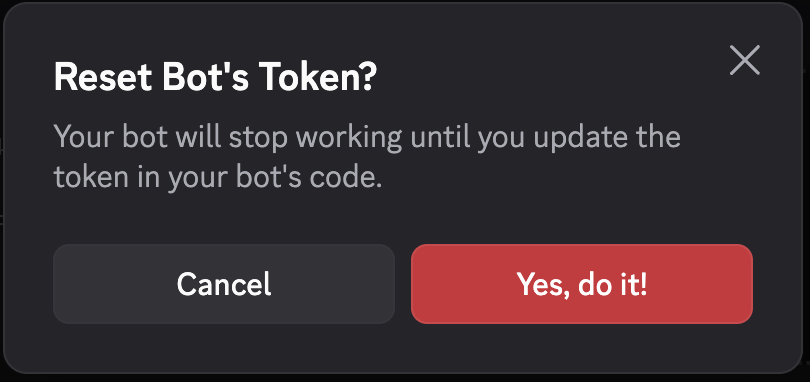
Bottab, findTokenand clickReset Token - Confirm, then copy the token. Discord only shows it once. Save it for the Startup step below.
Enable Message Content Intent
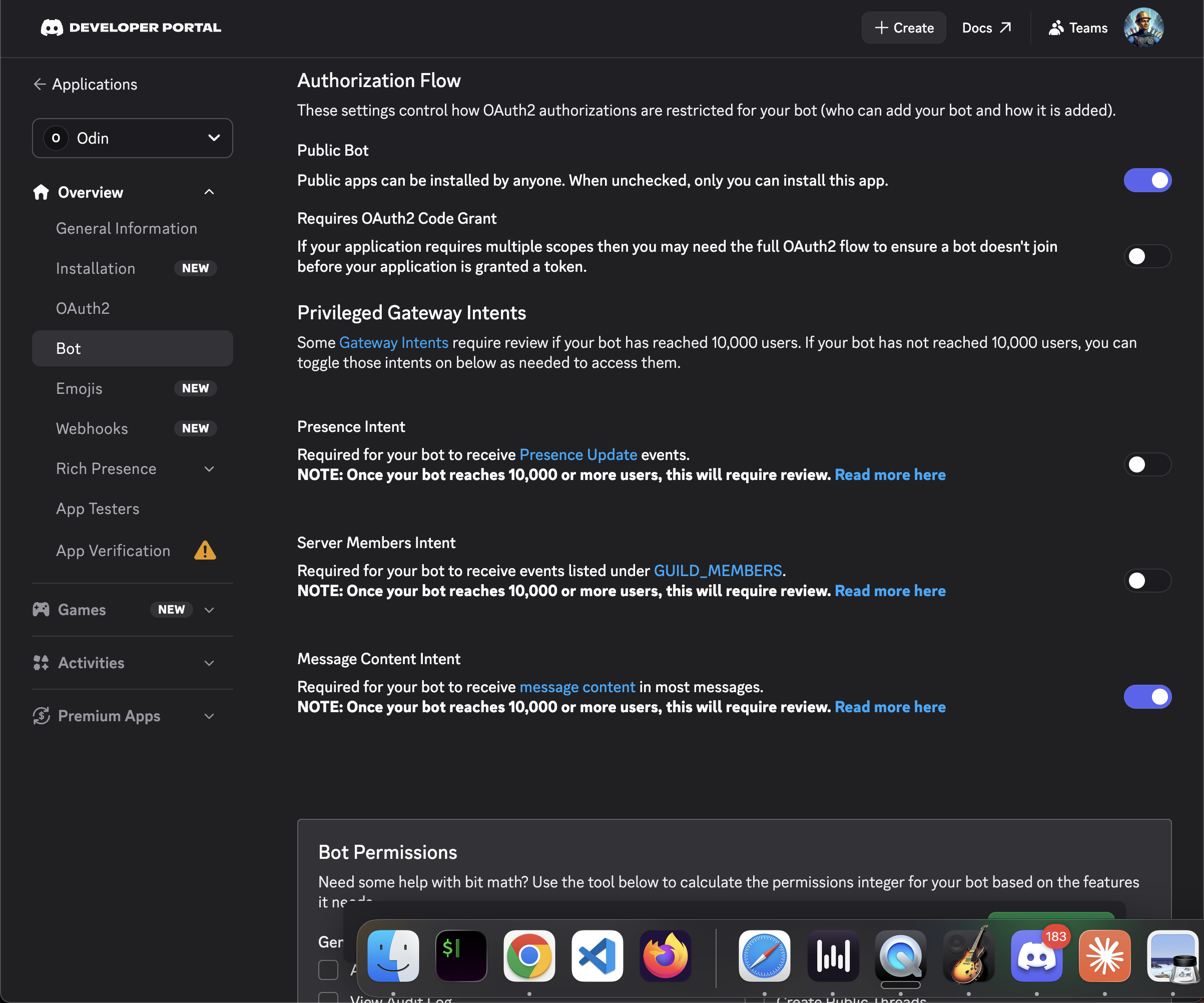
Section titled “Enable Message Content Intent”On the Bot tab, scroll to Privileged Gateway Intents and turn on Message Content Intent, then click Save Changes.
Without this, messages from Discord will not reach the game. Game-to-Discord chat can still work, which makes this easy to miss. Leave Presence Intent and Server Members Intent off.
Invite the bot to your Discord server
Section titled “Invite the bot to your Discord server”Choose the bot scope
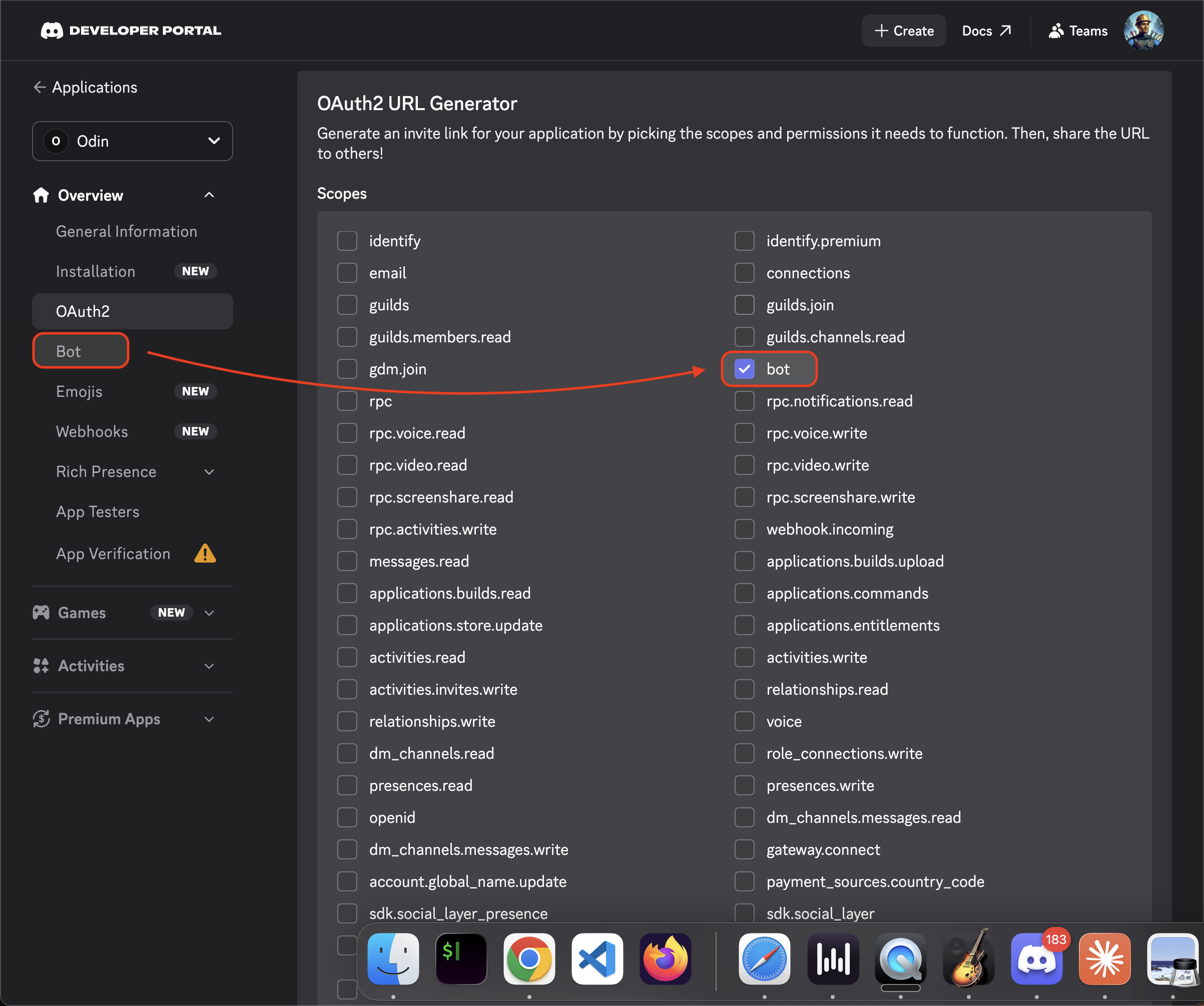
Section titled “Choose the bot scope”- Open
OAuth2in the left sidebar - Scroll to
OAuth2 URL Generator - Under
Scopes, checkbot - Optionally check
applications.commandsif you want slash commands like/players
Choose bot permissions
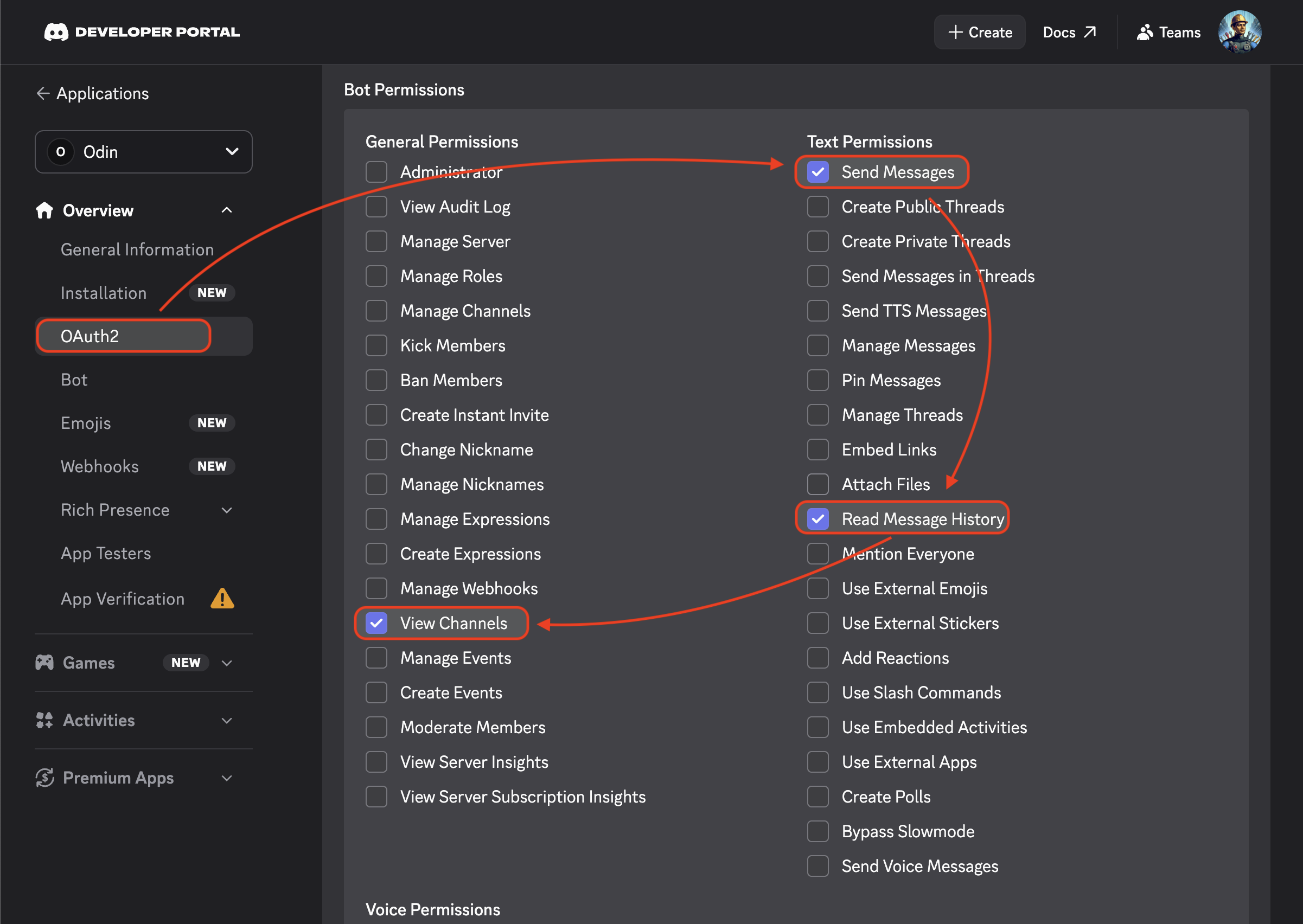
Section titled “Choose bot permissions”Under Bot Permissions, check:
View ChannelsSend MessagesRead Message History
Authorize the bot
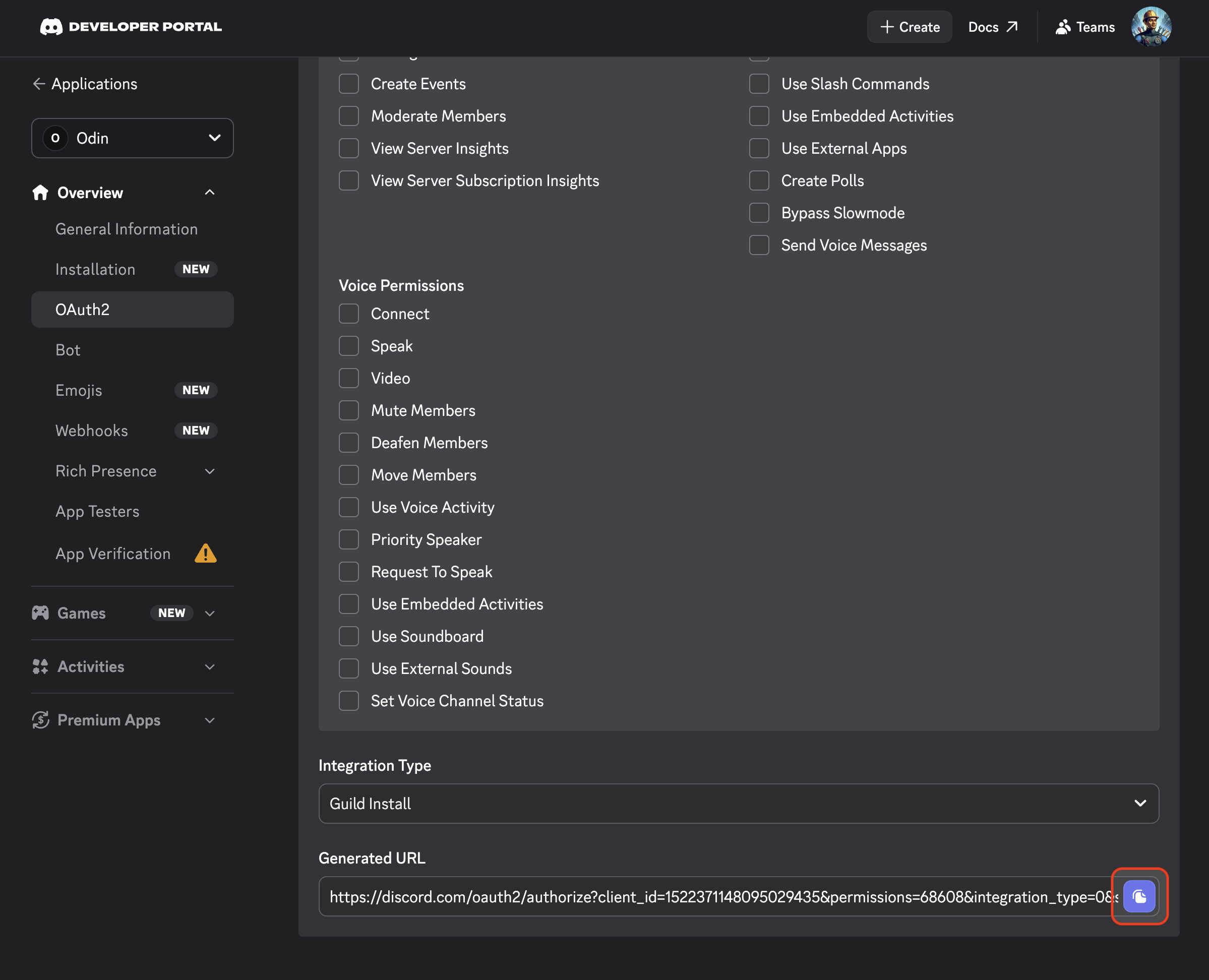
Section titled “Authorize the bot”- Copy the
Generated URLat the bottom of the page
- Open the URL in your browser
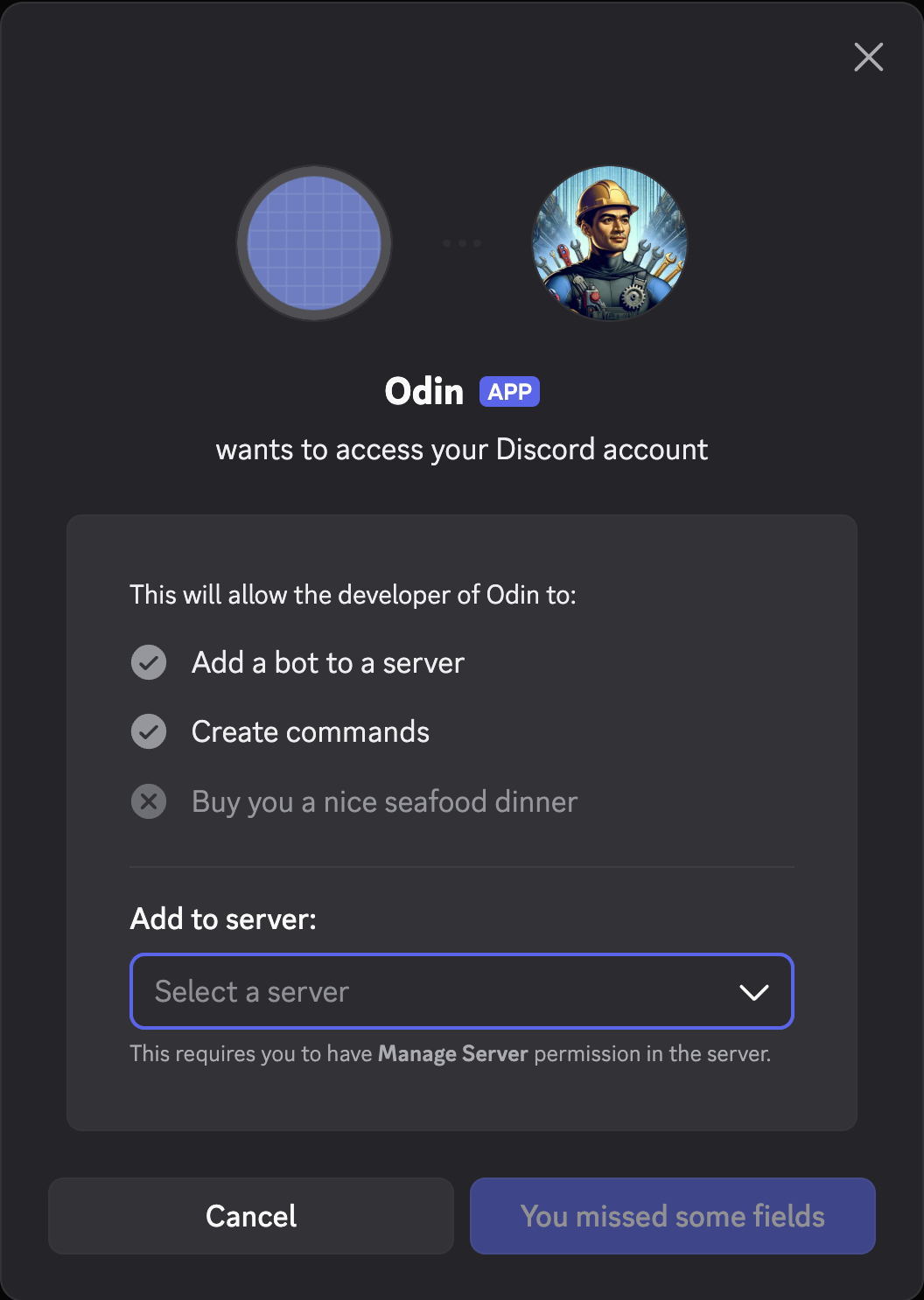
- Select your server from
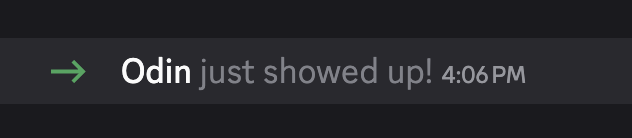
Add to server, clickAuthorize, and complete the captcha
Create a channel and copy its ID
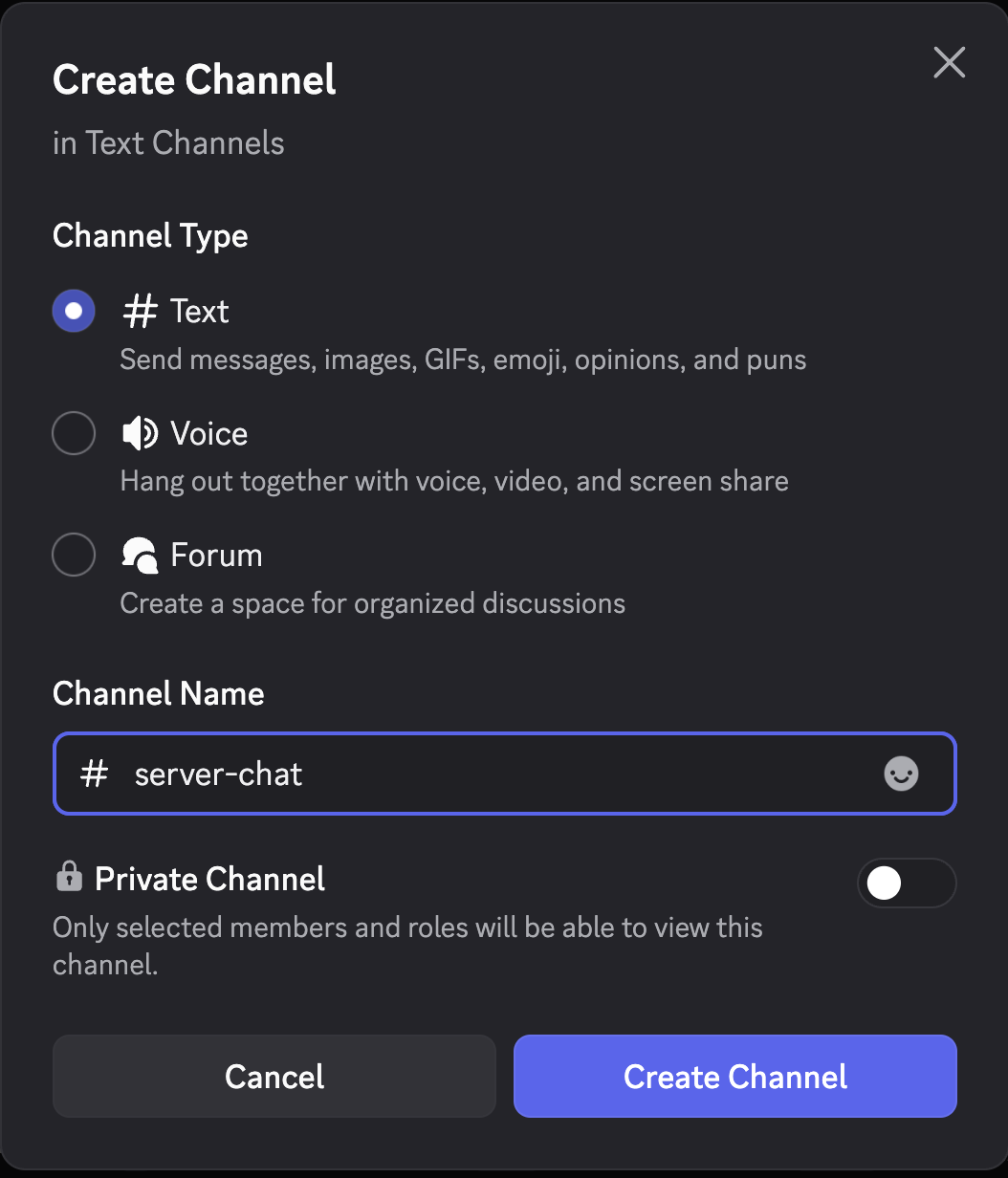
Section titled “Create a channel and copy its ID”- Create or pick a text channel for bridge chat, such as
#server-chat - If the channel is private, give the bot access to it
- In Discord, go to
User Settings→Advancedand turn onDeveloper Mode
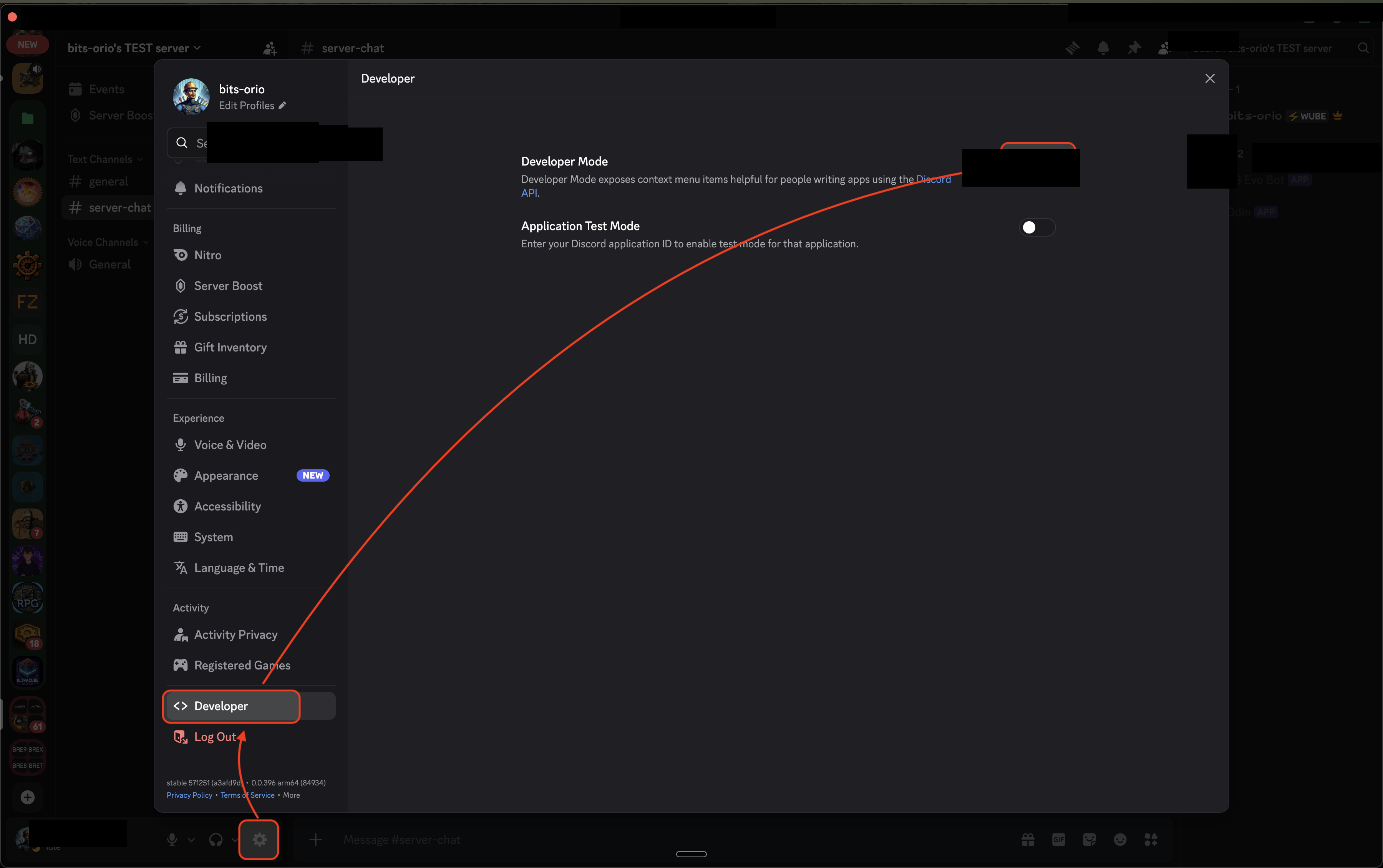
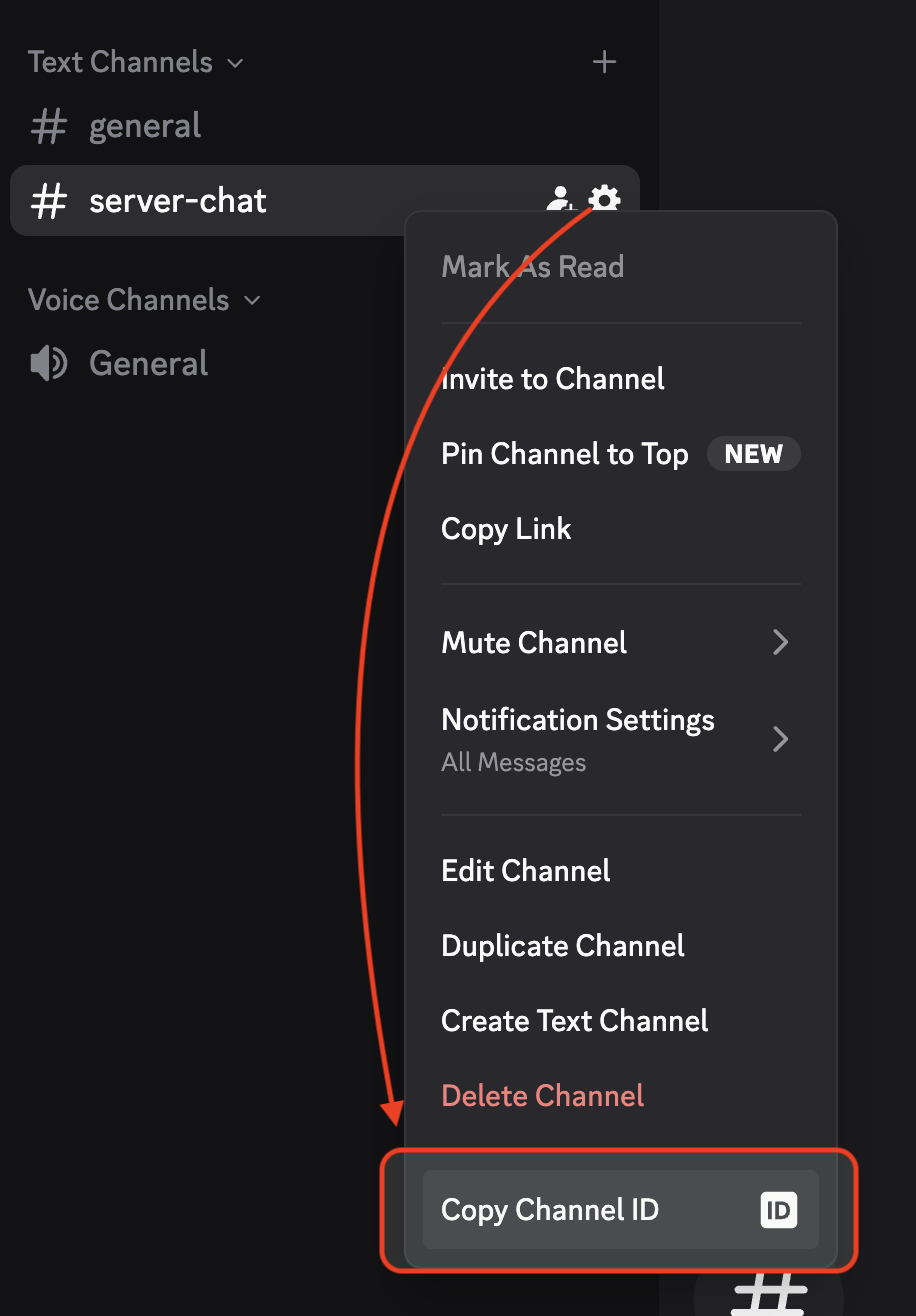
- Right-click the channel and select
Copy Channel ID
Configure Startup in the AleForge Panel
Section titled “Configure Startup in the AleForge Panel”- Go to the AleForge Panel
- Open
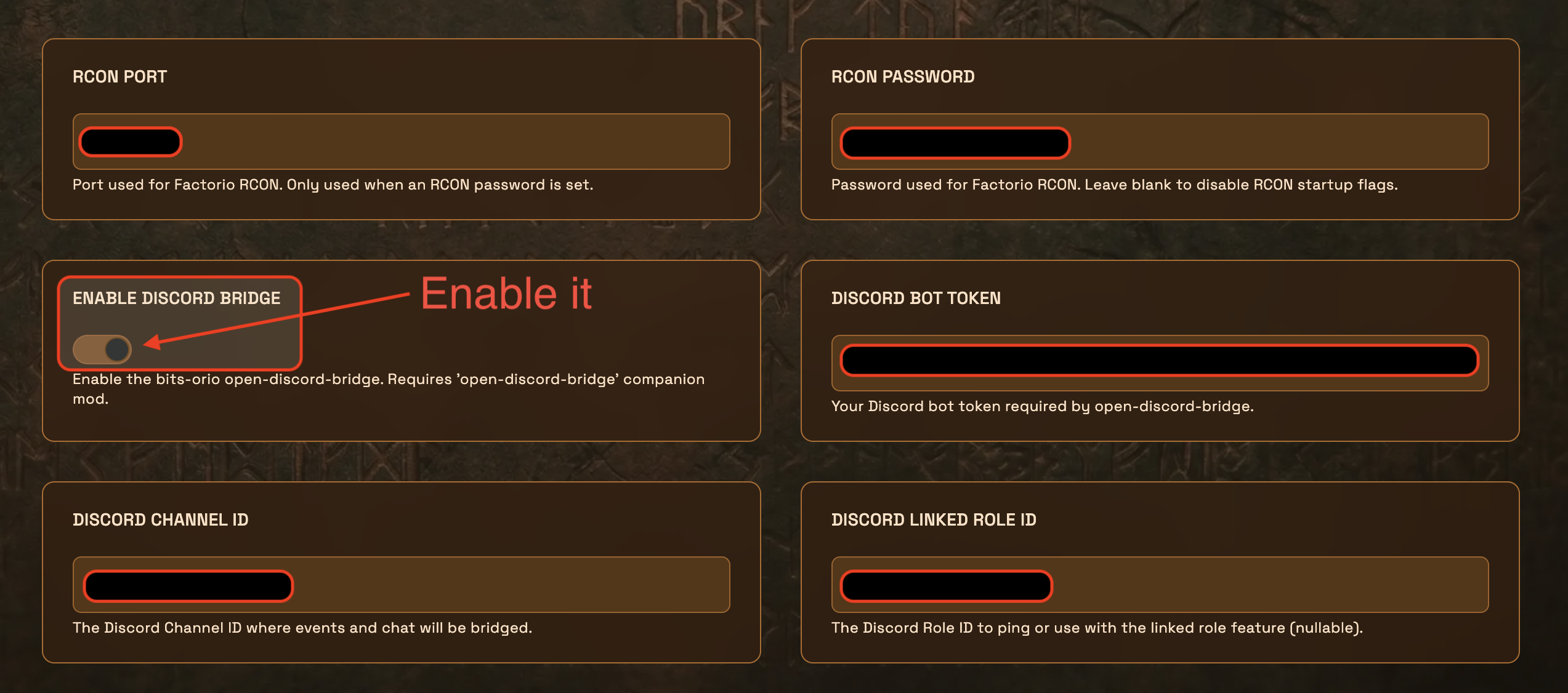
Startupand set:
| Field | Value |
|---|---|
RCON Port |
Leave the default unless you changed it elsewhere |
RCON Password |
Set a password. RCON must be enabled for Discord-to-game chat |
Enable Discord Bridge |
On |
Discord Bot Token |
The token from above |
Discord Channel ID |
The channel ID you copied |
Discord Linked Role ID |
Leave blank unless you set up linked roles below |
- Save the startup settings
Reinstall the server
Section titled “Reinstall the server”AleForge installs the bridge during a reinstall.
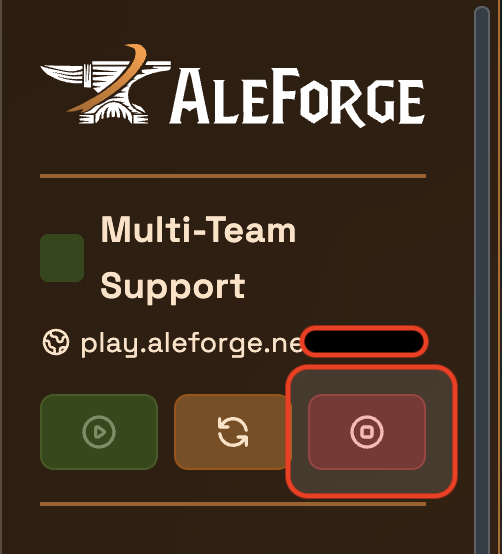
- Stop the server and wait until it is offline
- Go to
Settings→Reinstall Serverand confirm
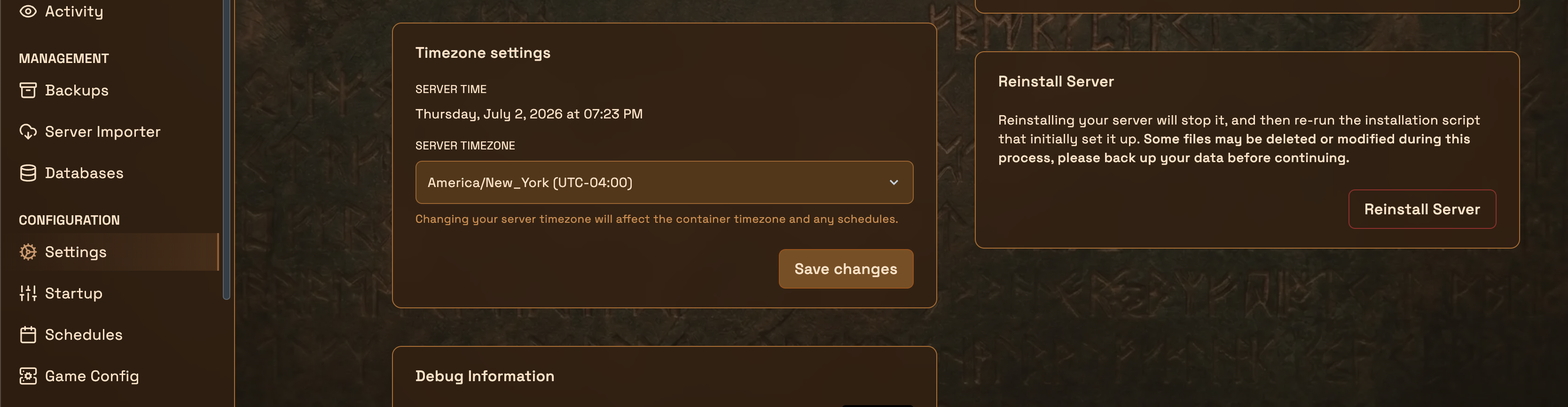
Reinstalling reruns the install script. Saves and mods are kept, but take a backup first if you want one.
- Start the server after the reinstall finishes
Test the bridge
Section titled “Test the bridge”Game to Discord: Join the server or use the panel Console and send a chat message. It should appear in your Discord channel within a few seconds.
Discord to game: Send a message in the channel. It should appear in-game as [Discord] yourname: message.
![Discord to game: Send a message in the channel. It should appear in-game as [Discord] yourname: message.](/assets/images/docs/factorio-odb/18-verify-game-to-discord.png)
![Discord to game: Send a message in the channel. It should appear in-game as [Discord] yourname: message.](/assets/images/docs/factorio-odb/19-verify-discord-to-game.png)
Troubleshooting
Section titled “Troubleshooting”Discord messages do not appear in-game
Section titled “Discord messages do not appear in-game”Check that Message Content Intent is enabled on the bot, and that RCON Password is set in Startup. Restart the server after changing either.
Nothing appears in Discord
Section titled “Nothing appears in Discord”Check that Enable Discord Bridge is on, the channel ID is correct, the bot is in that server, and the bot can view and send messages in the channel.
Other issues
Section titled “Other issues”On startup the bridge writes bridge.effective.yaml in its working directory. It lists which settings were found (SET or MISSING) and any warnings. The bridge also posts a warning in the channel if permissions are wrong.
Linked roles (optional)
Section titled “Linked roles (optional)”ODB can assign a Discord role to players who link their Factorio and Discord accounts.
- Give the bot
Manage RolesandManage Nicknames, then re-invite it or update its role permissions - In
Server Settings→Roles, move the bot’s role above the role it should assign - Right-click the role and select
Copy Role ID - Paste the ID into
Discord Linked Role IDin Startup, then reinstall or restart
Players run /odb-link in-game to get a code, then complete the link in Discord.
Panel field reference
Section titled “Panel field reference”| AleForge field | Bridge variable |
|---|---|
| RCON Port + RCON Password | ODB_RCON_ADDRESS (127.0.0.1:<port>) + FACTORIO_RCON_PASSWORD |
| Discord Bot Token | DISCORD_BOT_TOKEN |
| Discord Channel ID | ODB_DISCORD_CHANNEL_ID |
| Discord Linked Role ID | ODB_LINKED_ROLE_ID |
More details: open-discord-bridge on GitHub