

How do I change settings on my Soulmask server?
Soulmask has lots of settings you can edit and change in your server. Here’s how you can customize them.
Changing Settings using the Blacksmith’s Portal
Section titled “Changing Settings using the Blacksmith’s Portal”Startup Settings
Section titled “Startup Settings”For AleForge customers, most of the common settings are located in Startup. You can change and access them by doing the following.
- Go to the Blacksmith’s Portal
- Go to
Startup - Edit the settings you’d like to change.
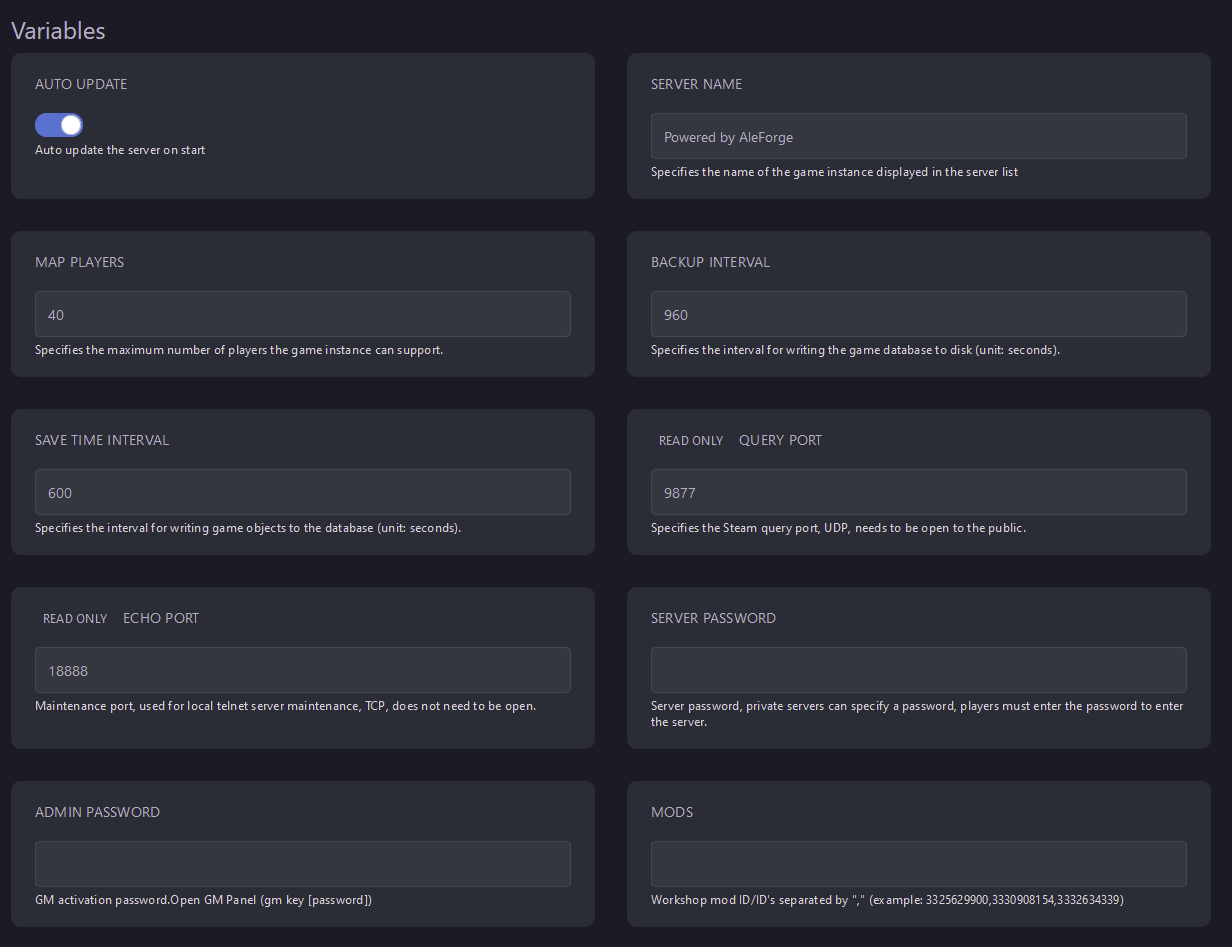
Once you’ve edited them here, restart your server and they will apply.
Game Config Settings
Section titled “Game Config Settings”- Go to the Blacksmith’s Portal
- Go to
Files - Select
Config Files
- Select
GameXishu.jsonfrom the list - Select
View File
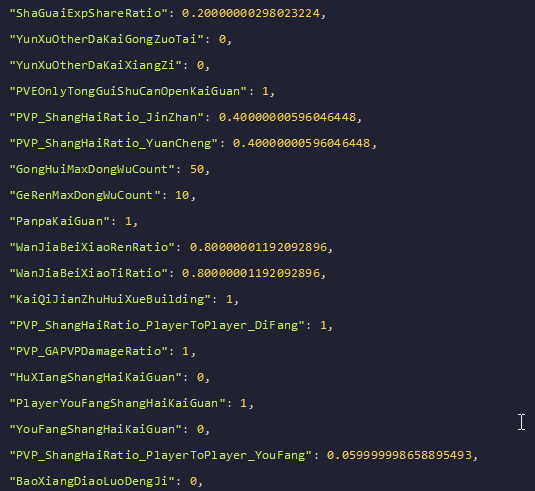
Here you can edit all of the values in this file. When you are done editing,
be sure to click Save Content and restart your server.
Changing Settings manually or on another host
Section titled “Changing Settings manually or on another host”Startup Settings
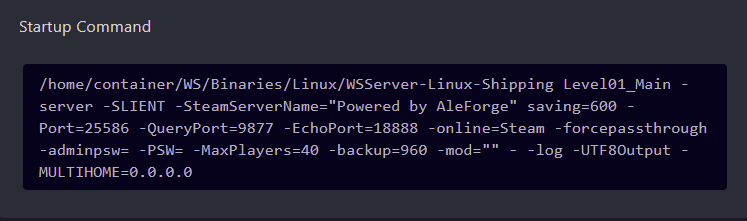
Section titled “Startup Settings”If you’re on another host or self-hosting your server, there are a number of flags you can apply to the startup command of your server instead to change many of these features.
Game Config Settings
Section titled “Game Config Settings”Soulmask has a number of editable game options located within the game files. Here’s how you can edit them.
- Locate the
.jsonfile with all of the settingWS/Saved/GameplaySettings/GameXishu.json - Change the files you want to change, and save the file.
- Restart your server to apply the changes