

How do I remove a chunk in my Minecraft world?
Minecraft divides its world into 16×16×384 “slices,” called chunks, which contain all the blocks in that section of your world.
Sometimes, especially when playing modded, chunks can become corrupted. A corrupted chunk can cause significant lag on your server, or even crash the server entirely whenever it tries to load. In this guide, we’ll show you how to find and remove problem chunks using MCA Selector.
Fixed the corrected dimension IDs:
DIM-1is the Nether, andDIM1is the End.
Preparing Your World for Chunk Editing
Section titled “Preparing Your World for Chunk Editing”-
Download MCA Selector.
-
Locate or download your Minecraft world. If hosting with AleForge, you can follow this guide to access your world files.
-
Make a copy of your world as a backup before editing anything. Deleting chunks is permanent, so you’ll want a safety net in case something goes wrong or you remove more than intended.
-
In MCA Selector, go to File → Open World, then choose the save folder of your Minecraft world.
-
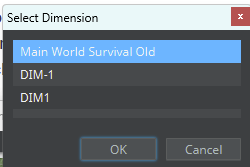
You’ll be prompted to choose a dimension:
- The first option is always the name of your world, this is your Overworld.
DIM-1is the Nether.DIM1is the End.
Note: If your server is running Minecraft 26.1 or newer, your world uses an updated folder structure (
dimensions/minecraft/overworld,dimensions/minecraft/the_nether, anddimensions/minecraft/the_end) instead of theDIM-1/DIM1folders shown here. Check that MCA Selector supports this newer format for your version before relying on it. -
Your world will now open in MCA Selector, showing a map of all the chunks in the selected dimension.
Deleting Chunks in Your World with MCA Selector
Section titled “Deleting Chunks in Your World with MCA Selector”-
Left-click and drag to select the chunks you want to remove. Selected chunks will be highlighted.
-
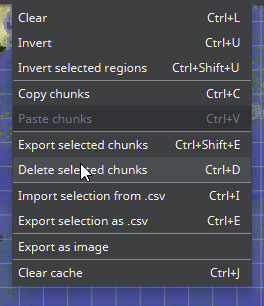
Once you’ve made your selection, go to Selected → Delete Selected Chunks.
-
Once you’re satisfied with your changes, make sure to save them before closing MCA Selector, and upload the edited world files back to your server if you made your edits on a separate copy.
Deleted chunks aren’t gone forever from the game’s perspective, when a player next walks into that area, Minecraft will simply generate a brand new, unmodified chunk in its place.
A Few Tips
Section titled “A Few Tips”- Only delete what you need to. If you’re not sure which chunk is actually causing the problem, consider checking your server’s crash logs or console output first. They’ll often mention specific coordinates, which can help you narrow down exactly which chunk to target instead of removing a larger area than necessary.
- Stop your server before editing files directly on it. If you’re editing the world files in place rather than a downloaded copy, make sure the server is stopped first to avoid corrupting the world further.
- If you’re not confident identifying the bad chunk yourself, you’re welcome to contact support with your server ID and a copy of the relevant crash log, and we can help point you in the right direction.