

How do I upload my mod config files to my tModloader server?
Many tModloader mods have config files that allow you to change different mod settings. Typically, these are created when your server loads the mods. However, there are some cases where the mod config files must be uploaded directly from your computer. Here we’ll show you how to upload your mod config files from your computer to the server.
Locating the ModConfig folder
Section titled “Locating the ModConfig folder”- Open tModloader and go to Workshop
- Go to Mod Packs and select
Save Enabled as New Mod Pack

- Give your Mod Pack a name
- Select
Open Mod Pack Folder

- Move into the folder with the name of your Mod Pack
- Right-click on ModConfigs and select Compress To -> ZIP file
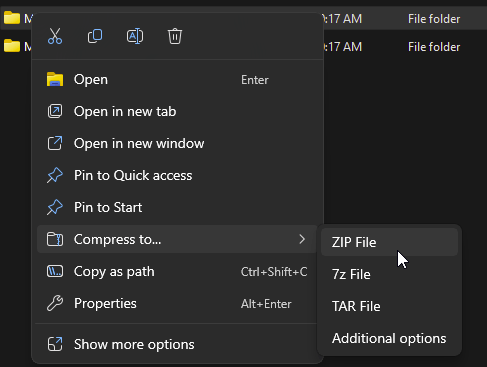
- Leave the name as
ModConfigs.zip
Keep your newly zipped up file handy as we will need this later to upload to the panel.
Uploading ModConfigs.zip to the AleForge Panel
Section titled “Uploading ModConfigs.zip to the AleForge Panel”- Open the AleForge Panel
- Go to
Files - Open
saves - Upload
ModConfigs.zipto this location - Once uploaded, right click the uploaded file and select
Unarchive - Restart your server