

How do I connect to my server using SFTP?
If your SFTP password isn’t working, skip to Why isn’t my password working? below. Otherwise, here’s how to connect to your server using SFTP.
What Is SFTP?
Section titled “What Is SFTP?”SSH File Transfer Protocol (SFTP) is a networking protocol designed to securely transfer and upload files to your server. An SFTP connection is necessary if you want to upload files over 1 GB in size, since the panel’s browser-based File Manager isn’t built for transfers that large.
To connect to your server using SFTP, you’ll first need to download an SFTP client, such as the free FileZilla.
Connecting to Your Server Using FileZilla
Section titled “Connecting to Your Server Using FileZilla”-
Open FileZilla.
-
At the top of the window, you’ll find fields named Host, Username, Password, and Port.

-
You’ll fill these fields out using information from the Settings section of the AleForge Panel.
-
In the Panel’s Settings, find your Server Address, for example
nodename.aleforge.net:2022. In FileZilla, enter this into the Host field, addingsftp://in front of it, so it looks likesftp://nodename.aleforge.net:2022. -
Now split the port out of the Host field: remove
:2022from the end of Host, and enter2022into the Port field instead. Your fields should now look like this:
-
Fill out Username with the username shown in the Settings section of the Panel.
-
Fill out Password with your panel password. If you sign in using the Login with AleForge button, see the note below, since you’ll need to set a separate panel password first.
-
Click Quickconnect.
-
You’re now connected to your server via SFTP. You can drag files between the left panel (files on your computer) and the right panel (files on your server) to transfer them.
Why Isn’t My Password Working?
Section titled “Why Isn’t My Password Working?”If you sign in using Login with AleForge, SFTP needs a separate panel password, since it can’t use that login method directly. For the full explanation, see How do I log in to the Game Panel? Here’s the short version:
-
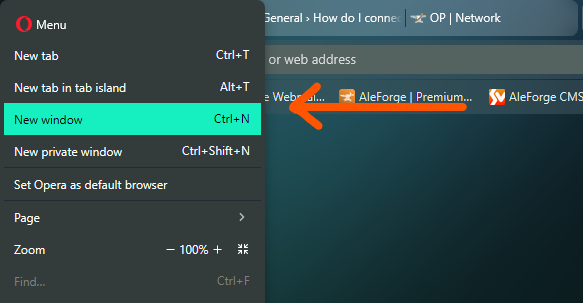
Open a new tab in your browser using Incognito Mode (or your browser’s equivalent private browsing mode). This avoids conflicts with your existing Login with AleForge session.
-
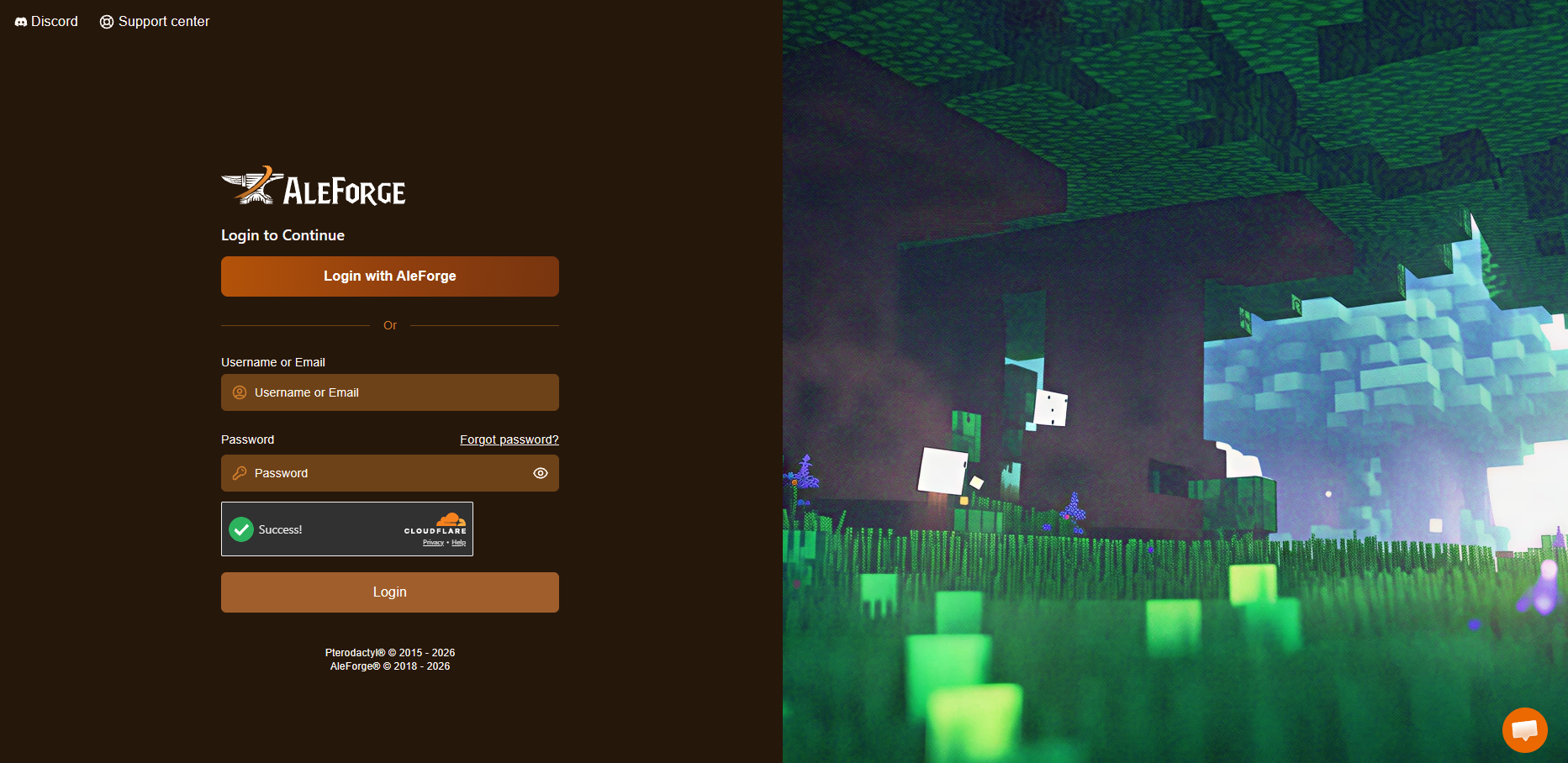
Go to https://panel.aleforge.net/.
-
Select Forgot Password?
-
Follow the link sent to your email to reset your password.
-
You can now connect to your server using the password you just set.
Setting a panel password this way does not change your billing password. The two are separate, and this only affects how you log in to the Panel and SFTP.