

How do I authorize my Hytale server?
In order to download files, Hytale requires that you authorize the server with your credentials. This guide will walk you through doing that on your AleForge server, as well as self-hosting or on another host.
Authorizing Your Server
Section titled “Authorizing Your Server”Using the Blacksmith’s Portal
Section titled “Using the Blacksmith’s Portal”- Open the Blacksmith’s Portal
- Go to
Console - Start your server. It will print an authorization code in the console
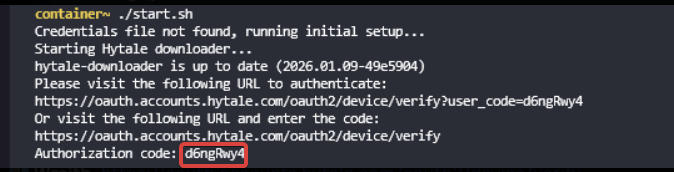
- Copy the authorization code
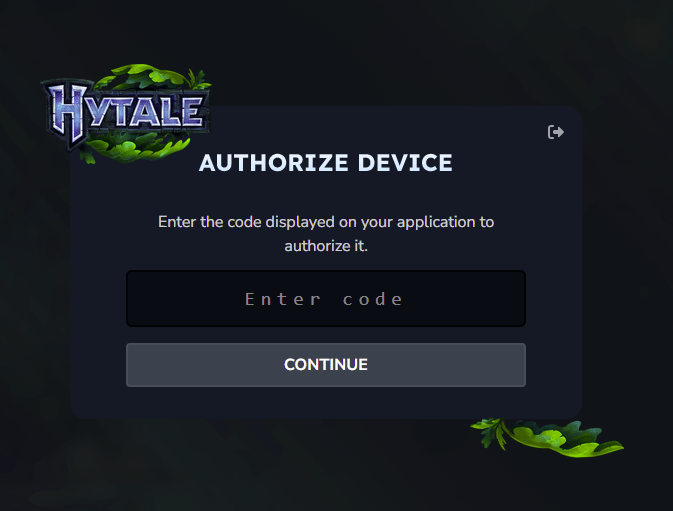
- Sign in to Hytale
- Paste the authorization code you copied
- When Hytale requests to access your account, select
Approve
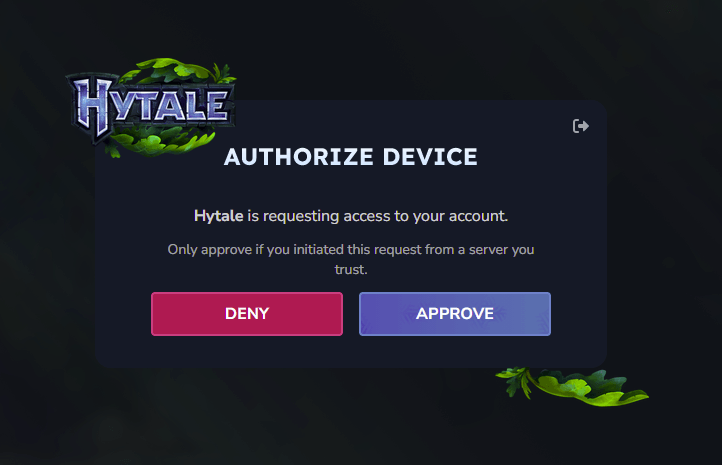
Your server will now begin downloading the files it needs.
Self-Hosting/Other Providers
Section titled “Self-Hosting/Other Providers”- Start your server. It will print an authorization code in the console
- Copy the authorization code
- Sign in to Hytale
- Paste the authorization code you copied
- When Hytale requests to access your account, select
Approve