

How do I connect to my server?
To find the address to connect to your server, you can check either the Dashboard or the Network tab in the panel. Both show your server’s address, the Network tab just shows the full list of ports and aliases if you have more than one.
Option 1: Dashboard
Section titled “Option 1: Dashboard”-
Go to the Blacksmith’s Portal.
-
Select your server. You’ll land on the Dashboard by default.
-
Under Server Info, look at the Hostname field. This is the full address you use to connect, including the port.
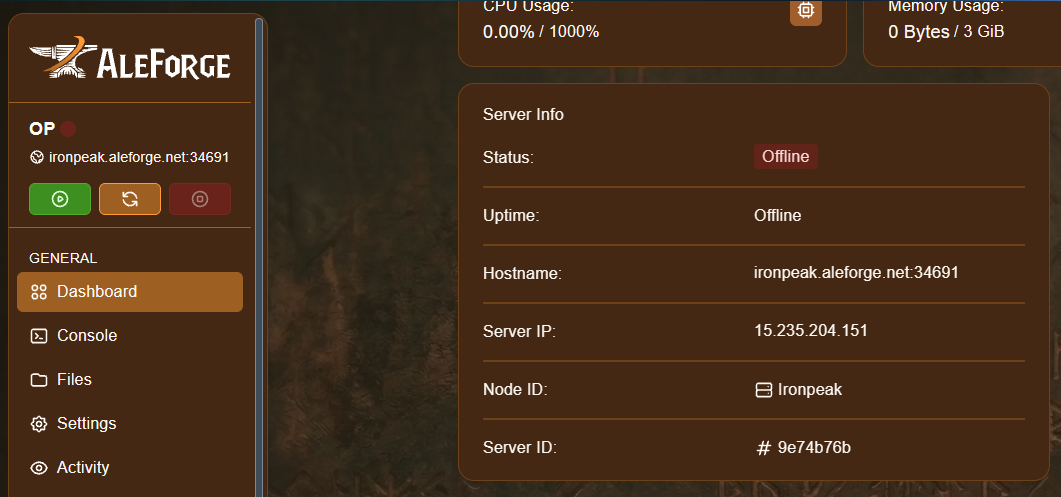
In this example, the hostname is ironpeak.aleforge.net:34691, that’s the exact address you’d use to join.
Server IP vs. Hostname: the Dashboard also lists a Server IP (a raw IP address, like
15.235.204.151). In almost all cases, you should connect using the Hostname instead, since it points to the correct server even if the underlying IP ever changes.
Option 2: Network Tab
Section titled “Option 2: Network Tab”- Go to the Blacksmith’s Portal.
- Select your server.
- Click the Network tab.
All available ports, IP addresses, and aliases will be listed on this page. This is especially useful if your server has more than one allocation, see our guide on creating an allocation for more on that.
Troubleshooting
Section titled “Troubleshooting”I can’t connect to my server, even when I put in the address from the Dashboard or Network tab. Why am I having issues?
- For games like Minecraft Java, you need to enter the port along with the address of your server. These are the numbers that follow the colon. For example, a correct, joinable address looks like this:
myserver.aleforge.net:12345- For games like Terraria or Minecraft Bedrock, leave the colon and port out of the address field, and enter the port separately in its own box. For example:
Address: myserver.aleforge.netPort: 12345- Your server’s firewall may be blocking your connection. To test this, go to the Blacksmith’s Portal and open Firewall. Try disabling the firewall temporarily and see if you can connect. If that fixes it, you’ll need to add the correct rule to allow your connection rather than leaving the firewall off.
- Your IP may be banned by our infrastructure. If this seems to be the case, contact support with your server ID and your IP address from whatismyip.com.
- If none of this resolves it, open a ticket and we’ll investigate and get back to you as soon as possible.