

How to Check Usage and Change Server Limits
The Usage Billing dashboard is your central hub to monitor exactly what your pay-as-you-go game servers are consuming and to dynamically scale your hardware maximums.
How to See Your Server Usage
Section titled “How to See Your Server Usage”- Log in to the AleForge Client Area.
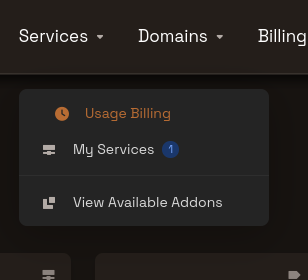
- Open the Usage Billing tab.
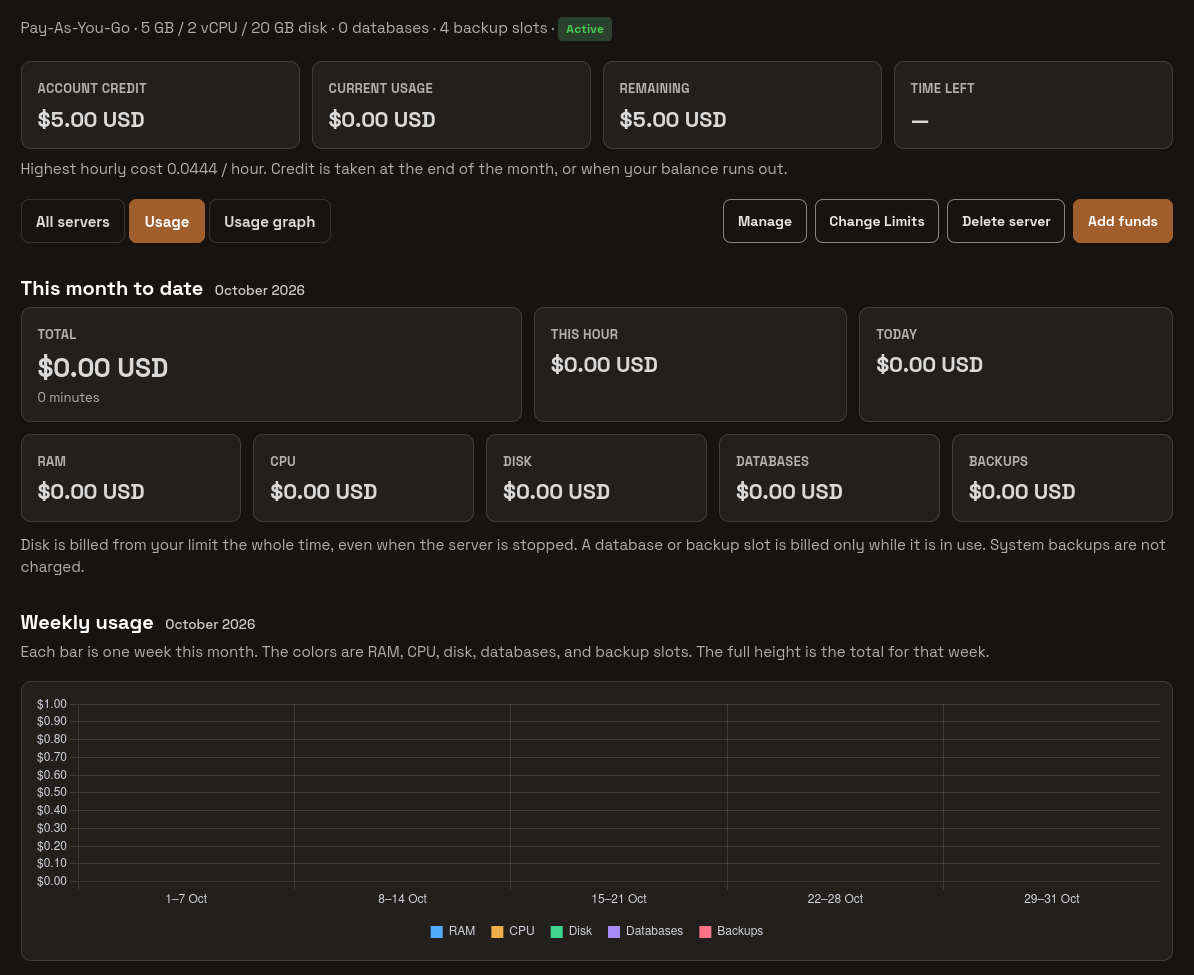
Each server listed will display its usage for today, the current month, and your remaining account credit. Your remaining credit is calculated as your total funds minus any usage that has not yet been formally deducted. One centralized balance covers every pay-as-you-go server on your account.
How to Change Hardware Limits
Section titled “How to Change Hardware Limits”To scale your resources, open the specific server in the dashboard and choose Change Limits. Here, you can adjust your maximums for RAM, CPU, disk space, databases, and backup slots.
Changing your limits is non-destructive: your game world, server configuration, and geographic location will all remain exactly as they are. Adjusting these limits does not transition your server onto a traditional monthly plan.
Please remember that your new limits represent maximum thresholds. RAM and CPU are still billed efficiently based solely on what the server actively uses while running. Disk space is billed continuously based on the maximum disk limit you set. Databases or backup slots are only billed while actively in use.
For a complete breakdown of resource costs, view our Pay-as-You-Go Prices.