

How To Setup Scheduled Restarts
To automate restarts for your server, we’ll have to create a schedule and notify users of the restart.
Creating A Schedule
Section titled “Creating A Schedule”1. Go to the [AleForge Panel](https://panel.aleforge.net/)2. Go to `Schedules`3. Click `Create Schedule`Schedules use the Cronjob syntax. This is for determining when your backup will happen in UTC. Here is an example schedule that will run once a day.
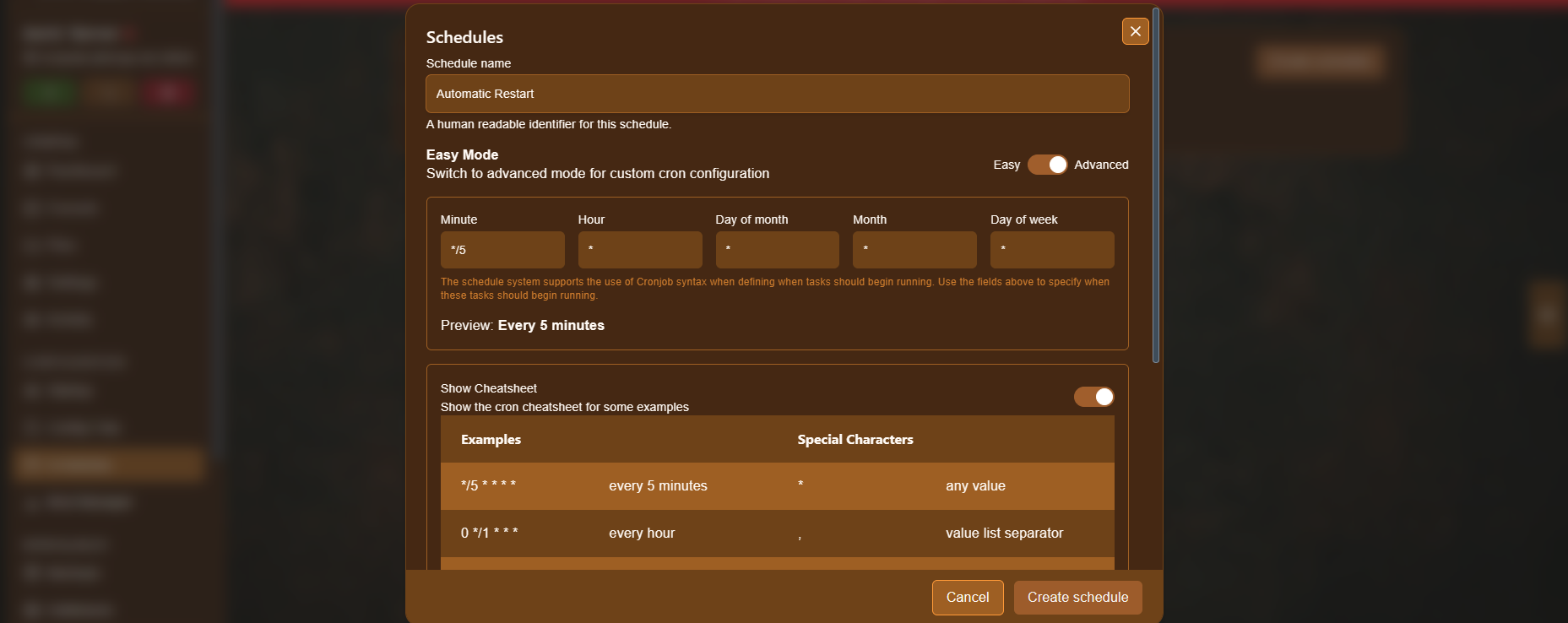 Click on the image to find out more about Cronjobs
Alerting Your Users of the Restart
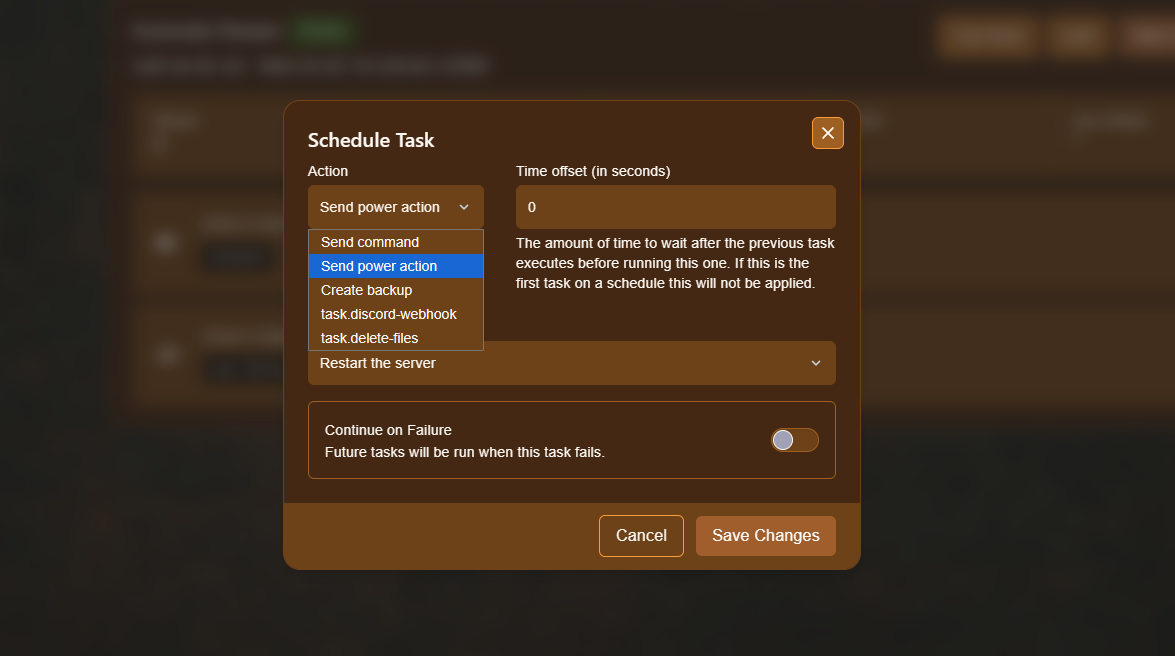
Section titled “Alerting Your Users of the Restart”Once your Schedule is created, click New Task . On the drop down select
Send Command
As the payload, you will have to send the console command for your game on the server. Here is a list with some examples.
| Game | Command | Example |
|---|---|---|
| Palworld | broadcast |
broadcast Server_Restarting_in_X_minutes |
| Minecraft | say |
say Server Restarting in X minutes! |
| Project Zomboid | servermsg |
servermsg "Server Restarting in X Minutes!" |
| Terraria | say |
say Server Restarting in X minutes! |
Creating the Restart Task
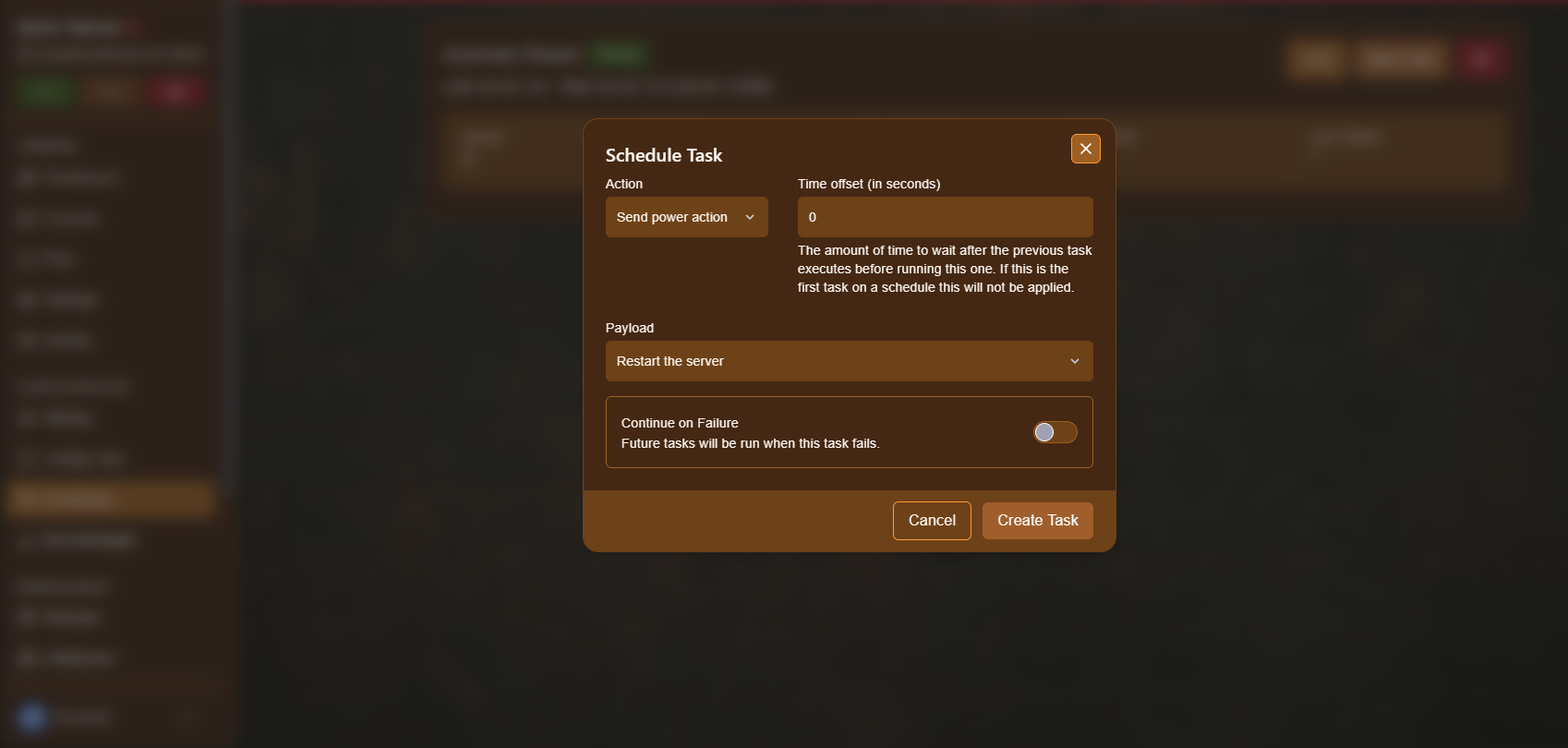
Section titled “Creating the Restart Task”Once you have alerted your users that you will be restarting soon, you can add the Restart action to your schedule. Click New Task and select Send Power Action -> Restart from the dropdown
Now click Create Task . Your server will now automatically reboot on the schedule you set. You can check when your server will restart at the top of the page.
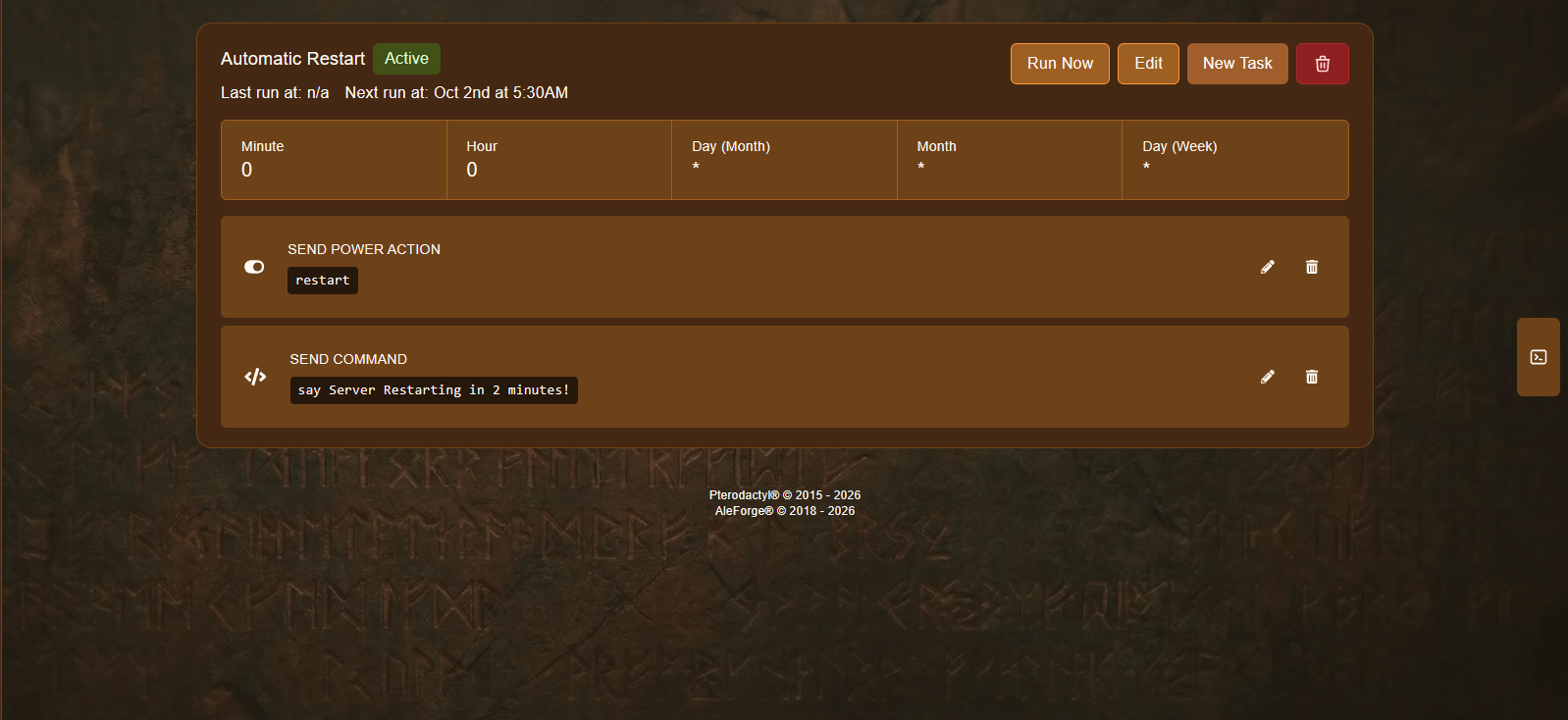
You will want to set the Time offset in seconds to the amount of minutes the message warns of. e.g. if the server is restarting in 5 minutes, set it to 300